Review with Tradrr AI
Review + Tradrr AI is where you go through your closed trades one by one. You tag each decision, write a short journal entry and ask Tradrr AI about the trades in front of you.
Open the review workspace
There are two ways in.
- In the top bar, click + and choose Review + Tradrr AI.
- In Trade Overview, click a day in the calendar. The review opens on that day.
The review fills the window under the top bar. Click Back to chart at the top to go back to your layout.
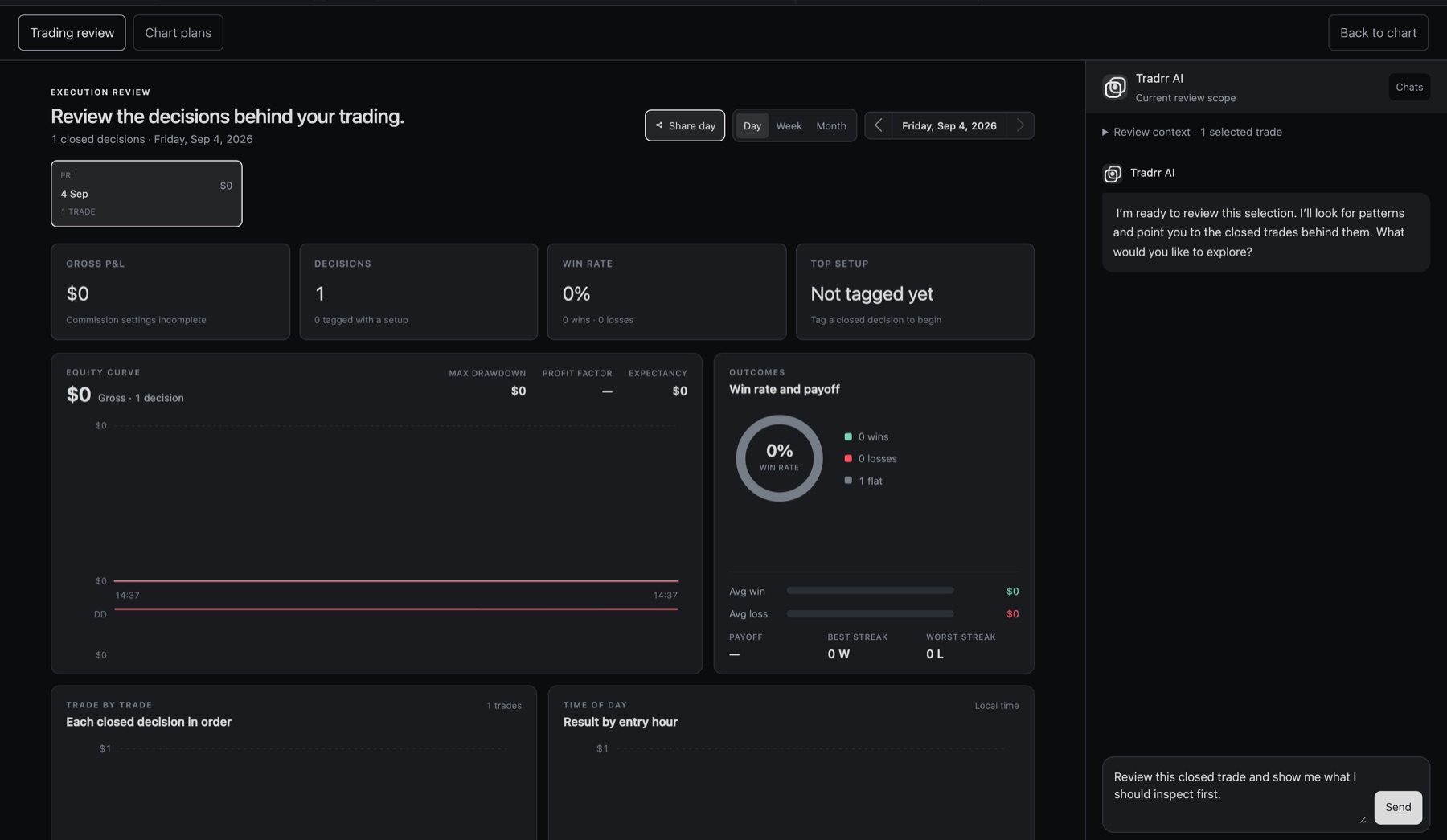
Trading review and Chart plans
Two tabs sit at the top left. Trading review is the page described below. Chart plans lists the chart analyses you saved from Tradrr AI on a chart. Pick one to see the original plan, its levels and the events seen while the chart was open, then add your own notes. Plans are saved on this device and aren't linked to your executed trades.
Choose what to review
At the top right, pick Day, Week or Month, then use the arrows to move to the previous or next period. In Day view, a strip of trading days shows each day's trade count and result. Click a day to switch to it. Share day makes a PNG of the day's performance, setup coverage and the journal sections you choose. Use Copy Image or Download PNG. Account names and numbers are never included.
The summary cards show the result (net or gross, with a note when commission settings are incomplete), the number of decisions and how many have a setup, the win rate, and your top setup once you've tagged some.
Tag your closed decisions
The review is only as good as your tags. Each decision can carry three kinds.
| Tag | Choices |
|---|---|
| Setup | Pullback, Breakout, Reversal, Trend continuation, Range, Absorption, Liquidity sweep, Stacked imbalance, Delta divergence, Failed auction, LVN rejection, VWAP reclaim, or a setup you name yourself (up to 48 characters). |
| Session | Asia, London, NY Open, NY Midday, NY Close. Tradrr suggests one based on the entry time. |
| Mistake | Early entry, Late entry, Oversized, Stop moved, Overtraded. You can choose more than one. |
- Scroll to Tag your closed decisions and click a row.
- Click a setup, a session and any mistakes.
- Click Next untagged to move on.
Hotkeys make this faster: 1 to 9 for setups, Q W E R T for sessions, Z X C V B for mistakes, Enter for the next decision and Esc to close. To tag several at once, tick their checkboxes and choose tags in the panel that appears. To narrow the list, use the filters All, Untagged, With mistakes or a setup name.
Tags are saved to your Tradrr account. A status next to the list shows when they've synced.
Write the daily journal
In Day view you get a Daily journal with two questions: What did you execute well? and What will you improve next session?. Each takes up to 2,000 characters. Pick a mental state (Focused, Neutral, Distracted or Emotional) and a session grade from 1 to 5. Tradrr saves as you type.
Ask Tradrr AI
Tradrr AI is in the panel on the right. It works on the decisions in the current period.
- Open Review context to see what's selected. With an AI plan you can also choose Selected decisions, Date range or All saved history, up to 10,000 decisions per response.
- Click Send to start with a review of the selection. Tradrr AI answers and shows the trades behind each point.
- Ask follow-up questions in the Message Tradrr AI box, or click a suggested question. Click a decision in an answer to jump to it in the list.
- Click Chats to reopen an earlier conversation, or New chat to start again.
Tradrr AI only sees trade facts. It never gets your account or login details. It describes your results and doesn't give trade signals. Review days follow the CME trade date, from 17:00 Chicago time to the next close.
Tip. If you change tags, fees or the period, Tradrr AI marks earlier answers as snapshots. Your next question uses the latest saved data.
Access and credits
Tradrr AI is a paid add-on at $19/month with 100 AI credits. A completed review or follow-up uses one credit. Failed requests and trade tagging use none. Credits reset on the first of each month (UTC) and don't roll over. The panel shows how many you have left and when they reset. If you send without the add-on, Tradrr opens the Get Tradrr AI offer. See Tradrr AI credits.
Tradrr AI reviews history that came from Rithmic or a CSV import. On the example history, the panel says Sample review and answers on your device from example trades. No credits are used.
Related articles
Was this article helpful?