Risk Manager overview
Risk Manager checks every order against limits you set per account. If an order breaks a limit, it doesn't go out. If you hit your daily loss or start a lockout, the account is locked. It holds you to the rules you set when you were calm.
Careful. Risk Manager runs in Tradrr, on your device, using live position and P&L data. In a fast market or on a slow connection, a limit can be overshot for a moment. It doesn't replace exchange, clearing or broker risk controls. You still have to watch your own risk.
Open Risk Manager
- In the top bar, click + and choose Risk Manager.
- The first time, read the notice, tick I understand the limitations of Risk Manager and click Continue. Click Not now to close the window.
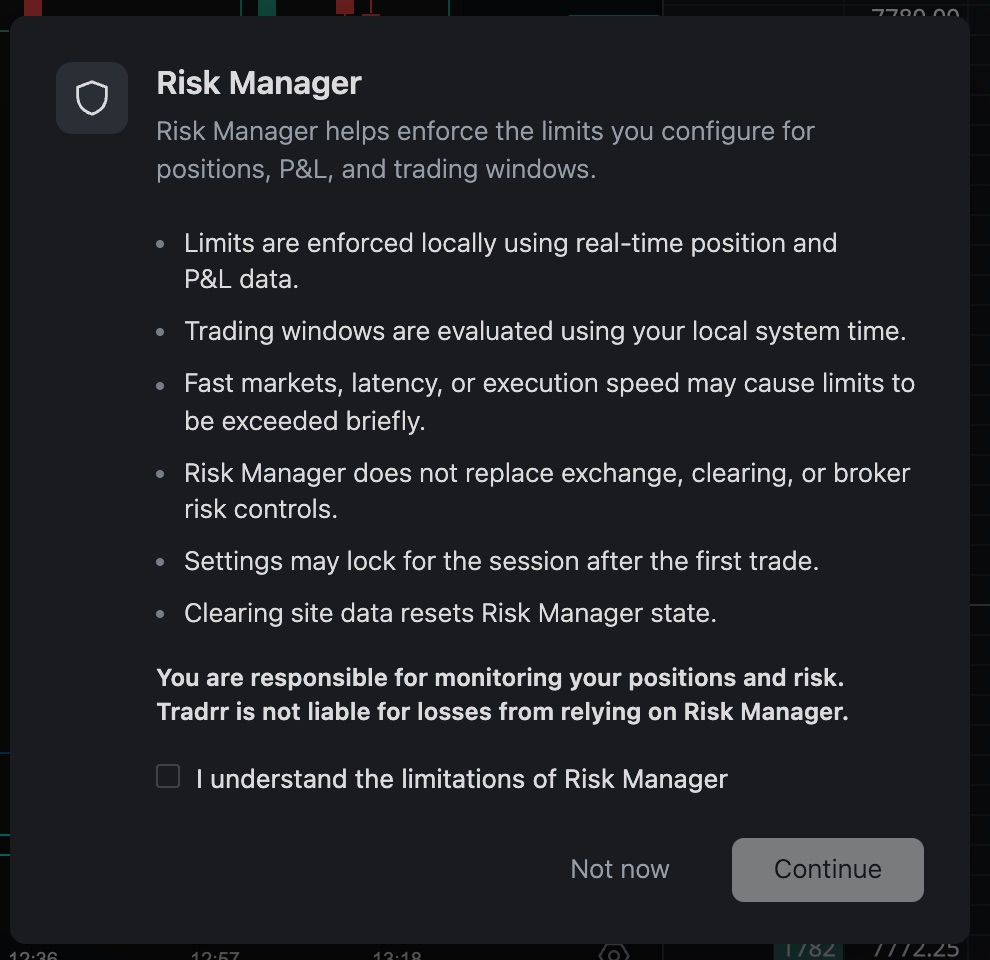
The notice says limits are enforced locally from live position and P&L data, trading windows follow your local system time, and fast markets can overshoot a limit briefly. It also says Risk Manager doesn't replace exchange, clearing or broker risk controls, and that clearing site data resets the Risk Manager state.
You can also click the RISK cell of an account in the Accounts window. Risk Manager opens with that account's details.
The window
Every connected account gets a row. The banner on top reminds you that your settings LOCK after the first trade of the session. More in Risk settings lock.


| Column | What it does |
|---|---|
| Account | The account. Click the header to sort. |
| FCM ID | The futures commission merchant of the account. |
| Enabled | Turns Risk Manager on or off for the account. Nothing is enforced while it's off. |
| Status | The current state. Click the header to sort. |
| Daily loss | Your daily max loss. See Daily loss limits. |
| Max pos, Max order | Size limits in contracts. See Max order and position size. |
| Trade Win, Start, End | The trading window: a checkbox plus start and end times. |
| Lockout | Buttons for 15m, 30m and End Session. See Lockout modes. |
| Details | The ⋯ button opens a panel with the account's numbers and rejected orders. |
Restricted only and Enabled only shorten the list. Refresh reloads your accounts. Drag the edge of a column header to resize the column.
Edit a limit
- Click a cell, like Daily loss.
- Type a number and press Enter. Tab saves and jumps to the next cell. Esc cancels.
- To remove a limit, clear the cell and press Enter.
Status
| Status | Meaning |
|---|---|
| OFF | Risk Manager is off for this account. |
| ON | It's on and nothing restricts the account. |
| NEAR | Your loss is at 80% of the daily max loss or more. |
| BREACH | You hit the daily max loss. The account stays locked until the daily reset. |
| LOCKOUT | A manual lockout is running. |
| WINDOW | The trading window is on and you're outside it right now. |
The same status shows in the RISK column of the Accounts window.
Trading window
Tick Trade Win and set a Start and End time (hours and minutes, AM or PM). Outside the window, the account is restricted the same way as in a lockout. Windows that run past midnight work, like 10:00 PM to 5:00 AM. Start and end can't be the same time. The times follow your computer's clock.
While you're outside your saved window, the window settings are locked. If you change them so the current time falls outside, Tradrr asks Save outside trading window? before the restriction starts.
When an order gets rejected
An order that breaks a rule isn't sent. You get an Order Rejected dialog with the order and the reason, like Max order size, Max position size, Manual lockout, Daily max loss lock or Outside trading window. The dialog can link straight to Risk Manager so you can check your limits.
Open Details on an account to see Realized P/L, Unrealized P/L, the Breach buffer and the Rejected orders from this session.
What it checks
- Every order Tradrr sends for the account: new orders, brackets, OCO orders, order changes and orders copied by Trade Copier.
- Risk Manager never blocks a cancel, or closing a position with Liquidate.
- Your settings are saved to your account and follow you between devices. When you start Tradrr, orders that add exposure are held for a few seconds while the limits load.
Related articles
Was this article helpful?