Support tickets and live sessions
You can reach Tradrr Support from inside the app. Send a ticket if you can wait for a written reply. Start a live session if you want to talk it through while support looks at the same screen.
The Help & Support menu
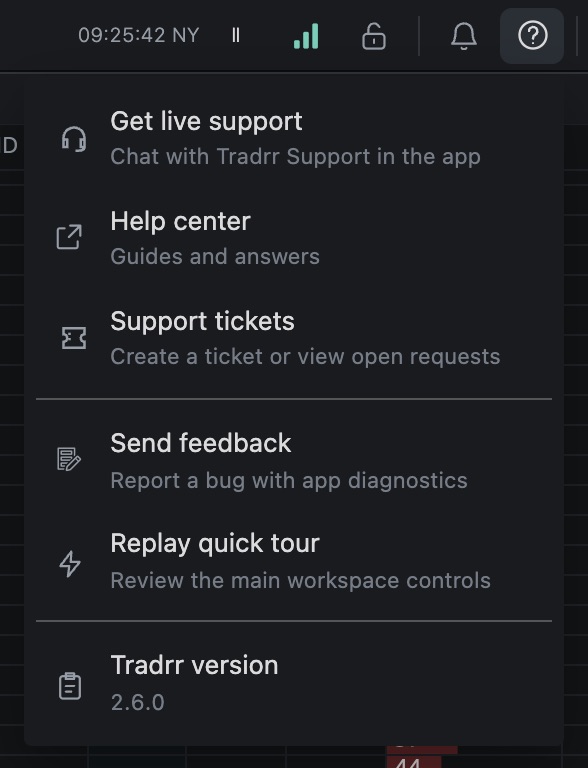
Click Help & Support in the top bar. The menu has these items.
| Item | What it does |
|---|---|
| Get live support | Chat with Tradrr Support in the app. While a session runs, the item reads Live support session and opens the support chat. It only shows where live support is available. |
| Help center | Opens the guides at support.tradrr.com in a new tab. |
| Support tickets | Create a ticket or view open requests. It shows how many new replies are waiting for you. |
| Send feedback | Report a bug with app diagnostics. |
| Replay quick tour | Review the main workspace controls. See Take the quick tour. |
| Tradrr version | Shows your version. Click it to copy the number. |
You can also open Support tickets from the Account panel. A badge there shows how many replies are new.
Send a ticket
- Open Support tickets from the Help & Support menu. The Support panel opens.
- Click New ticket.
- Write a Subject, up to 120 characters. For example: Orders rejected on MES.
- In What's going on?, write what you did, what you expected and what happened instead. You have up to 5,000 characters.
- Click Attach screenshots or files to add images, PDFs or logs. Each file can be up to 5 MB.
- Leave Include diagnostics on if you want support to see your app version, connection status and recent errors. Diagnostics never include passwords.
- Click Send ticket.
Support replies in the same list. A dot marks a ticket with a new reply.
| Status | Meaning |
|---|---|
| With support | Tradrr Support has your message and will reply. |
| Your reply needed | Support is waiting on you. Open the ticket and answer. |
| Closed | The ticket is finished. Click Reopen to continue. |
Open a ticket to read the thread, reply with attachments, or click Close ticket. A ticket closes on its own after 7 days without a reply. The list may also offer Older tickets from the previous helpdesk.
Start a live support session
- Click Get live support in the Help & Support menu, or in the Support panel.
- Read the dialog Start a live support session? and click Start session.
- A red bar shows at the top while the session runs. It reads Asking Tradrr Support…, then Tradrr Support has been notified, and finally Support session with and the agent's name.
- Describe what you need in the chat panel and click Send.
Support can also invite you. A dialog then says an agent from Tradrr Support wants to start a session. Click Accept or Decline.
What you agree to
- Support sees diagnostics such as app version, connections and recent errors, but never your passwords.
- Screen sharing and voice stay off until you turn them on.
- Support can't place, change or cancel orders.
Chat, voice and screen
| Control | What it does |
|---|---|
| Turn on mic / Mic on | Turns your microphone on or off for the session. If your browser or system blocks the microphone, allow it in the browser or system settings and try again. |
| Share screen / Stop sharing | Shares your screen with support. While you share, a frame around the app says support can see your screen. |
| Mute support | Silences the agent's voice on your side. |
| Push to talk | Keeps your microphone muted until you hold Hold to talk or press Space. |
| Chat | Shows or hides the chat panel. A number marks unread messages. |
| End session | Ends the session. Ctrl+Shift+E on Windows, or Cmd+Shift+E on Mac, does the same. |
Support can ask to see your screen or to talk. You get a prompt with Share screen or Turn on mic, and Not now. Phone browsers can't share a screen, so the button isn't there. On the Mac desktop app, macOS asks for microphone access the first time you turn on voice.
When a session ends
- You or support end it.
- It ends after 5 minutes without activity.
- It ends at its 60-minute limit.
- It ends if the app stays disconnected for 2 minutes or you sign out.
Past sessions show up in the Support panel as Live support session, with the chat transcript.
If no one is online
The panel says No one from support is online right now. Your request stays open for a while, and anyone who comes online gets an alert. Write down what you need while you wait. If nobody joins in time, your message becomes a ticket and the reply appears under Support tickets. You can also click Leave it as a ticket and close.
Troubleshooting
| Problem | What to do |
|---|---|
| No Get live support item | Live support isn't available in your session. Send a ticket instead. |
| Voice and screen do not connect | The panel says they couldn't connect on this network. Chat still works. Try another network. |
| You want to report a bug | Use Send feedback, or send a ticket with diagnostics on. |
Related articles
Was this article helpful?