Take the quick tour
The quick tour points at the main controls: where to connect, how to open windows, how to change the instrument and how to keep your workspace tidy. It takes a few minutes and you can skip out at any point.
How the tour starts
On a new account, the tour is offered after you pick a starter workspace and Connections has opened. A card called Want a quick tour? asks first.
- Click Start tour to begin.
- Click Not now to dismiss it. Tradrr won't offer it again on its own.
Replay the tour
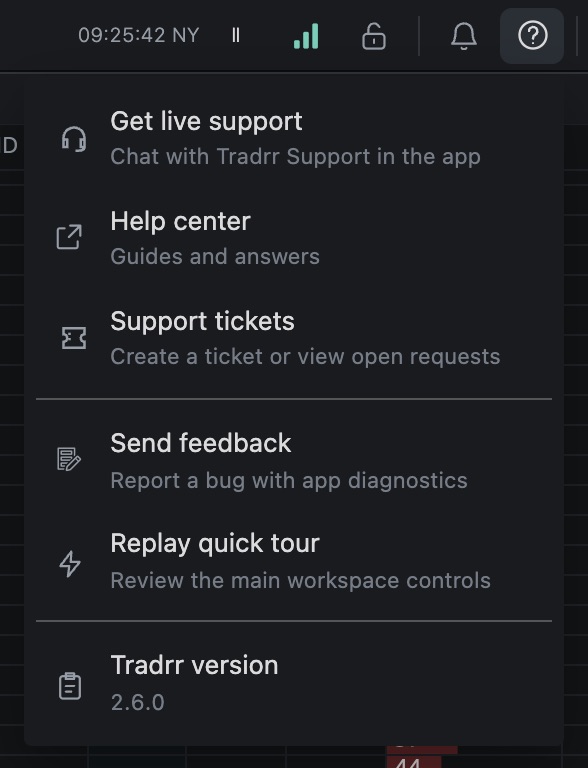
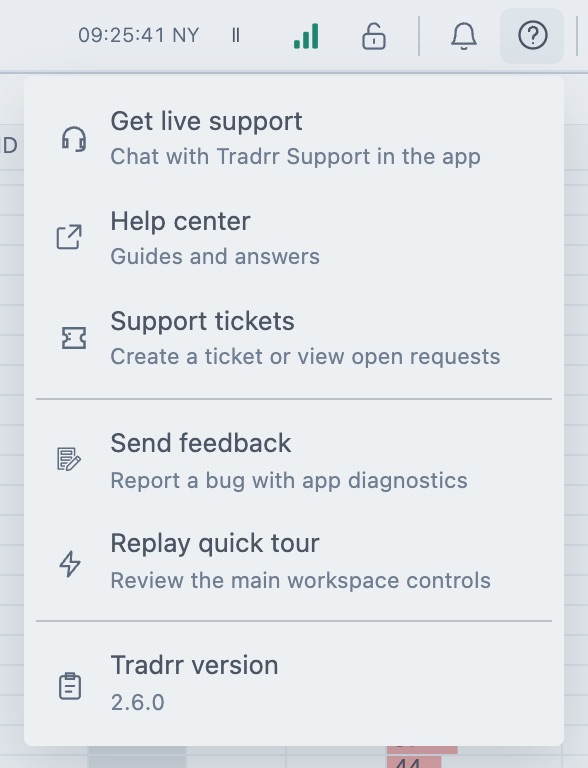
- In the top bar, click Help & Support.
- Choose Replay quick tour. Its description reads Review the main workspace controls.
Move through the tour
Each step highlights one control and explains it on a small card.
| Button | What it does |
|---|---|
| Show me around | Starts the first step. After that the button reads Next. |
| Back | Goes back one step. |
| Skip tour | Ends the tour. You can replay it later. |
| Let's go | Shows on the last card and closes the tour. |
On some steps you can also click the highlighted control to move on.
What the tour shows
The card labels the steps 1 OF 10 to 10 OF 10. A short first card and a last card sit around them.
| Step | What you learn |
|---|---|
| Connect your workspace | Connections is your first stop. Add a broker connection when you're ready. |
| 1. Add a connection | Add Connection opens the broker form. You can connect now or leave it for later. |
| 2. Your tools menu is open | The Add Widget menu is where you add Chart, DOM, Accounts and the other windows. The tour opens it for you. |
| 3. Open Accounts | Choose Accounts to see balances, positions and account details. |
| 4. Open a chart | Choose Chart. It opens as a window you can move, resize and save in your workspace. |
| 5. Docked and floating windows | Docked windows fit together. Floating windows move and resize freely. The tour previews both for a few seconds, then goes back to docked. See Docked and floating layouts. |
| 6. Change the instrument | The instrument selector in the chart header switches the market. |
| 7. Right-click for fast actions | Right-click a chart for Buy and Sell actions, Indicators, templates and Settings. Trading actions work with a live, simulated or replay connection. |
| 8. Make the workspace yours | The Workspace menu holds saved layouts and the actions that keep windows organised. |
| 9. Bring everything back into view | Fit active layout to window is the quick reset when a layout has drifted off screen. |
| 10. Keep an eye on trading state | The lock controls trading. The signal icon next to it shows connection health and opens Connections. |
| You're ready to explore | The last card. Click Let's go to close the tour. |
Tip. Replay the tour as often as you like. It opens menus for you and closes them when you move on.
Related articles
Was this article helpful?