Connect Rithmic
Connections is where you log in to your market data and trading accounts. Most traders add a Rithmic login from a prop firm or broker, connect it, and trade from the chart and DOM.
Before you start
- A Rithmic User ID and password from your prop firm or broker.
- The Rithmic system your login belongs to. If you don't know it, see Choose your Rithmic system.
Open Connections
Click the signal icon in the top bar. Its tooltip reads Connections. The icon is green when your connections are healthy, amber when something is degraded and red when something is unhealthy.
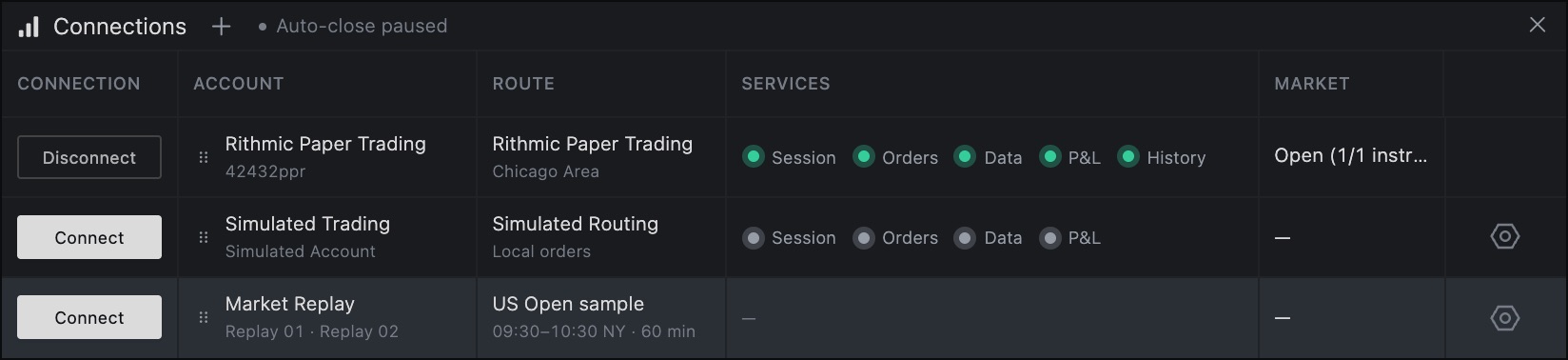
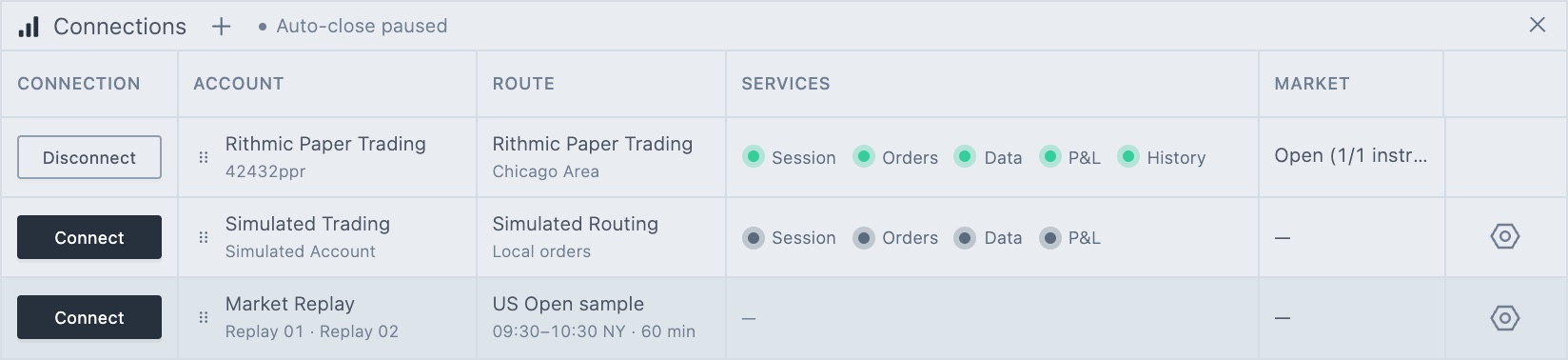
- 1Add connection
The + button. Opens Connect an account. - 2Connect or Disconnect
Starts or stops this connection. - 3Account
The connection name, with your User ID underneath. - 4Route
The Rithmic system and the gateway. - 5Services
Session, Orders, Data, P&L and History. Green means healthy. Hover one to read its status. - 6Market
Whether the markets of this connection are open. - •Settings
The gear edits a connection. Disconnect it first; a connected row hides its gear.
Add a connection
- In the Connections header, click + (Add connection). Connect an account opens.
- Search for your firm, or narrow the list with All, Prop firms, Brokers and Rithmic.
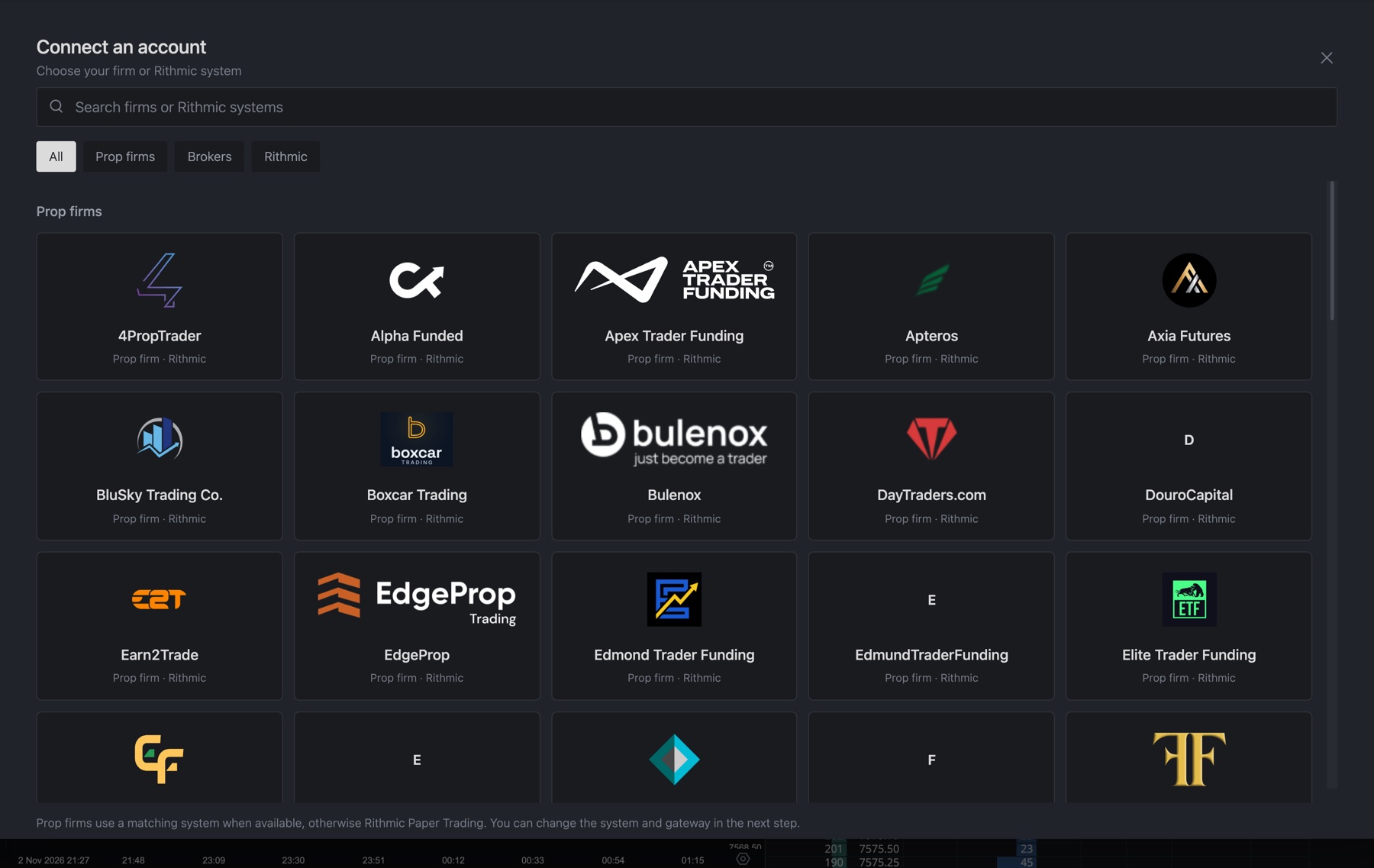
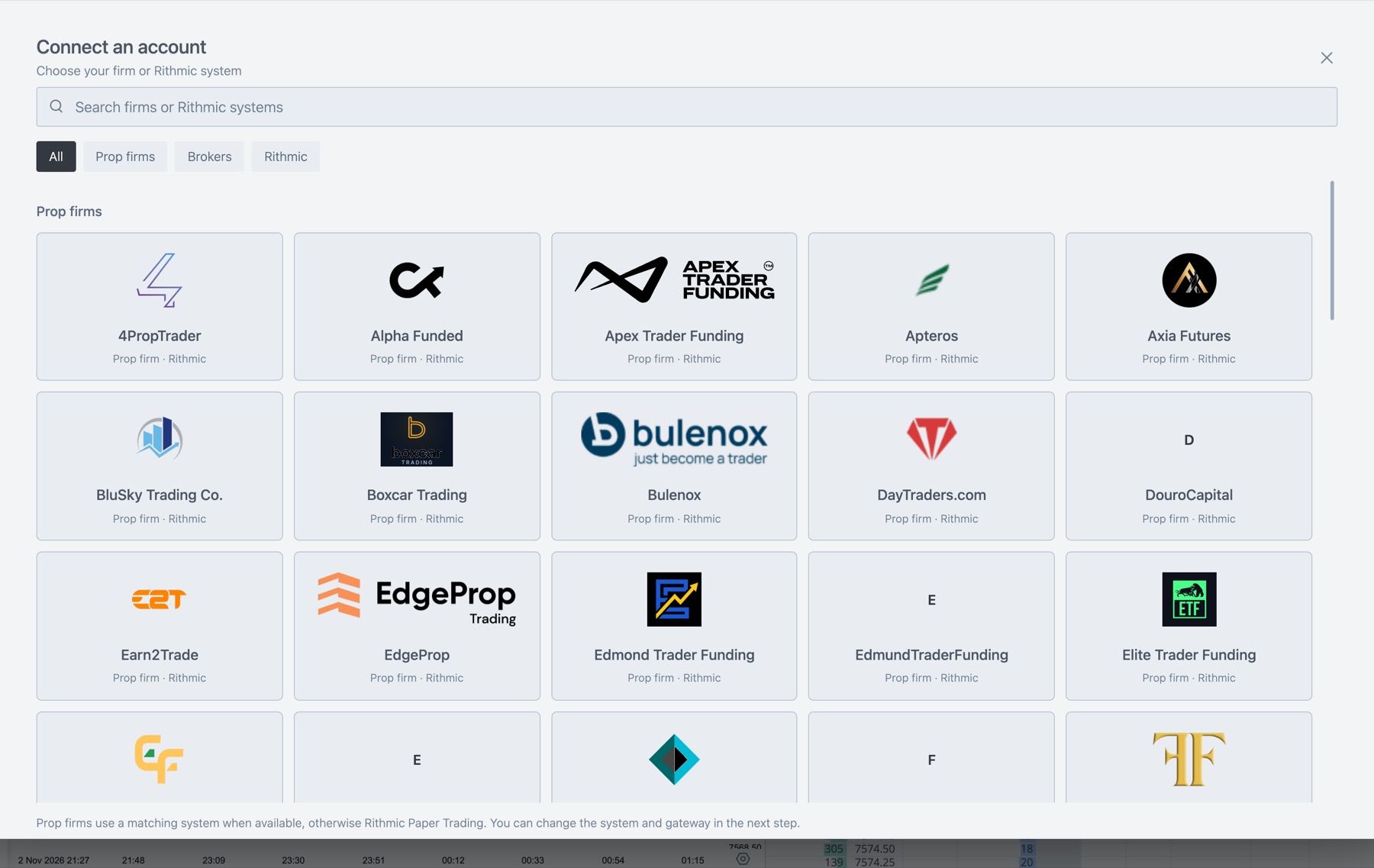
- 1Search
Type part of your firm or Rithmic system name. - 2Filters
Show all, only prop firms, only brokers or only Rithmic systems. - 3Firm cards
Click yours. Each card says whether it is a prop firm or a broker, and that it runs on Rithmic.
- Click your firm. If it isn't listed, pick Rithmic and click Other Rithmic system. A prop firm uses its own Rithmic system when Tradrr knows it, otherwise Rithmic Paper Trading. You can change both in the form.
- Check the Connection name. Tradrr fills in the firm name and adds a number if you already have a connection with that name.
- Enter your User ID and Password.
- Check the System and Gateway. Only change them if your firm gave you different values.
- Tick Connect on start up if Tradrr should connect this account every time it opens. See Connect on start up.
- Click Add Connection, then click Connect in the new row.
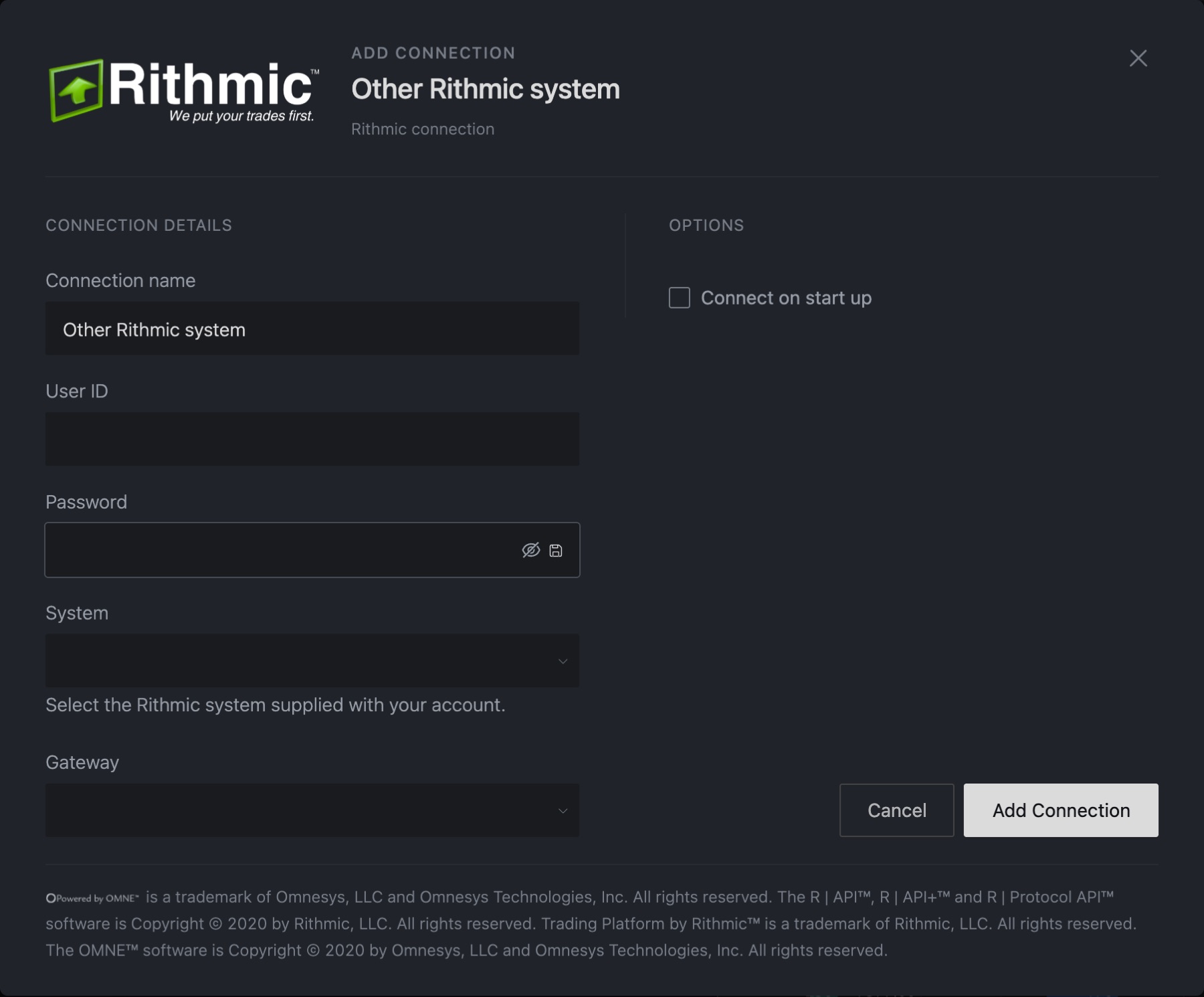
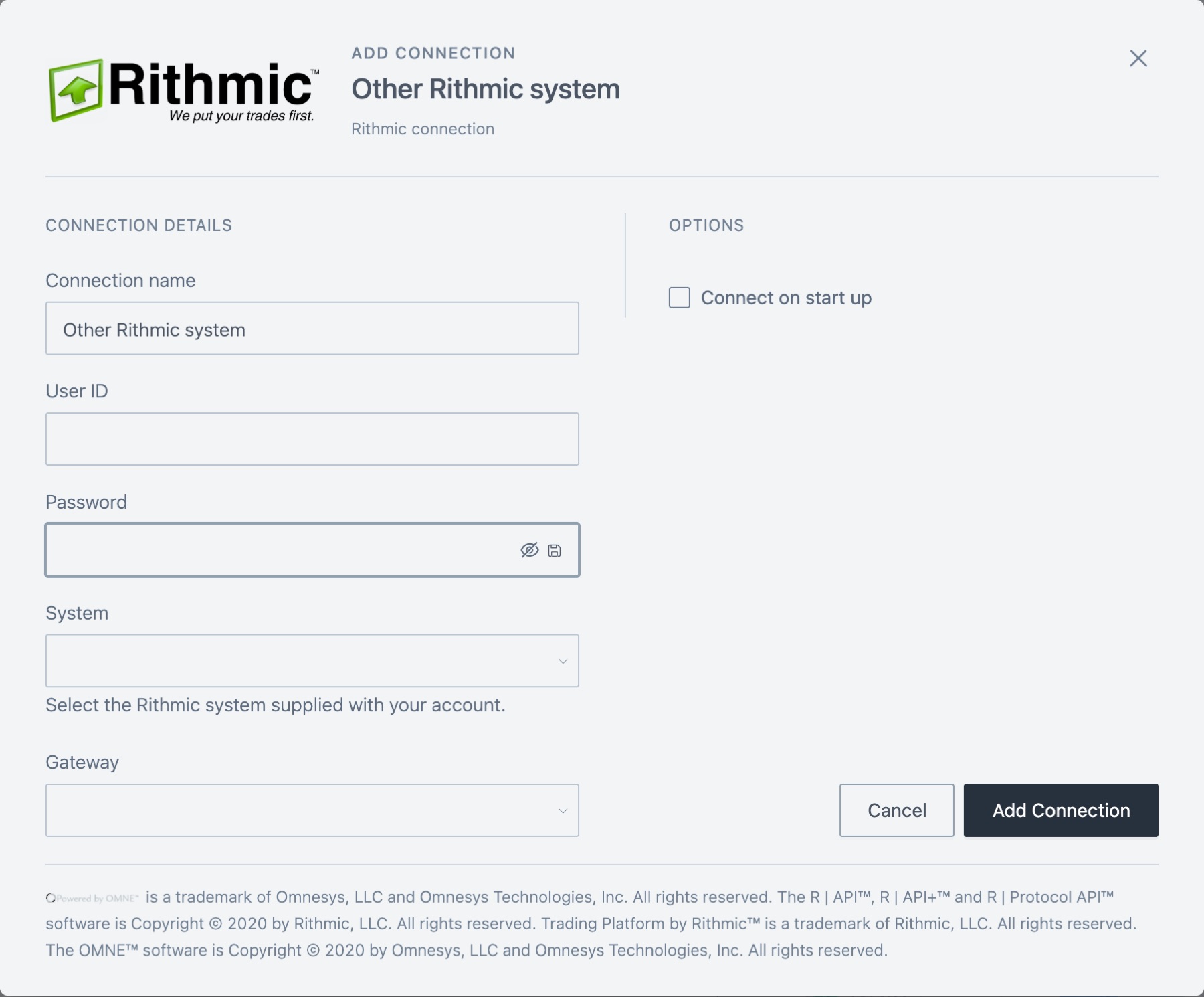
In the password field, the eye icon shows or hides what you typed. The save icon turns password saving on or off. With saving off, Tradrr asks for the password each time you click Connect, and the button in the form reads Save & connect.
First time with this login? Rithmic may reject it until you sign the agreements for your system. Tradrr then shows a Sign agreements button. See Sign the Rithmic agreements.
What you see when it worked
- The Connect button becomes Disconnect.
- In the Services column, the indicators for Session, Orders, Data, P&L and History turn healthy. Hover an indicator to read its status.
- The Market column shows whether markets are open, for example
Open (3/4 instruments). - When every connection is healthy, the window shows Closes in 5s and closes itself. Hover the window or use the keyboard in it to pause the countdown.
Columns
| Column | What it shows |
|---|---|
| Connection | Connect or Disconnect for the row. |
| Account | The connection name, with your User ID underneath. |
| Route | The Rithmic system and the gateway. |
| Services | Status of Session, Orders, Data, P&L and History. |
| Market | Whether the connection's markets are open. |
Drag the column borders to resize them.
Manage connections
- Edit. Disconnect the row, then click its gear icon (Configure connection).
- Rename or delete. Right-click the row and choose Rename or Delete. Deleting asks you to confirm.
- Reorder. Drag a row by its name.
- Limit. Once you have 30 Rithmic connections, the + button turns off with the tooltip You can't add more connections.


Market Replay, Server SIM and Firm SIM rows are built in. You can't rename or delete them.
Related articles
Was this article helpful?