Docked and floating layouts
A window uses one of two layouts. Docked tiles your charts and DOMs into panes that always fit the screen. Floating lets you drag and resize each widget wherever you want.
Switch layout
- In the top bar, click the layout button at the right end of the workspace controls. Its tooltip reads Layout: Docked or Layout: Floating.
- Choose Docked or Floating at the top of the menu.
The layout belongs to the current window, not the whole workspace. In the Workspaces menu, the icon next to each workspace shows the layout of its current window.
Floating layout
In Floating, the menu shows the note Move and resize windows freely. Drag a widget by its header to move it, and drag its edges to resize it. Click Fit windows to screen in the menu to bring every widget back inside the visible area.
Docked layout
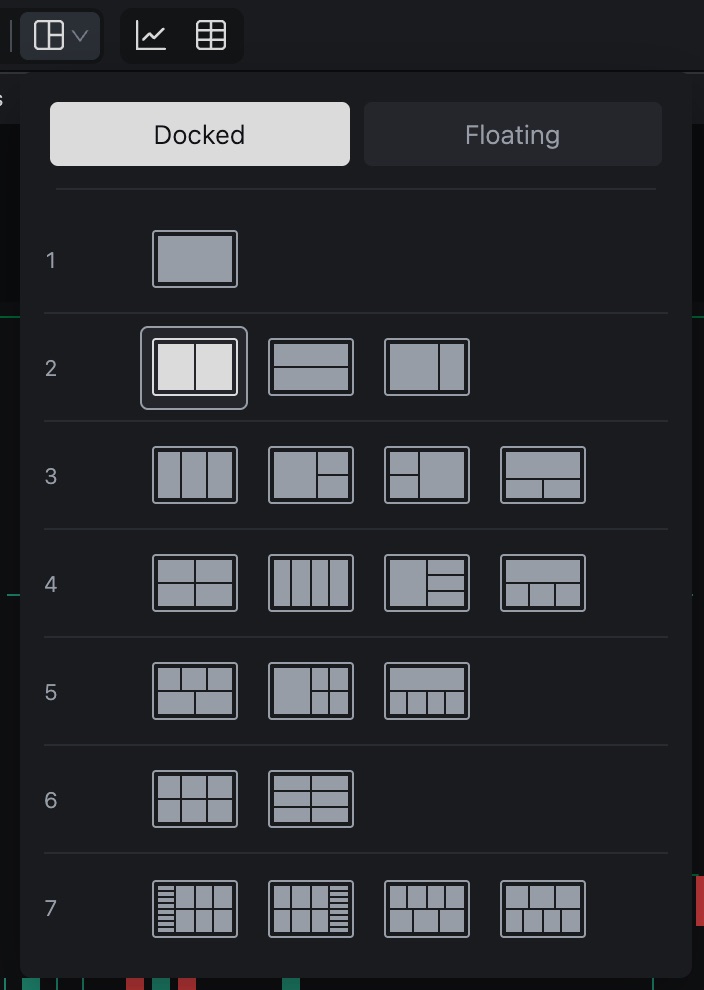
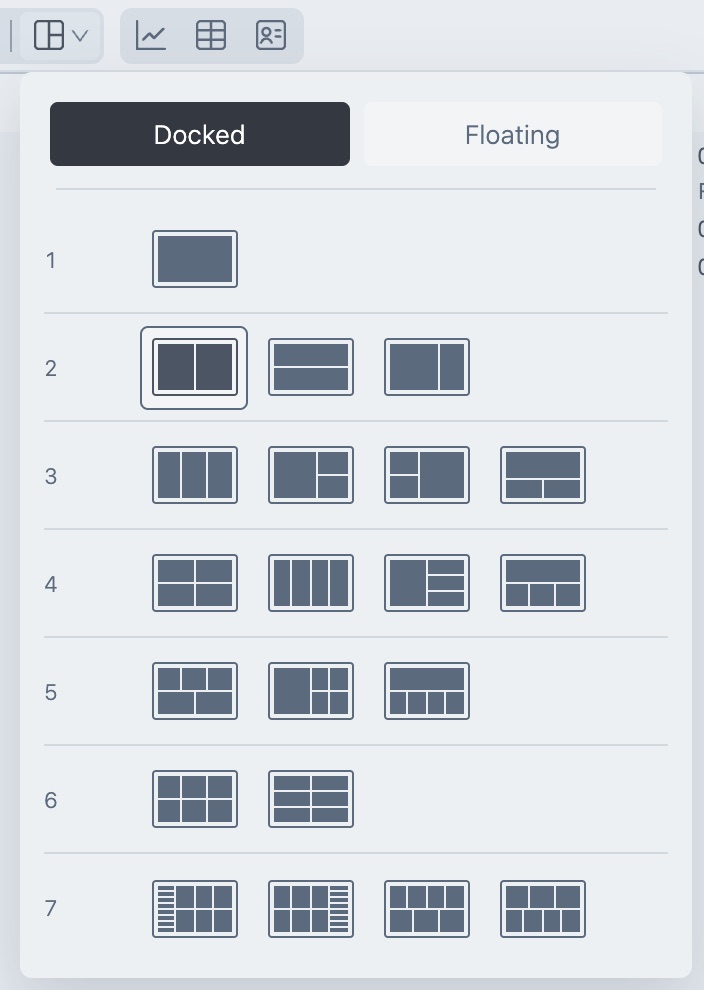
In Docked, the menu shows a row of arrangements for each pane count from 1 to 7. Point at one to see its name, and click it to apply it.
| Panes | Arrangements |
|---|---|
| 1 | Full width |
| 2 | Side by side, Stacked, Wide left |
| 3 | Equal columns, Focus left, Focus right, Focus top |
| 4 | Two by two, Four columns, Focus left, Focus top |
| 5 | Three above two, Focus left, Focus top |
| 6 | Three by two, Two by three |
| 7 | Long DOM left with six charts, Long DOM right with six charts, Four above three, Three above four |
A pane is a Chart, a LiquidityMap or a DOM. If you pick an arrangement with more panes than you have, Tradrr adds new charts (3-minute bars) to fill it, and adds a DOM for the two arrangements that include one. If you pick one with fewer panes, the tooltip says will close followed by the number of windows. Tradrr then asks Switch to that many panes? and lists how many panes it will close. Click Close panes and apply to go ahead.
Where other windows go
Docked layouts keep the rest of your windows out of the way of the charts.
| Area | Windows placed there |
|---|---|
| Center | Chart, LiquidityMap |
| DOM column | DOM |
| Side tabs | Order Ticket, Time and Sales, Watchlist |
| Bottom tabs | Positions, Orders, Accounts, Trade Overview, Trade Copier, Risk Manager, Economic Calendar, Session Manager |
Tabbed areas show one window at a time. Click a tab to bring it up, or drag a tab to reorder them. Use the Collapse panel and Expand panel button to fold an area away. The bottom area also has Maximize panel and Restore panel. When there are more tabs than fit, the More panels button (three dots) lists the rest.
Resize and rearrange panes
- Resize. Drag the divider between two panes. Hold Shift while you drag a chart divider to resize matching panes together.
- Swap. Drag a pane by its header onto another pane. The target shows Release to swap.
- Re-dock. Drag a pane toward the edge of another pane. The preview shows Release to dock and the side. Drag a DOM to the far right edge of the screen and the preview shows Release to dock on right, which puts it back in the DOM column.
- Cancel. Press Esc while you drag.
Tip. A DOM in a Docked layout gets a link button in its header. Turn it on and the DOM follows the chart you click. See Follow active chart.
Related articles
Was this article helpful?