Add and manage windows
Two menus build your screen. The + button adds a widget, like a Chart or a DOM. The window selector next to the Workspaces menu manages the named screens that hold those widgets.
Add a widget
- In the top bar, click + (the title tooltip reads Add Widget).
- Click the widget you want.
- For widgets tied to a symbol, search for the instrument in the picker that opens, then confirm.
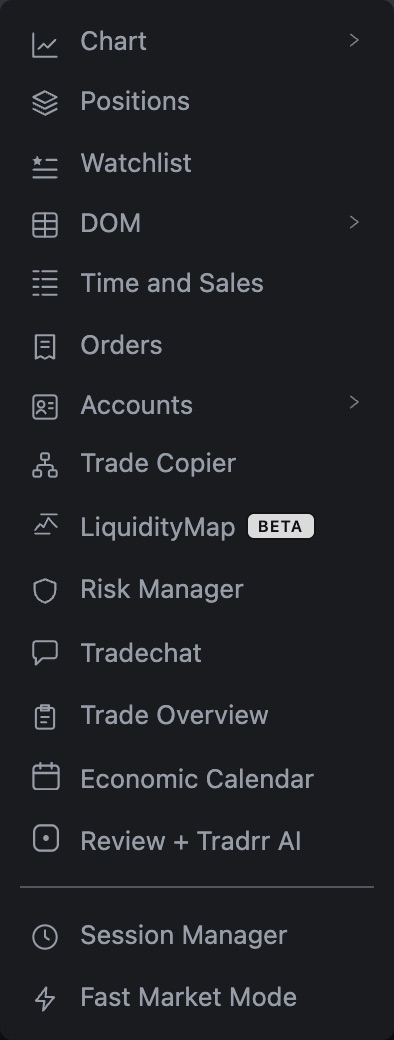
| Menu item | What you get |
|---|---|
| Chart | A price chart. See Chart window overview. |
| DOM | The price ladder. See DOM window overview. |
| Time and Sales | A tape of trades. See Time and Sales. |
| Positions, Orders, Accounts | Your open positions, working orders and accounts. See Positions, Orders and Accounts. |
| Watchlist | A list of instruments. See Watchlist. |
| LiquidityMap | Resting orders and trades over time. In beta. See LiquidityMap. |
| Order Ticket | A stand-alone order form. In beta. See Order Ticket. |
| Trade Copier | Copies orders between accounts. In beta. See Trade Copier. |
| Risk Manager | See Risk Manager overview. |
| Tradechat | A chat window. It loads an outside chat site inside the window. |
| Trade Overview | Monthly results, calendar and analytics. See Trade Overview. |
| Review + Tradrr AI | Opens the review workspace. See Review with Tradrr AI. |
| Economic Calendar | See Economic Calendar. |
| Session Manager | Edits trading sessions. See Session Manager. |
| Fast Market Mode | A switch, not a window. See Fast Market Mode. |
Accounts, Trade Copier, Risk Manager, Trade Overview and Economic Calendar open once per window. Choose one again while it's open and it closes. Review + Tradrr AI opens the review workspace over your layout.
On a Docked window, widgets like Positions, Orders, Accounts and Session Manager open as tabs in a panel instead of floating. The panel has Maximize panel and Collapse panel buttons at its top right, and the close button next to them. See Docked and floating layouts.
Widget templates
For Chart, DOM, Time and Sales, Positions, Orders, Accounts, Watchlist and Trade Copier, point at the menu item to open a submenu. It lists your saved templates, then an entry to start a fresh one (for example New Chart) and Reset Default Template. Click a template to open the widget with those settings. Use the edit button on a template row to rename it, or the close button to delete it. Deleting asks you to confirm.
Window buttons
The right end of every title bar has the window buttons. What you get depends on the layout.
| Button | What it does |
|---|---|
| Pin (Always on top) | Keeps this window above the others. The pin lights up and the tooltip reads Always on top (click to disable). It's saved with the workspace. |
| Minimize | Hides the window. Bring it back from the open windows icons in the top bar: click the icon, or click it and pick the window when you have more than one of that kind. |
| Maximize | Fills the screen with this window. Click again to restore its size. |
| Close (×) | Closes the window. On a settings window, × keeps your changes. Press Esc instead to throw them away. |
Pin, minimize and maximize are only on floating windows. A docked window has the close button, and its panel has its own buttons (see above). Windows you pop out to their own browser window only show close.
Many windows also have their own buttons and menus in the title bar. They're covered on each window's page: Chart, DOM, LiquidityMap, Orders, Trade Copier and Connections.
Manage windows
A window is a named screen inside the current workspace. The selector sits between the Workspaces menu and the Layout button. A new workspace starts with one window named Main.
Add a window
- Click the window selector and choose Add Window.
- Under Start with, choose Blank window or copy an existing window.
- Enter a name next to Name new window and click Save.
On the web, Tradrr switches to the new window. In the desktop app, the window is added to the selector and you choose it to open it.
Switch windows
Click a name in the selector. On the web this swaps the screen in place. In the desktop app, choosing a window opens it in a separate app window. If that window is already open, Tradrr brings it to the front.
Window actions
Hover a window in the selector to see its buttons.
| Button | What it does |
|---|---|
| Open in new window | Moves a window that isn't the current one into its own browser window or app window. Allow pop-ups for the site if your browser blocks it. |
| Pause when inactive / Keep live after it is opened | Chooses whether an inactive window keeps its charts and feeds running. |
| Rename window | Changes the name. Names must be unique inside the workspace. |
| Delete window | Removes the window after you confirm. You can't undo it. |
| Duplicate | Copies the window and adds (copy) to the name. |
| Open on startup (star) | Makes this the window that opens first. See Open windows on startup. |
Status under each name
| Status | Meaning |
|---|---|
| Active | The window you're looking at. |
| Live in background | Not visible, but its charts and feeds keep running. |
| Paused when inactive | Its widgets are released until you open it. |
| Loads when opened | Not loaded yet. It loads the first time you open it. |
| Detached live | Open in its own browser or app window. |
At the top of the selector, Tradrr shows how many background windows are live, or No inactive windows using resources. Click Pause all to pause every inactive window at once.
Tip. If your computer slows down with a lot of charts open, pause the windows you're not using. Paused windows load again when you open them.
Related articles
Was this article helpful?