Follow active chart
With Follow active chart on, a DOM switches to the instrument of whichever chart you click. You trade one ladder against several charts and never have to search for a symbol.
Before you start
- The window uses the Docked layout. The follow button only shows on a docked DOM.
- The window has at least one Chart or LiquidityMap, and a DOM.
Turn it on
- Open the Layout menu in the top bar and choose Docked.
- In the DOM header, click the link button next to the instrument name. Its tooltip reads Follow active chart.
- Click a chart. The DOM changes to that chart's instrument.
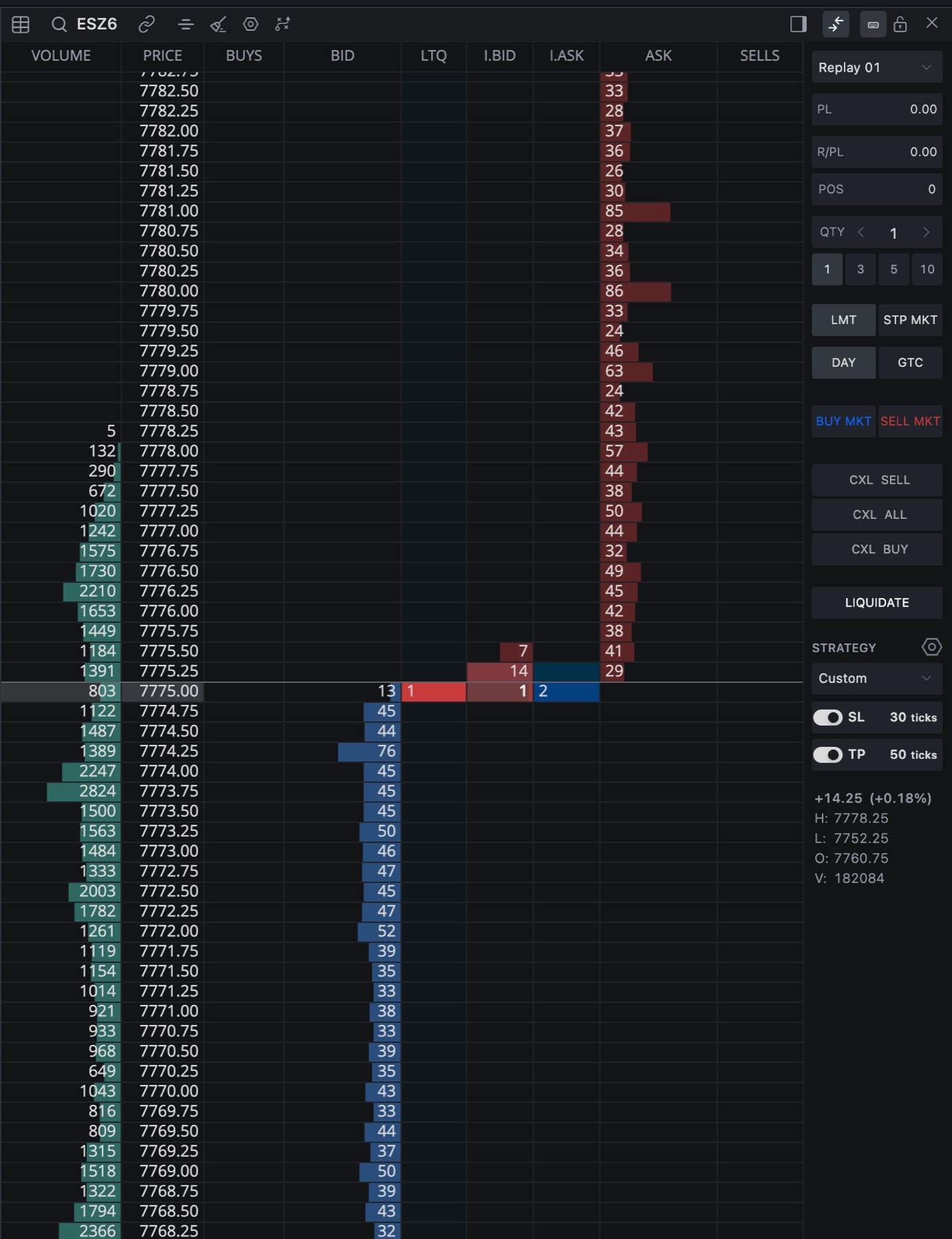
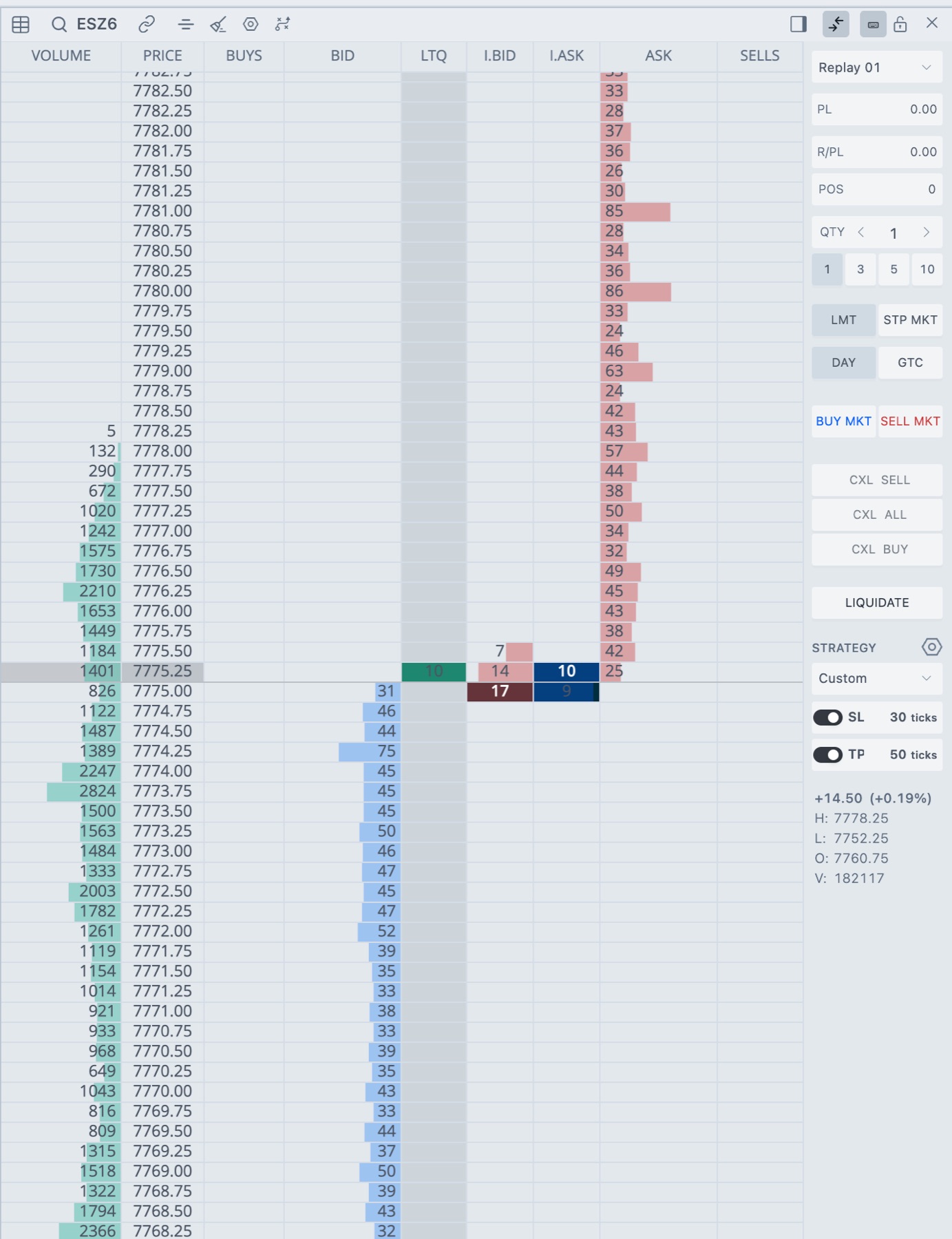
- 1Instrument
The DOM shows the symbol of the active chart while following. - 2Follow active chart
Click to start or stop following.
When the button is on, its tooltip reads Following active chart. Click to stop.
What counts as the active chart
The active chart is the last Chart or LiquidityMap you clicked in the window. The DOM updates in two cases.
- You click a different chart.
- You change the instrument on the active chart.
With two or more DOMs, each one follows on its own. Turn the button on only for the DOMs that should follow.
Turn it off
Click the link button again. The DOM stays on the instrument it has now and stops changing when you click other charts. Tradrr saves this setting with the DOM in your workspace, so it's still on or off after you reload.
Tip. The starter workspaces set up their DOM to follow the active chart. See Pick a starter workspace.
Careful. The DOM changes instrument the moment you click another chart. After you switch charts, check the symbol in the DOM header and the account in the trade panel before you send an order.
Troubleshooting
| Problem | What to do |
|---|---|
| There is no follow button on the DOM. | The DOM is floating. Switch the window to Docked in the Layout menu. |
| The DOM does not change when I click a chart. | Check that the follow button is on. Click inside the chart you want, not on the DOM. |
| The message The DOM could not prepare this instrument. Select the chart again to retry. appears. | Click the chart again. If it keeps happening, check your market data connection in Fix connection problems. |
Related articles
Was this article helpful?