Workspaces overview
A workspace is a saved arrangement of your charts, DOMs and other windows. Keep one for trading and another for review, and switch between them in one click.
How workspaces are organised
Tradrr has three levels. It helps to keep them apart.
| Level | What it is | Where you manage it |
|---|---|---|
| Workspace | A named set of windows, for example Default or NQ scalping. | The Workspaces menu in the top bar. |
| Window | A named screen inside a workspace, for example Main. A workspace can hold several. | The window selector next to the Workspaces menu. |
| Widget | A Chart, DOM, Positions, Orders or other panel placed on a window. | The + button (Add Widget menu). |
Each window has its own layout mode, Docked or Floating.


- 1Add Widget
Opens the list of widgets you can place on the current window. - 2Workspaces
Opens the workspace list and its actions. - 3Window selector
Shows the current window, here Main. Click it to add, switch or manage windows. - 4Layout
Switches the current window between Docked and Floating. - 5Settings
Opens the Settings window.
Open the Workspaces menu
- In the top bar, click the Workspaces button (the icon with a small arrow).
- Click a workspace name to switch to it.
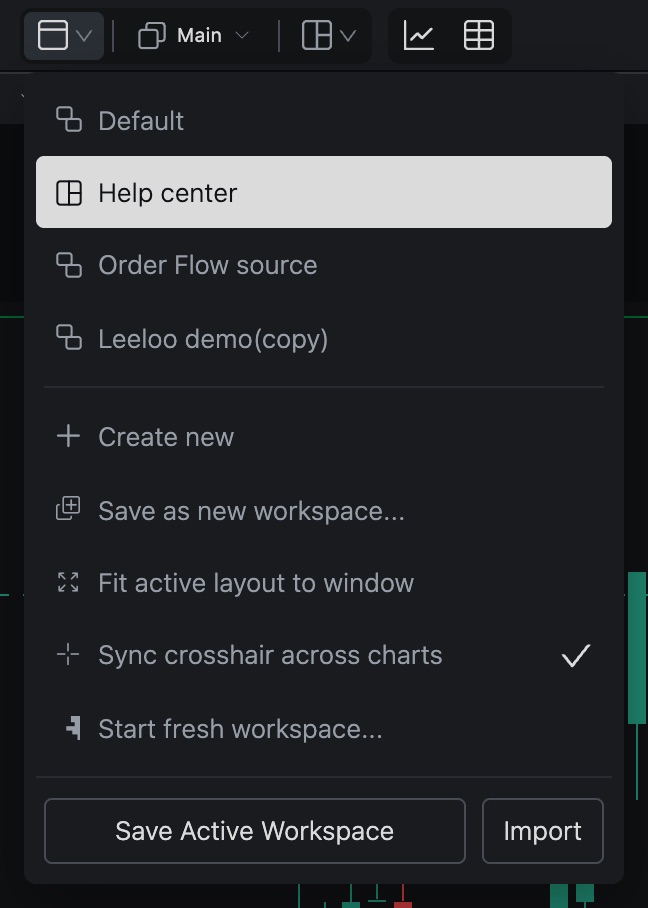
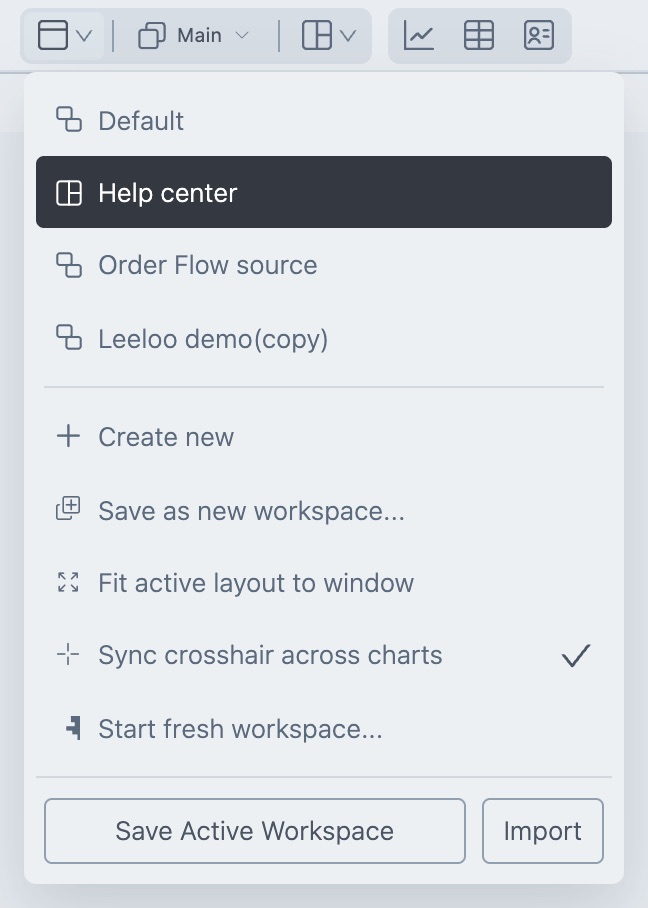
The icon next to each name shows whether that workspace is Docked or Floating. If automatic saving is off, Tradrr asks Save workspace changes? before it switches. Choose Save to keep the current layout, or Don't save to leave it behind.
Row actions
Each workspace in the list has these buttons. Hover a button to see its name.
| Button | What it does |
|---|---|
| Make default workspace (star) | Makes this the workspace that opens when you start Tradrr. See Open windows on startup. |
| Edit | Renames the workspace. Names must be unique. |
| Delete | Removes the workspace after you confirm. You can't undo it. |
| Duplicate | Makes a copy with (copy) added to the end of the name. |
| Share | Creates a link others can import. See Share a workspace. |
Drag a workspace by its handle on the right to change the order of the list.
Menu actions
| Menu item | What it does |
|---|---|
| Create new | Opens the New workspace dialog. Under Start with choose Blank workspace or copy an existing workspace, then enter a name and click Save. |
| Save as new workspace... | Saves what's on screen now as a new workspace and leaves the original alone. |
| Fit active layout to window | Pulls windows that sit outside the visible area back into view. |
| Sync crosshair across charts | Turns time and price sync on or off for this workspace. |
| Start fresh workspace... | Opens the starter picker. See Pick a starter workspace. |
| Save Active Workspace | Saves the layout you're looking at right now. |
| Import | Imports a workspace from a link or code. See Share a workspace. |
Saving
Tradrr saves your layout in three ways.
- Automatically. Under Settings, General, the option Auto save settings every 5 minutes is on by default.
- From the top bar. Click the Save icon, or choose Save Active Workspace in the Workspaces menu.
- With a hotkey. Ctrl+S is the default for Save All Settings. See Hotkeys.
Windows outside the visible area
If a window ends up off screen, for example after you move to a smaller monitor, Tradrr shows a notice with the number of windows that are off screen. Choose Fit into view to bring them back, or Keep layout to leave things as they are and scroll. Tick Don't warn again for this workspace to stop the notice for that workspace. To turn it off for everything, clear Warn when windows are outside the visible area in General settings.
Tip. Right-click an empty part of the top bar to choose Position at top or Position at bottom, or to switch between Auto-hide and Always show.
Related articles
Was this article helpful?