Timeframes and intervals
The interval sets how much time each bar covers. The period to load sets how much history the chart fetches. You set both from the chart header.
Switch the interval
The buttons at the left of the header are your favorite intervals. New charts start with 1m, 3m and 5m. Click one and the chart reloads at that interval.
If you switch to an interval that is not a favorite, its button is added at the end of the row until you switch to a favorite again.
| Button | Interval |
|---|---|
| 30s | 30 seconds |
| 5m | 5 minutes |
| 1h | 1 hour |
| D | 1 day |
| W | 1 week |
| M | 1 month |
| 4RB | 4 reversal (RevBars) |
If you have not chosen any favorites, the row shows 1m, 3m, 5m, 15m, 30m, 1h, 2h, 4h, D and W.
Open More intervals
- Click the arrow next to the interval buttons (More intervals).
- Pick an interval in the left column, Interval.
- Optionally pick a history length in the right column, Period to load.
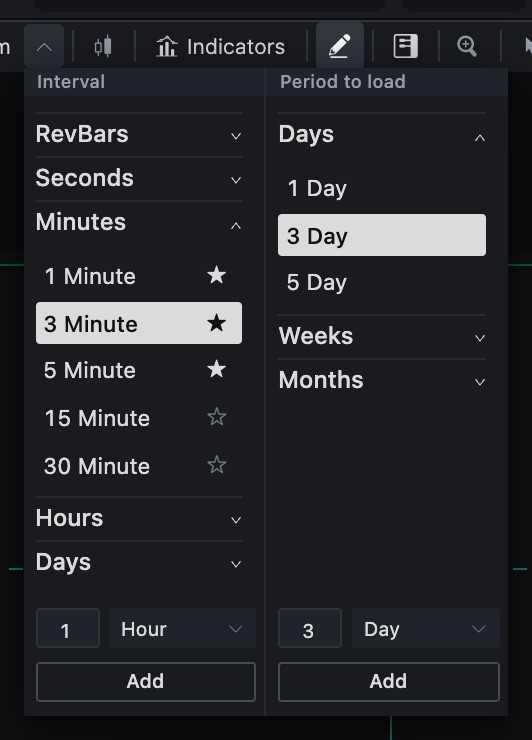
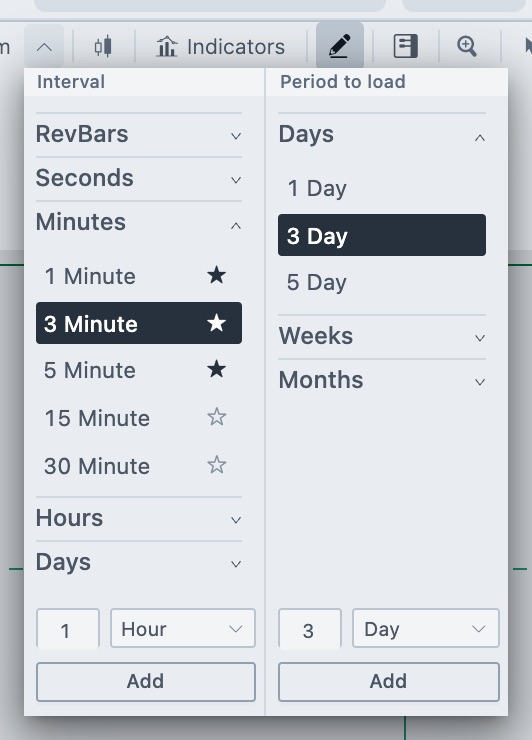
Choosing an interval or a period closes the menu.
Interval column
Intervals are grouped. Click a group name to open it.
| Group | Intervals in the list |
|---|---|
| RevBars | 4, 8, 12 and 16 |
| Seconds | 30 and 40 |
| Minutes | 1, 3, 5, 15 and 30 |
| Hours | 1, 2, 3 and 4 |
| Days | 1 day, 1 week and 1 month |
Each row has a star. A filled star means the interval is a favorite. Click it to add or remove the favorite (Add to favorites or Remove from favorites). Hover a row to show the delete icon, which removes the interval from the list.
Add your own interval
- At the bottom of the Interval column, type a number.
- Choose a unit: second, minute, hour, day or reversal.
- Click Add.
The interval joins its group in the list. It does not switch the chart, so click it in the list when you want to use it.
Period to load
The period decides how far back the chart loads. Longer periods give you more history but take longer to load.
| Group | Periods in the list |
|---|---|
| Days | 1, 3 and 5 |
| Weeks | 1, 2 and 3 |
| Months | 1, 3 and 6 |
A period that is shorter than the current interval is greyed out. Add your own period with the number box, a unit of day, week or month, and Add, the same way as for intervals.
Tip. Your list of intervals, your favorites and the period are saved with the chart. Each chart in a workspace keeps its own.
Narrow chart windows
In a narrow window only the active interval button stays visible. Click the arrow next to it to reach the full list.
Related articles
Was this article helpful?