Trading from the chart
You can trade straight from a chart. The trade panel holds your account, quantity, order type and bracket. Place orders with the market buttons, with a click in the Buy or Sell column, or from the crosshair.
Careful. Every order you place from the chart uses the trade panel's live values at the moment you click: account, quantity, order type, time in force, stop loss and take profit. This is true for the market buttons, the Buy and Sell columns and the crosshair menu. A hover preview or a menu label shows what will be sent, so check the panel before you click. Try it first on a practice or Market Replay account.
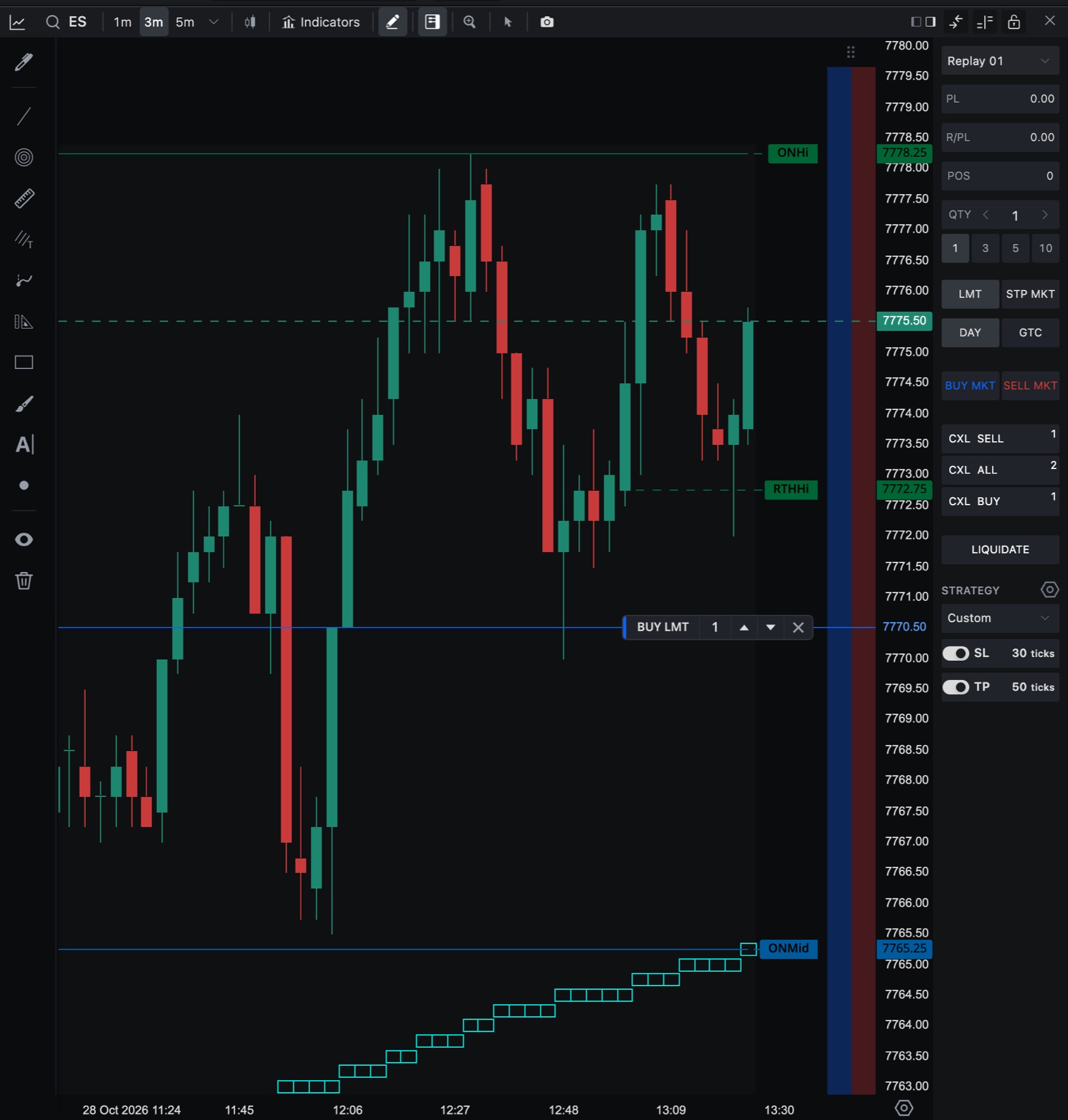
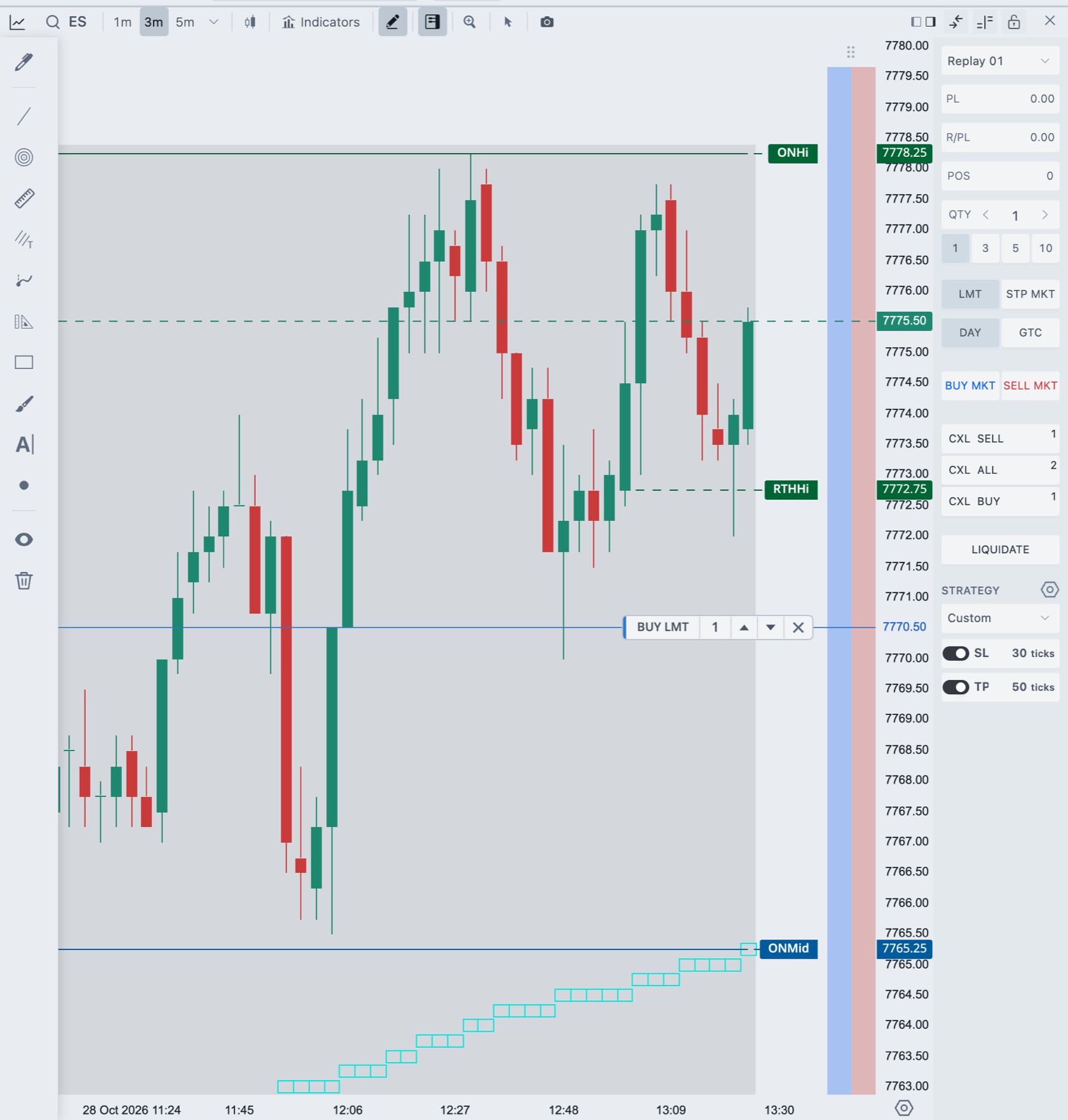
Turn chart trading on
- Click Trading on in the chart header. You can also right-click the chart and choose Trading Controls.
- Choose an account in the trade panel on the right of the chart.
Chart trading is off until you turn it on. The first time, the trade panel opens and the Buy and Sell columns appear beside the price scale. The right end of the chart title bar then gets its trading buttons.


- 1Trade panel left or right
The two panel icons dock the trade panel on that side of the chart. It starts on the right. - 2Order area
Shows or hides the trade panel. Trading stays on. - 3Buy/Sell columns
Shows or hides the Buy and Sell columns next to the price scale. - 4Lock this chart
Stops trading in this chart only. Unlock this chart only turns it back on. See Trading lock.
The trade panel
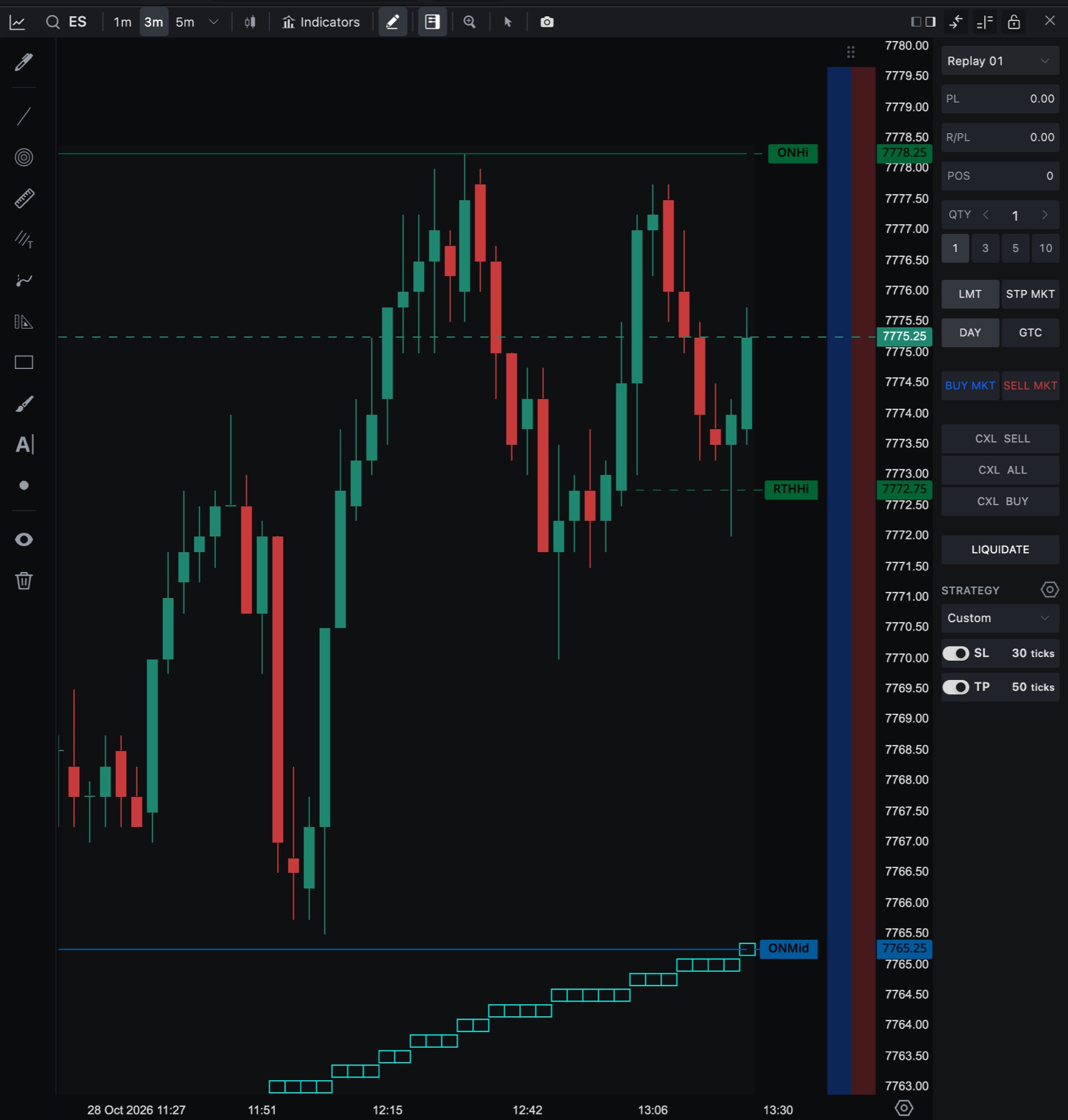
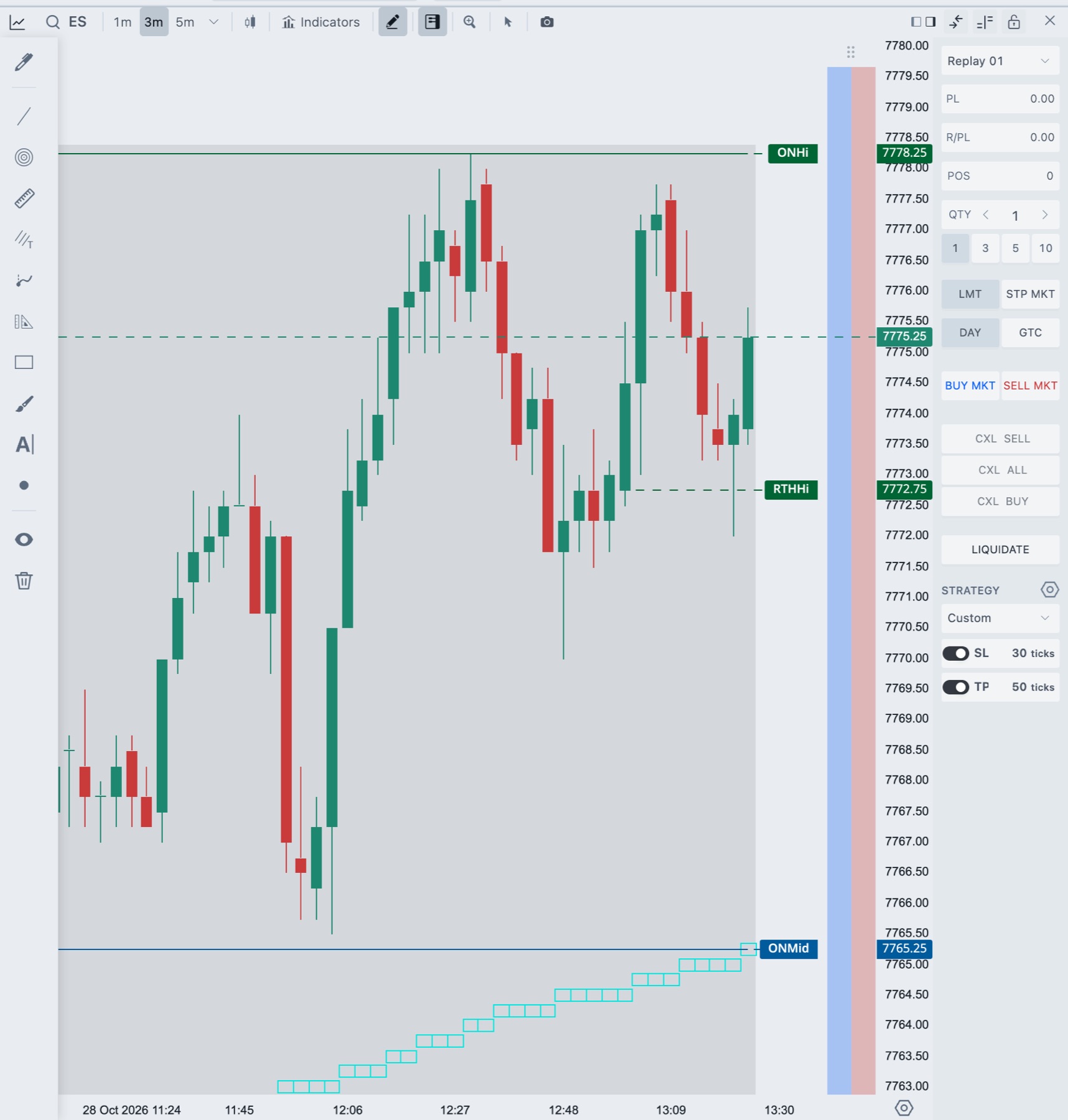
| Control | What it does |
|---|---|
| Account | The account that orders go to. |
| PL, R/PL, POS | Open profit and loss, realized P/L, and your position size. Click POS to copy the size of your position into QTY. |
| QTY | Order quantity. Type a number or use the arrows. The preset buttons (1, 3, 5, 10) set it in one click. Right-click a preset to change its value. |
| LMT, STP MKT | The order type used when you click the Buy or Sell column. |
| DAY, GTC | Time in force. Which ones show is set in Chart settings. See Order types and time in force. |
| BUY MKT, SELL MKT | Send a market order right away. |
| BUY BID, SELL ASK, BUY ASK, SELL BID | Optional buttons that send a limit order at the bid or ask. Turn them on under Order Area in Chart settings. |
| CXL SELL, CXL ALL, CXL BUY | Cancel your working sell orders, all working orders, or your working buy orders on this chart's instrument. A number shows how many. |
| LIQUIDATE | Cancels this instrument's working orders, then closes its position. |
| BE | Break-even. Appears when you have an open position. See below. |
| Strategy | Stop loss, take profit and strategies. See below. |
Place an order
With the market buttons
Click BUY MKT or SELL MKT. The order goes out at once, without a confirmation window.
With the Buy and Sell columns
- Set QTY, the order type and any stop loss or take profit in the trade panel.
- Move the pointer into the Buy column or the Sell column. A preview shows the order at the price under the pointer.
- Click. Hold Shift while you click to send a stop-market order instead.
A click counts only if you do not drag. Press Esc to cancel a press. If Confirm order placement is on in Settings → Trading, a confirmation window opens first. Its title reads, for example, "Confirm buy order". Tick Don't ask again in that window to stop the prompt.
From the crosshair
The + on the crosshair and the right-click menu offer quick limit and stop orders at a price. See Crosshair quick actions.
If your order reduces or closes your current position, Tradrr does not attach a stop loss or take profit to it.
Stop loss, take profit and strategies
In the Strategy box choose Custom or one of your saved strategies. With a single-target strategy or Custom, the box shows SL and TP with an on/off switch and a distance each. Change the distance in ticks, or switch the unit to points when it is available. A switch that is on adds that leg to the next order. The gear opens the strategy manager. See Strategy, brackets, SL and TP.
If an enabled stop loss or take profit has no valid distance, or the quantity shown differs from the quantity the order would use, Tradrr refuses the order and tells you why.
When you hold a position that has no working exits, Add TP/SL to Pos appears under the strategy box. Set both SL and TP first. The button opens a confirmation, Add TP/SL to open position?, before it sends the two exit orders.
Work with orders on the chart
Each working order shows as a line with a chip. The chip has these controls:
- Quantity. Click it to edit the size.
- ▲ ▼. Move the order up or down one tick.
- ✕. Cancel the order. If Confirm order cancellation is on, a window asks first.
- The order type, price or line. Drag it to a new price. Press Esc while dragging to return the order to its price.
Orders at the same price can combine into one chip. Hover it to expand the group. Your position also shows as a chip, and its ✕ liquidates the instrument.
Break-even
BE puts your stop at your entry price. It moves an existing stop or places a new one. Hover the button to see which, and the price it will use. If break-even is not possible, the button is dimmed and the tooltip gives the reason.
Right-click the button to open BE offset, and set 0 to 20 ticks beyond entry with the minus and plus buttons. With an offset the button reads, for example, BE +1. The offset is saved in your trading settings and shared with the DOM and the phone app. See Break-even.
If trading is blocked
When trading is locked, or a risk limit applies, the chart asks you to lift the lock or shows the reason. See Risk Manager overview.
Related articles
Was this article helpful?