Trading hours on the chart
The Trading Hours setting limits a chart to the hours of a session template. Bars that fall outside those hours are not shown. The daily break and the weekend stay off your chart.
Change the session template
- Right-click an empty part of the chart and choose Settings....
- Click Trading Hours.
- Make sure the Session Template switch is on.
- Choose a template in the Session Template list below it.
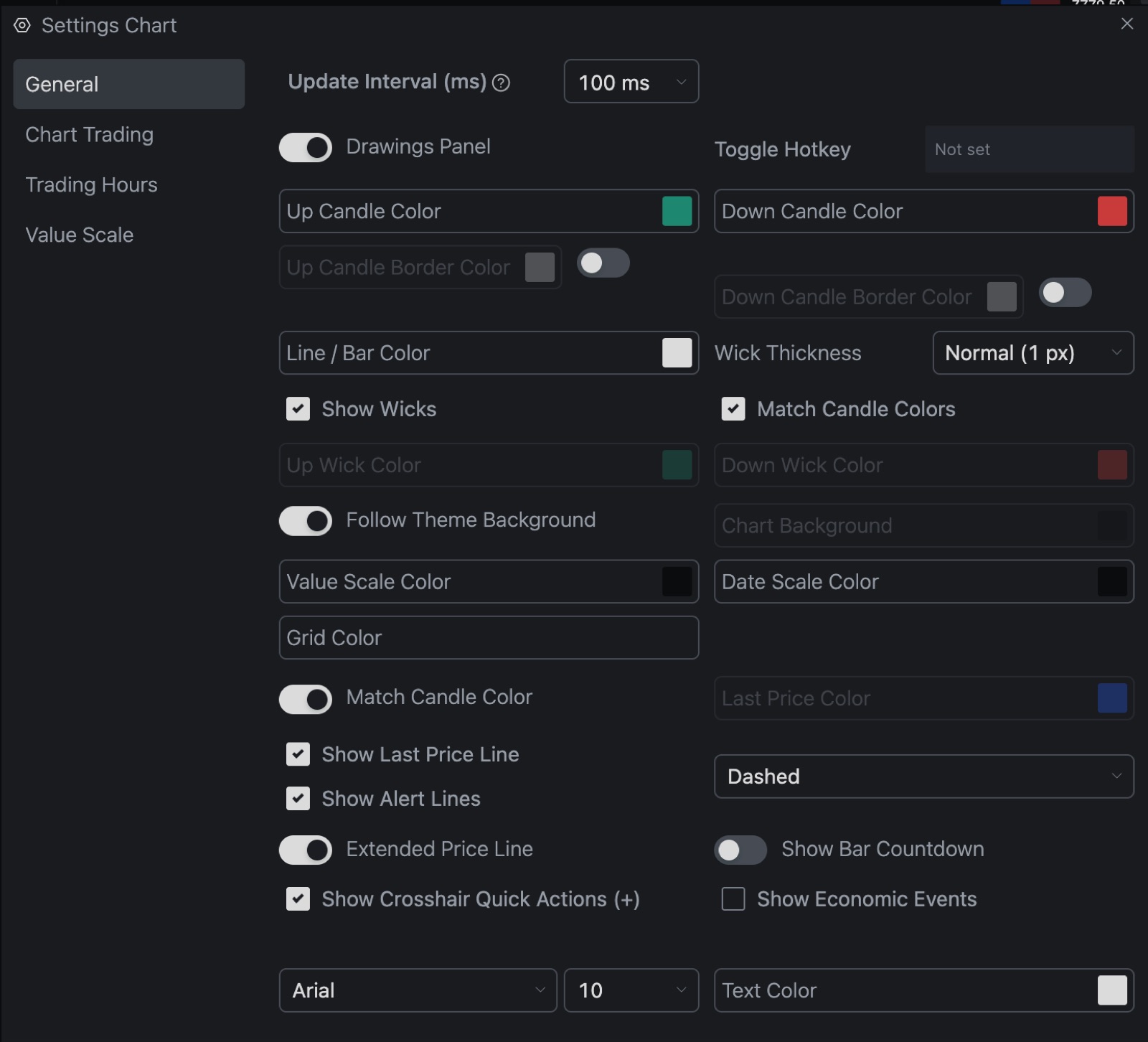
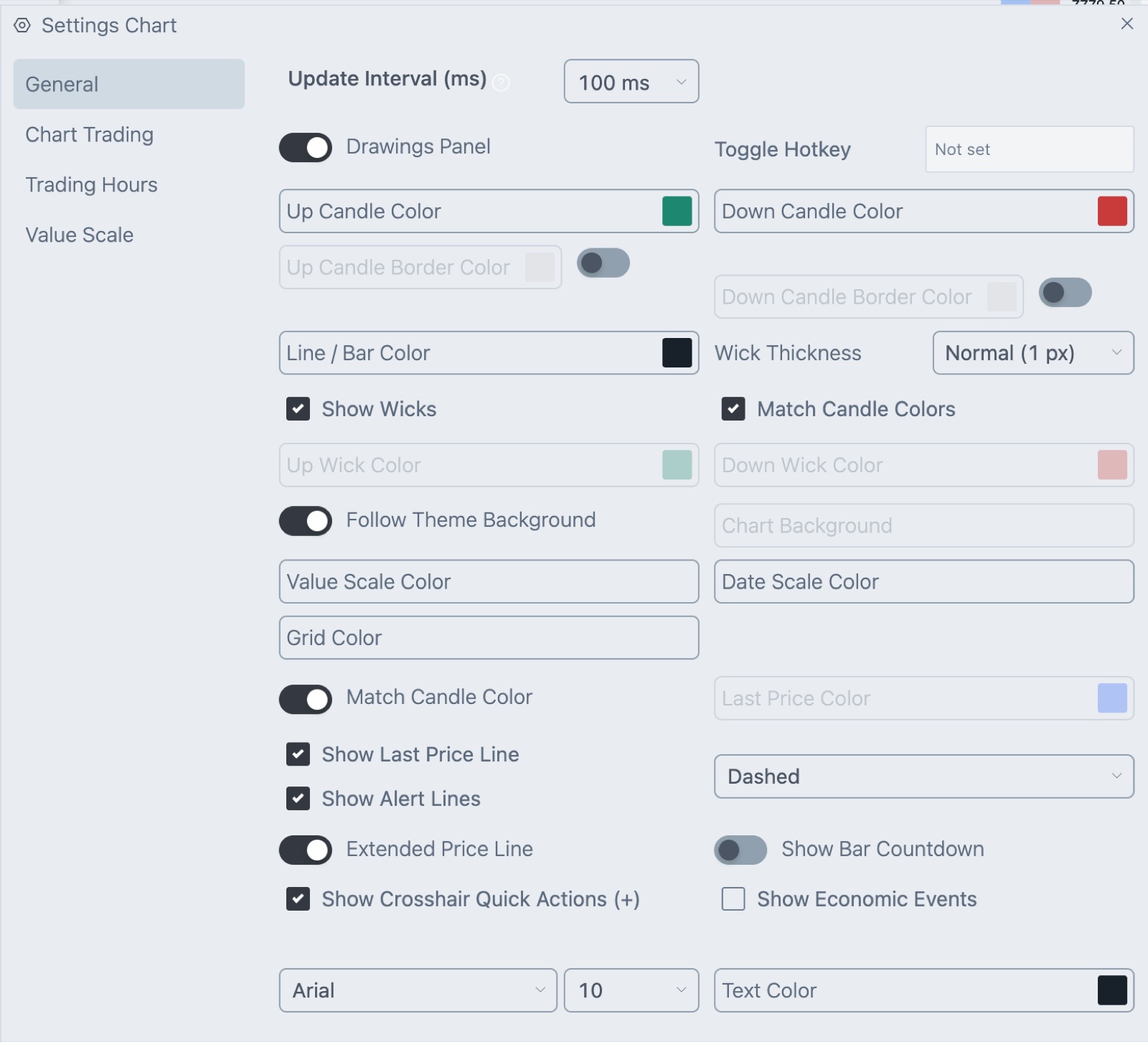
The chart recalculates its bars when the template changes.
What the default shows
New charts start with the template US Extended Trading Hours for the CME exchange, in New York time. In that template each trading day runs from 6:00 PM to 5:00 PM the next day, from Sunday evening to Friday afternoon. The hour from 5:00 PM to 6:00 PM and the weekend are left out.
Show every bar
Turn the Session Template switch off. The chart then shows all the bars it receives, whatever the time of day.
Things to know
- The setting applies to the chart you opened it from.
- If the chart has no bars at a time you expect, check whether that time falls outside the template.
- The setting works on bars that are loaded. See Timeframes and intervals for how much history a chart loads.
Related articles
Was this article helpful?