DOM columns
Each DOM column shows one kind of data for every price on the ladder. You pick which ones are on and in what order, so the ladder shows what you actually read.
Turn columns on and off
- Click Settings in the DOM header.
- Open Columns and choose Common.
- Under Columns View, tick or clear a column.
You can also right-click the column header row, or the DOM title bar, and open Table View. It lists the same columns with a checkbox each. The same menu has Best Fit Columns and Settings…. To reorder, drag a column header to a new spot.
Tip. Bid and ask columns come as pairs. One checkbox switches both sides: Pull/Stack Bid / Ask, Total at Bid / Ask, Bid / Ask Depth and Inside at Bid / Ask.
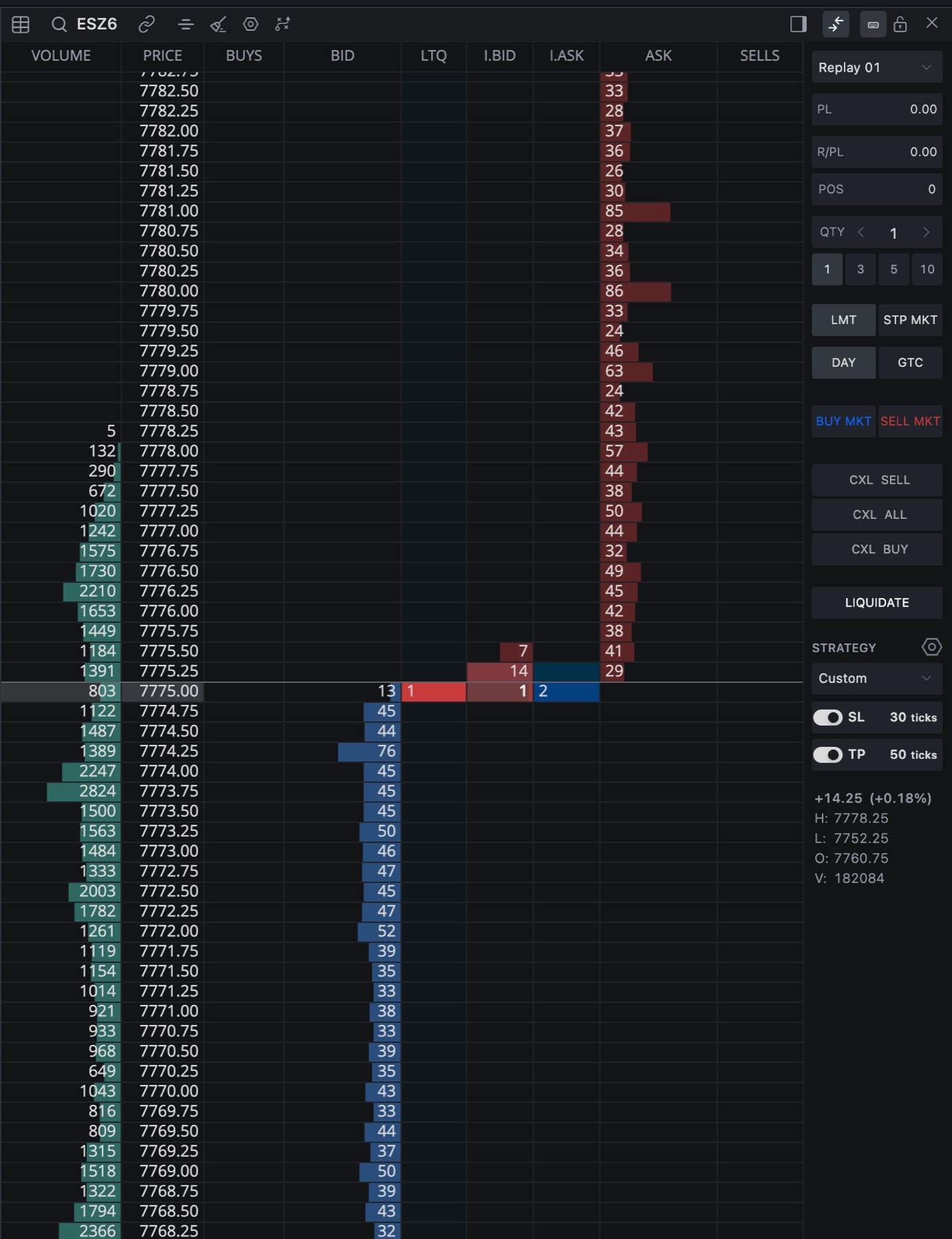
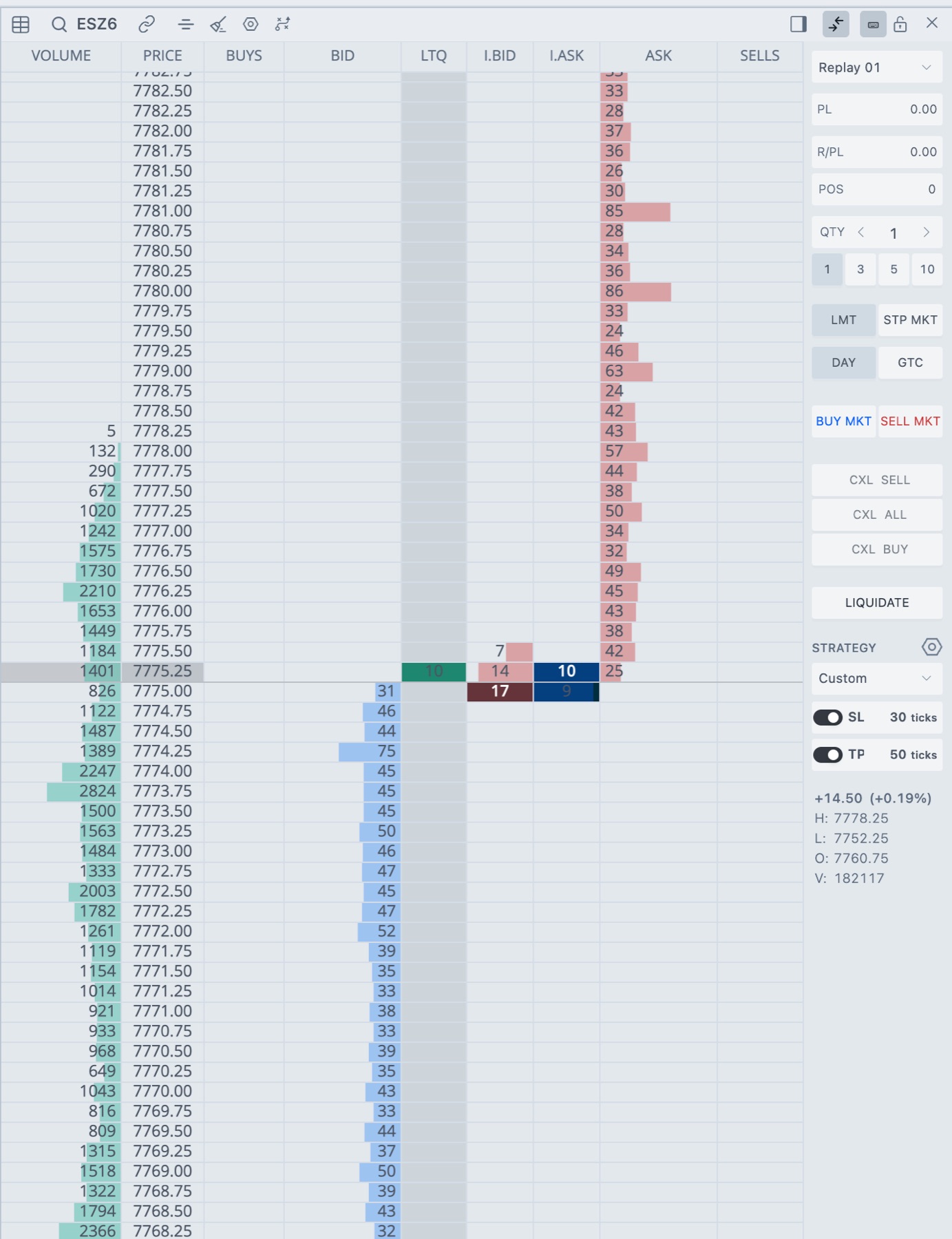
- 1Column header row
Right-click it for the column menu. Drag a header to reorder.
The columns
| Header | Checkbox in Columns View | What it shows |
|---|---|---|
| PRICE | Price | The price of each row. The last traded price is highlighted, and prices that have traded get their own colors. If you're in a position, its entry price is filled blue for long or red for short. |
| VOLUME | Volume Profile | Volume traded at each price, as a horizontal histogram. It can mark the point of control, the value area and VWAP. |
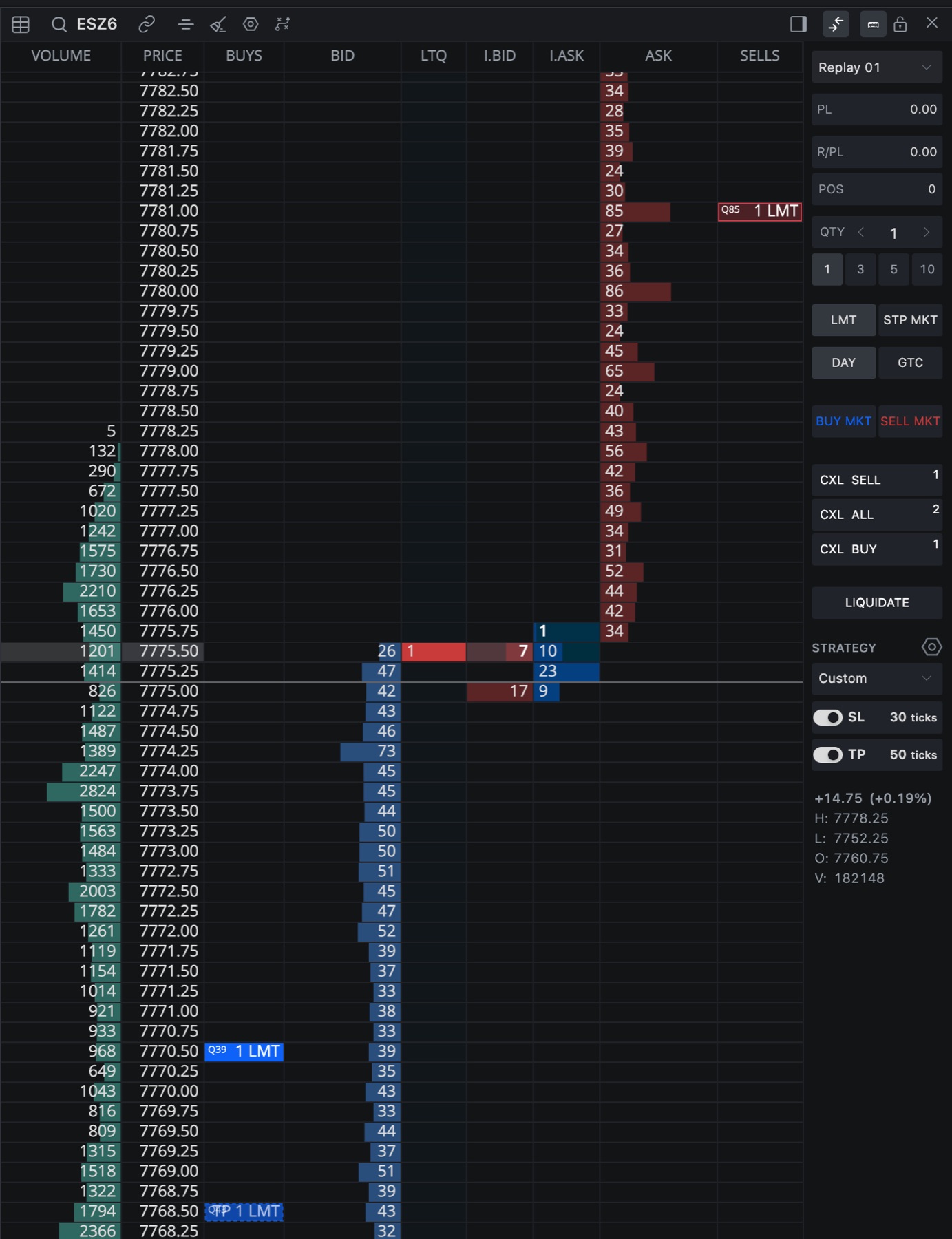
| ORDERS | Orders | Your working orders at each price, in one column. |
| BUYS and SELLS | Orders | The same orders split into a buy column and a sell column. Turn on Split order column into Buy Orders and Sell Orders in Columns → Orders. |
| BID | Bid / Ask Depth | Resting buy orders at the best bid and the prices below it, with an optional histogram. |
| ASK | Bid / Ask Depth | Resting sell orders at the best ask and the prices above it, with an optional histogram. |
| P/S.BID | Pull/Stack Bid / Ask | Pull/stack on the bid side. Explained below. |
| P/S.ASK | Pull/Stack Bid / Ask | Pull/stack on the ask side. |
| P/S | Merged Pull/Stack | One pull/stack column. Bid rows show the bid-side value and ask rows show the ask-side value. |
| I.BID | Inside at Bid / Ask | Contracts that traded at the bid. Explained below. |
| I.ASK | Inside at Bid / Ask | Contracts that traded at the ask. |
| LTQ | Last Traded Quantity (LTQ) | Size of the last trade, shown on the last traded price and colored by the side of the trade. It clears when price moves to another row. |
| T.BID | Total at Bid / Ask | Running total of contracts traded at the bid at each price, until you clear it. |
| T.ASK | Total at Bid / Ask | Running total of contracts traded at the ask at each price, until you clear it. |
Pull/stack
Pull/stack is how the resting size at a price changes. A positive number means contracts were added (stacked). A negative number means contracts left, either cancelled or traded through (pulled). It's a quick way to see whether the size near the inside market is real or about to disappear.
The number is the net change since the last reset. We reset it every Reset Pull/Stack (ms), which is 5000 milliseconds by default. You'll find it in Settings → General. Pull/Stack Filter hides values smaller than the number you set, and Pull/Stack Depth sets how many levels from the inside show a value.
Inside prints and totals
A trade that sells into the bid counts toward I.BID and T.BID. A trade that buys from the ask counts toward I.ASK and T.ASK.
- Inside prints add up while trades keep hitting the same price. If the last print at a price is older than Clear Inside Prints Interval (in milliseconds), the count starts over. The cell color steps through up to eight trail levels as the print ages. Liquidity Interval (ms) sets the step length, and Liquidity Trail turns the trail on or off.
- Totals only grow until you clear them from the Clear menu or with a hotkey.
Orders on the ladder
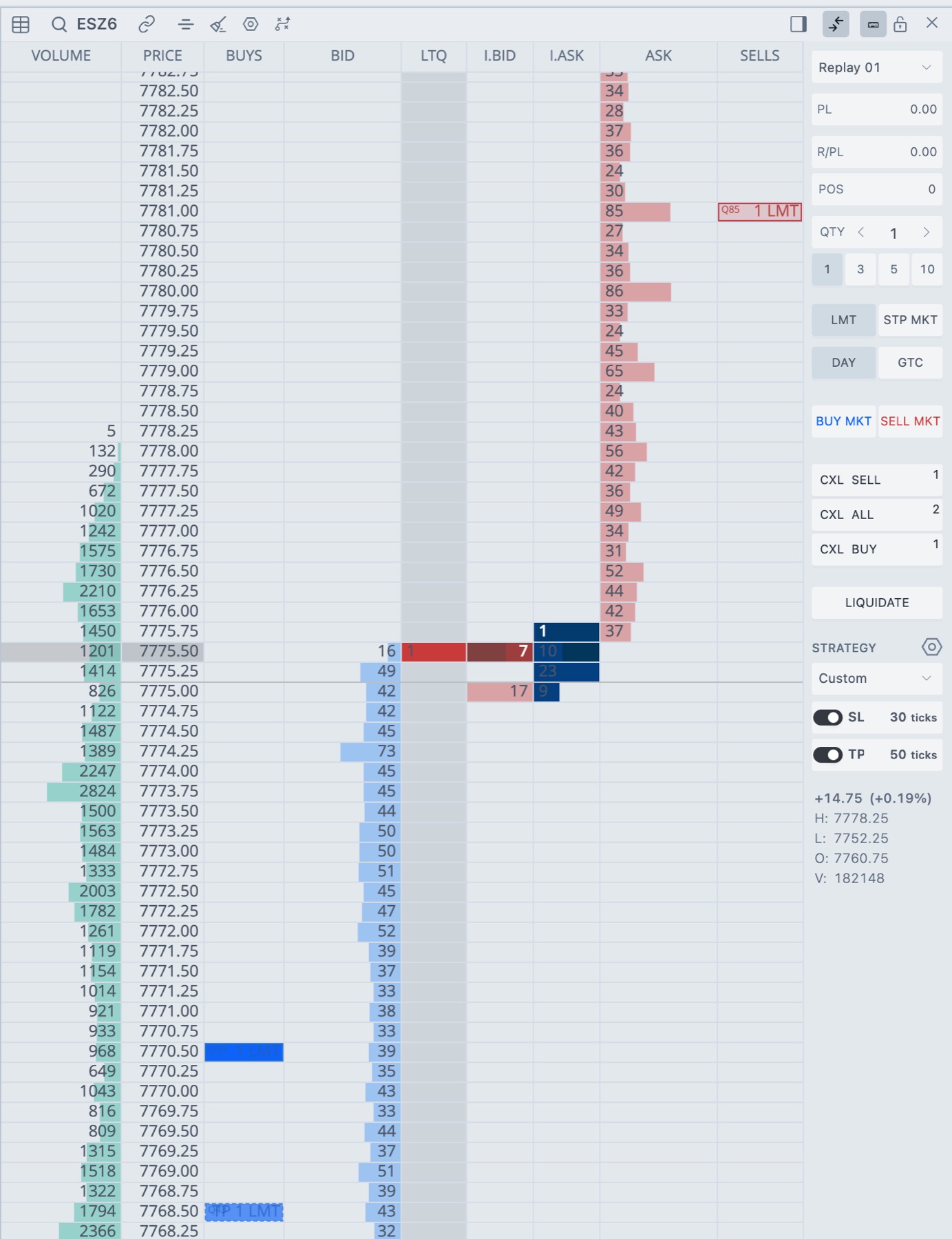
Your orders are drawn in the order columns. With Overlay orders on the Pull/Stack Column on, they're drawn over P/S.BID and P/S.ASK too. Drag an order in any of those cells to move it, right-click it to cancel it. With Show PL in Column on and a position open, the order cells also show what the position would be worth at each price.
Column settings
Colors, alignment and options for each column live in Settings → Columns.
| Page | Main options |
|---|---|
| Common | Font, Font size, Row height, grid line and center line colors, and the Columns View checkboxes. |
| LTQ | Buy and sell colors, Accumulate Trades at Price. |
| Price | Colors for last traded, traded and non-traded prices, price marker colors, long and short position colors. |
| Pull/Stack Bid, Pull/Stack Ask | Background, highlight and font colors, alignment. |
| Bid Depth, Ask Depth | Colors, depth histogram on or off, histogram direction, alignment. |
| Total at Ask, Total at Bid | Colors, histogram on or off, alignment. |
| Volume Profile | Colors, Point of Control, Value Area, VWAP, Volume Profile Histogram, RTH Session Template. |
| Orders | Buy and sell order colors, in profit and loss colors, Show PL in Column, Include Realized P/L, overlay and split options. |
| Inside at Bid, Inside at Ask | Histogram, the eight trail level colors, font and highlight colors. |
General, Hotkeys and Trading are in DOM settings.
Related articles
Was this article helpful?