Strategy, brackets, SL and TP
A bracket is a stop loss (SL) and a take profit (TP) that go out with your entry. You set them in ticks in the Strategy section of the trade panel, and every order you click on the ladder protects itself. A strategy saves a set of values so you can reuse them.
Set a stop loss and take profit
- If the Strategy section is missing, click Show strategy in the DOM header.
- Switch on SL and enter the distance in ticks.
- Switch on TP and enter the distance in ticks.
- Click the ladder as usual.
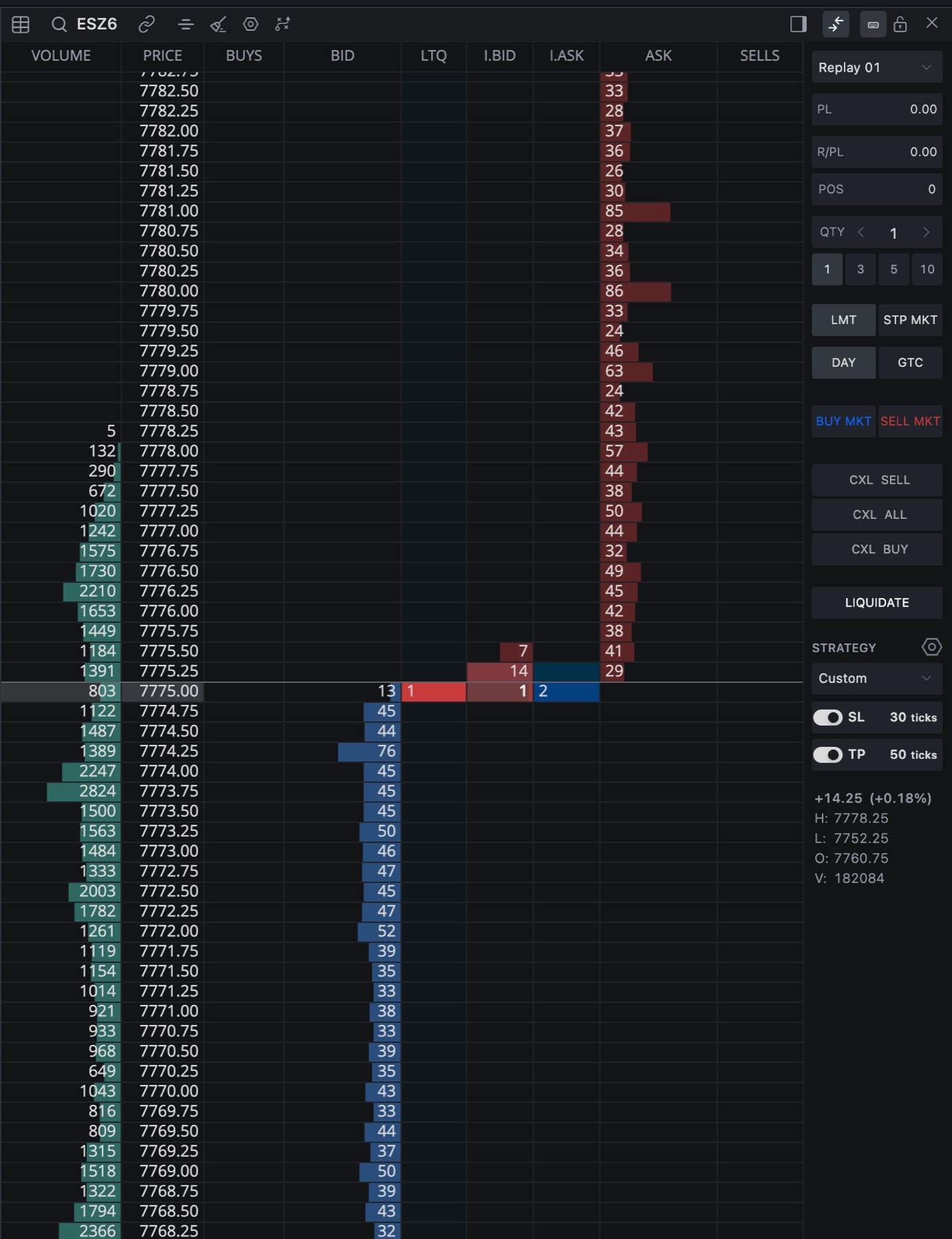
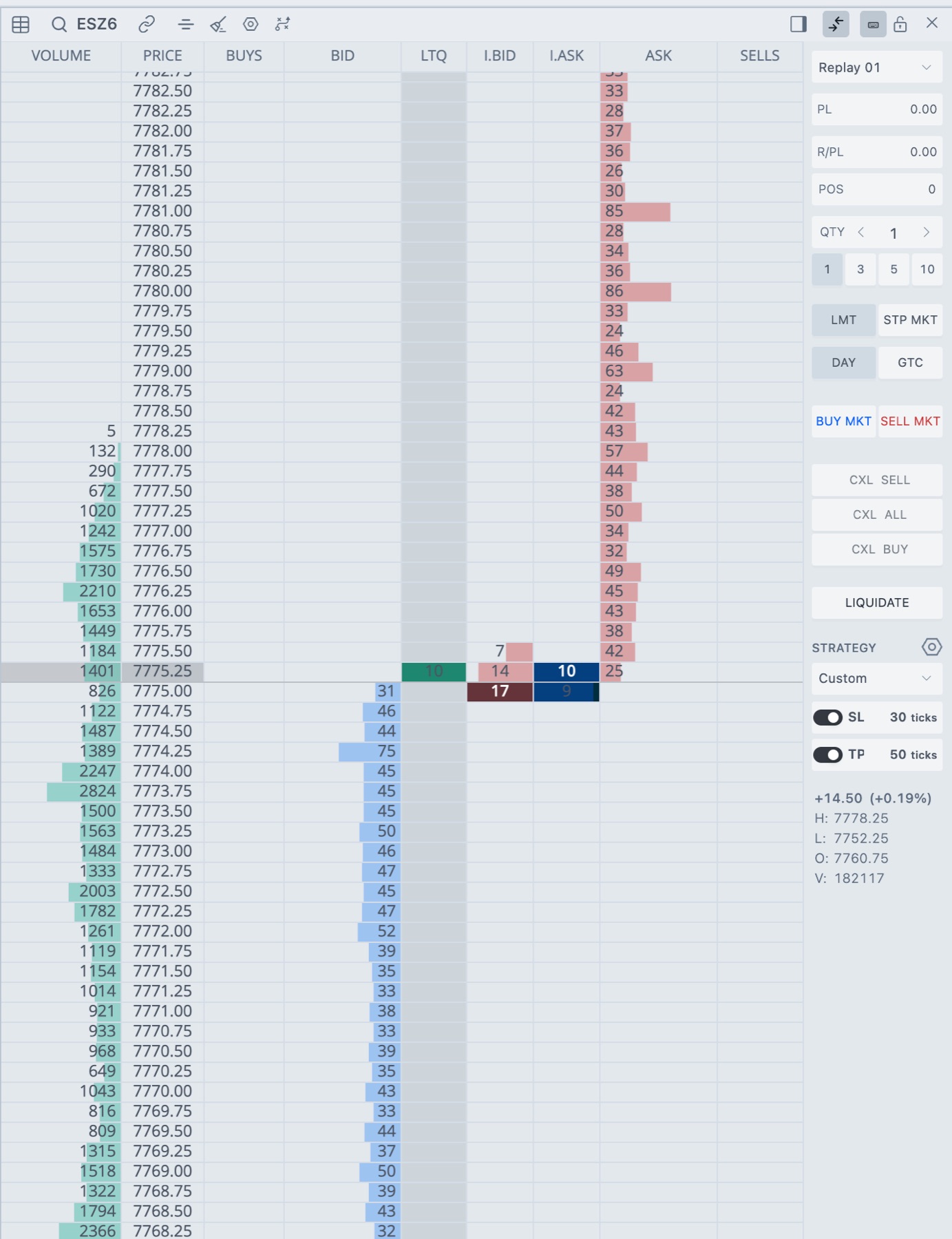
- 1Show strategy
Shows or hides the Strategy section. - 2Strategy
The strategy select, the SL and TP switches and their tick distances.
A fresh ticket has SL and TP off, with 10 ticks for the stop and 12 for the target. Distances are whole ticks. The button at the end of each row flips the display between ticks and points. The distance underneath is the same either way.
What the order does
The entry you click goes out with its exits. On a buy, the stop loss sits below the entry and the take profit above it. On a sell it's the other way around. Both exits use the quantity of the entry.
- Hover over BID or ASK to see them before you click. The stop row is labelled like
SL 1 STPand the target row likeTP 1 LMT. - An order on the opposite side of your open position goes out without stop loss or take profit. That covers reducing, closing and reversing.
- If SL or TP is on and its distance isn't at least 1 whole tick, nothing is sent. You get
Order not sent: enter a stop loss distance of at least 1 tick, or turn stop loss off.(or the take profit version).
Careful. Hide strategy and disable brackets turns SL and TP off and puts the strategy back on Custom. Bring the section back and switch SL and TP on again before your next entry.
Switch both exits with a key
Give Toggle Brackets a key in Settings → Hotkeys. With SL and TP both off, the key turns both on. With both on, it turns both off. If only one is on, it turns both off.
Add exits to an open position
When you're in a position with no working exit orders, an Add TP/SL to Pos button shows up in the Strategy section. The Add TP/SL to Pos hotkey does the same thing.
- Set the SL and TP distances in ticks.
- Click Add TP/SL to Pos.
- Check the window titled Add TP/SL to open position?. It lists the account, quantity, target price, stop price and time in force.
- Click Add TP/SL.
We measure the distances from your average entry price and send a limit target and a stop market exit for the whole position, linked as an OCO pair. If you haven't set both distances you get Configure both a stop loss and take profit before attaching exits. If the position already has a working exit, the button doesn't show.
Use a saved strategy
The Strategy select starts on Custom, which means the values you type. Pick a saved strategy and it fills in the quantity, time in force, SL and TP. Edit SL or TP afterwards and the select drops back to Custom.
Build a strategy in the Strategy Manager
- Click the gear in the Strategy section. Its label is Edit strategies.
- Click + new, or pick a strategy to edit.
- Type a Name.
- For each target, set Qty, Stop and Target in ticks, and TIF as DAY or GTC.
- Click Add target if you want more. You can have up to nine.
- Click Save template, or Save & select to use it on the next order too.
Strategies are stored on this device. The strategy list has Duplicate and Delete.
Multi-target strategies
With more than one target, the entry is split into legs and we send one bracket per target, in order. The target quantities have to add up to the order quantity. If they don't, nothing is sent and you get Failed to submit strategy: Strategy leg quantities must equal the entry quantity. Picking a multi-target strategy sets the quantity to the sum of its targets.
If a later leg gets rejected, the legs that were already accepted stay active. You get a message with the number of active legs, and it tells you to check your position and active orders right away.
Stop strategy per target
The Stop strategy button on each target opens two options. Its label reads None, Breakeven, Trail or Breakeven + Trail.
| Option | What it does |
|---|---|
| Auto breakeven | Moves the stop to your entry price, plus the Plus ticks you set, once the trade is in profit by Profit trigger ticks. |
| Trailing stop | Starts trailing once the trade is in profit by Profit trigger ticks. It trails at that target's stop loss distance, so the target needs a stop of at least 1 tick. |
Auto breakeven and trailing stops need a Rithmic or firm SIM trading connection. On any other connection the order isn't sent and the message tells you why.
Related articles
Was this article helpful?