Cancel and Liquidate
The DOM has four ways to cancel orders, plus one button that also closes your position. All of them work on the instrument in this DOM and the account selected in its trade panel. Your other instruments aren't touched.
Cancel one order on the ladder
Right-click your order in the order columns (BUYS, SELLS or ORDERS), or on the pull/stack columns if your orders are drawn over them. In ORDERS or P/S, the right-click cancels all your orders at that price. In BUYS or P/S.BID it cancels the buy orders there. In SELLS or P/S.ASK it cancels the sell orders there.
If Confirm order cancellation is on, a window titled Cancel order asks first. Click Cancel Order to cancel or Keep Order to leave it. Tick Don't ask again to stop the question. You can switch it back on in the main Settings → Trading.
Cancel many orders from the trade panel
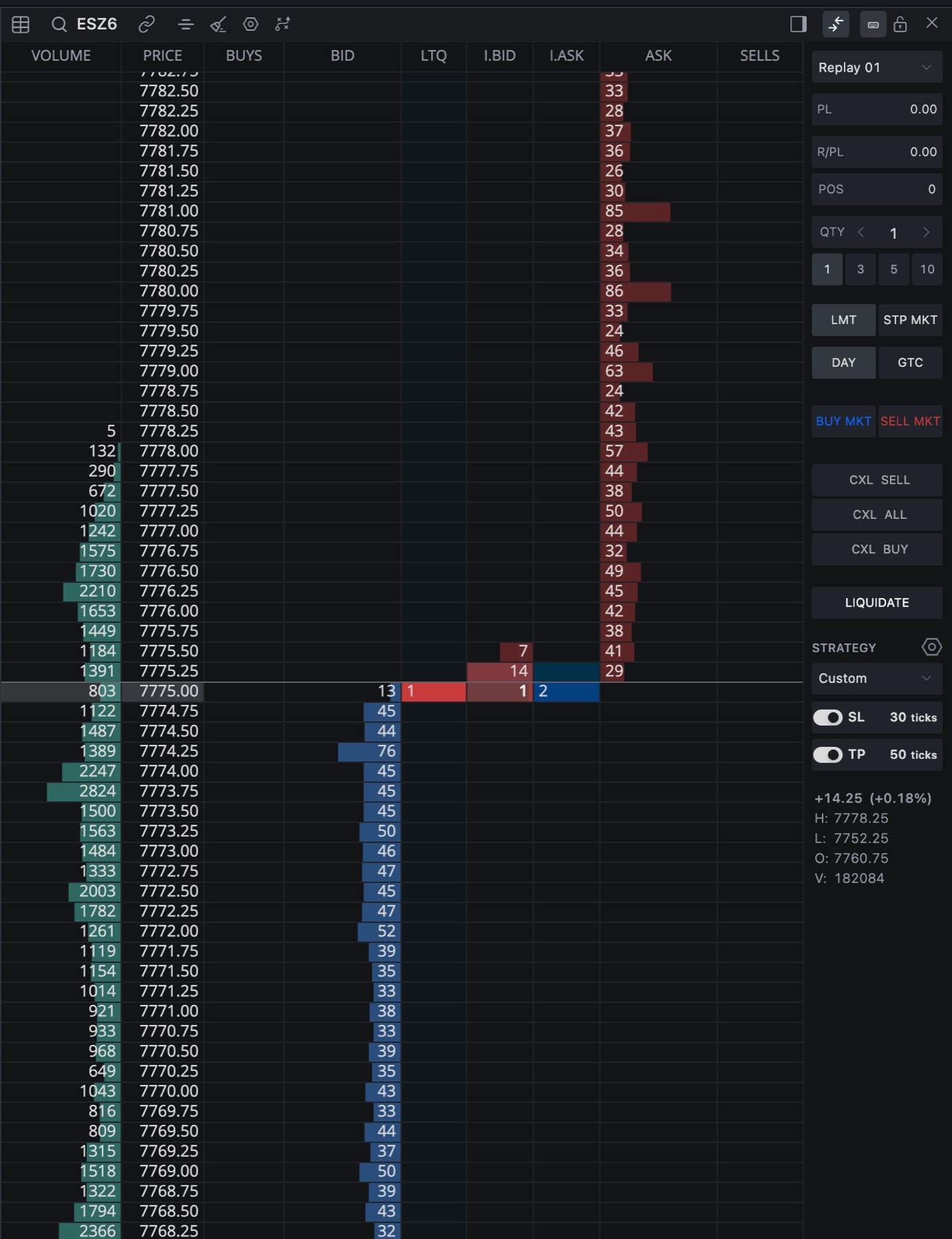
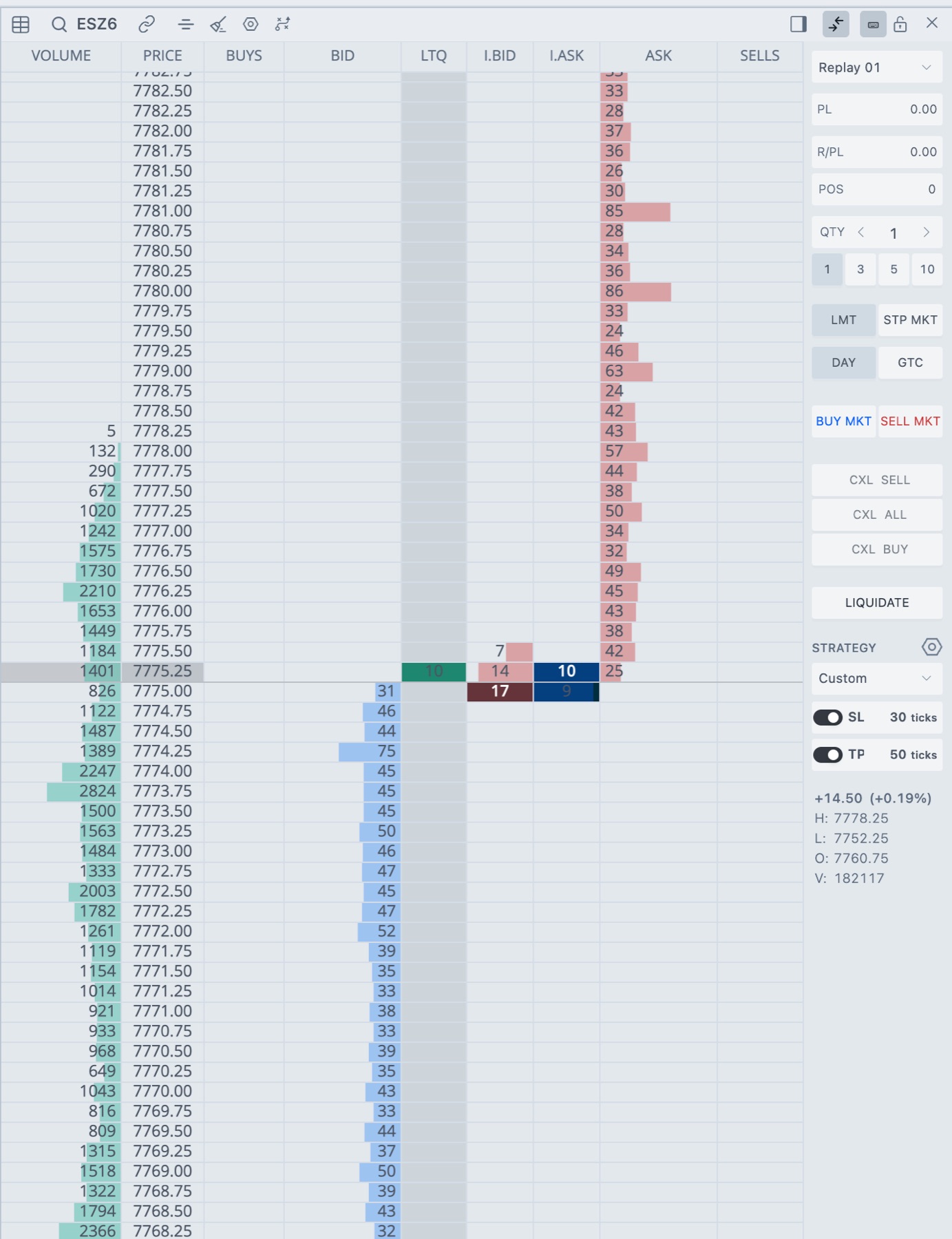
- 1CXL SELL, CXL ALL, CXL BUY
Each button shows how many contracts are working on that side. - 2LIQUIDATE
Cancels the instrument's working orders, then closes the position.
| Button | What it cancels |
|---|---|
| CXL BUY | Working buy orders in this DOM. |
| CXL SELL | Working sell orders in this DOM. |
| CXL ALL | Every working order for this instrument on this account. We pull a fresh list of your orders from the broker first. Orders on other instruments stay. |
The number on each button is the working quantity in contracts. A button is dimmed when there's nothing to cancel. These buttons cancel straight away, with no confirmation window.
If we can't load your orders for CXL ALL, we cancel the orders the DOM shows and tell you with a message that starts Could not load working orders. If the broker refuses a cancel, you get Error while cancelling with the count and the reason.
Tip. With the trade panel at the top or bottom, a MORE... button opens a menu with Cancel buy orders and Cancel sell orders.
Liquidate
Liquidate gets you flat on one instrument. The tooltip reads Cancel this instrument's working orders, then close its position, and that's the order it happens in.
- Click LIQUIDATE.
- We load your current orders and cancel every working order for this instrument on this account.
- We check again a few times over a few seconds that nothing is left working.
- Then we close the position.
Orders go first because a stop or limit left working could open the position again right after you close it.
Careful. If an order can't be cancelled, the position stays open. The message reads Liquidate stopped: 1 working order could not be cancelled, then the reason, and ends with The position was not closed. If your orders can't be loaded, you get Liquidate stopped: working orders could not be loaded. Check the Orders window and try again, or close the position yourself.
There's no confirmation window. Liquidate has no hotkey until you set one: assign Liquidate in Settings → Hotkeys. To hide the button, turn off Show Liquidate Button in Settings → Trading.
When trading is locked
The cancel buttons, LIQUIDATE and BE all need trading switched on in this DOM. If it's locked, a window titled Unlock this DOM? opens instead. The lock button in the header, Unlock this DOM only, does the same for this window only.
Cancel working orders when a position closes
There's a main setting, Cancel working orders when a position closes. When a position closes, it cancels any working orders left on that instrument and account, wherever you placed them. It covers the DOM, the chart and LiquidityMap. You'll find it in Settings in the top bar, under Trading.
Related articles
Was this article helpful?