DOM hotkeys
DOM hotkeys run ladder and trade panel actions from the keyboard. They all start empty, so nothing happens until you assign a key.
Assign a hotkey
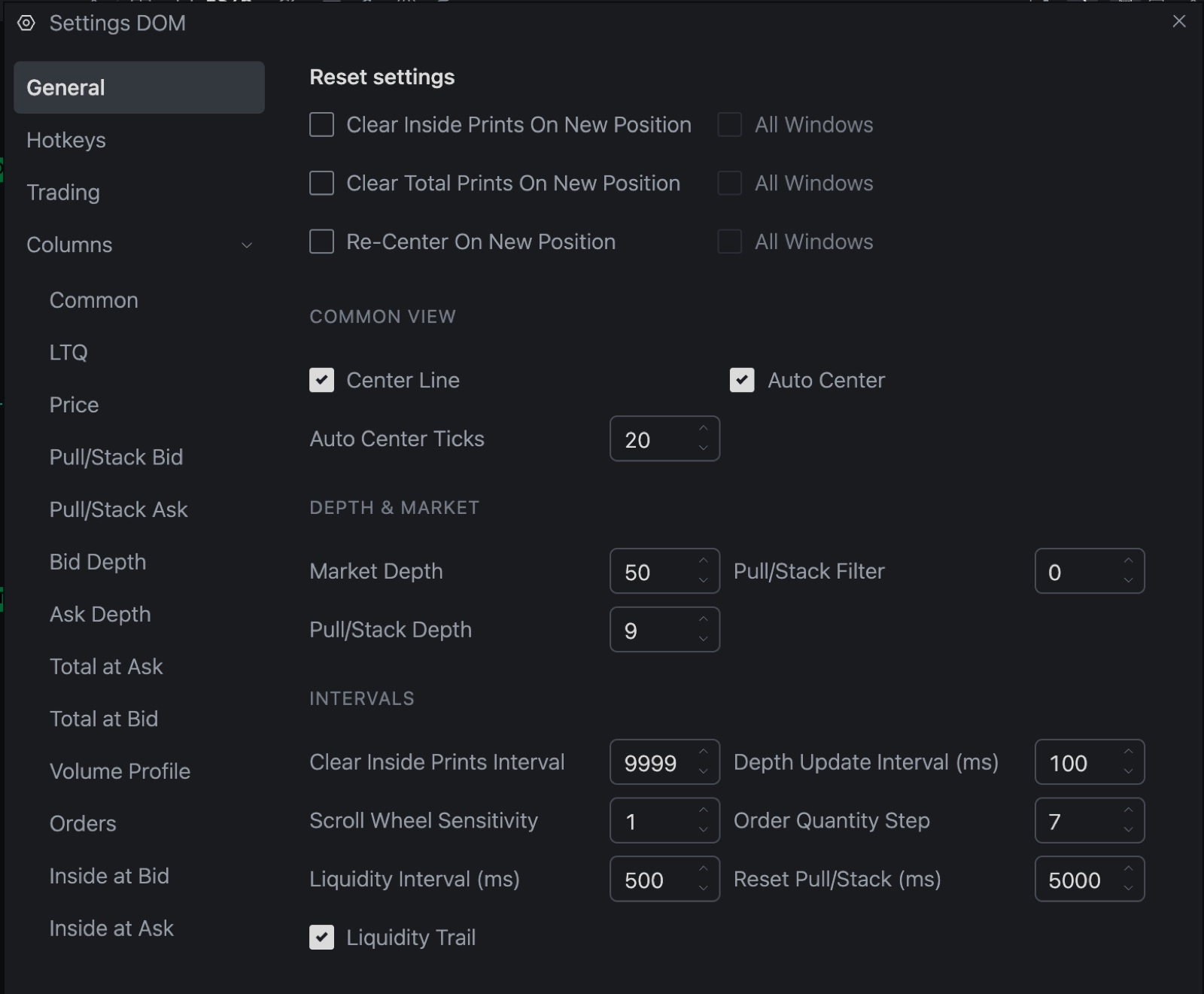
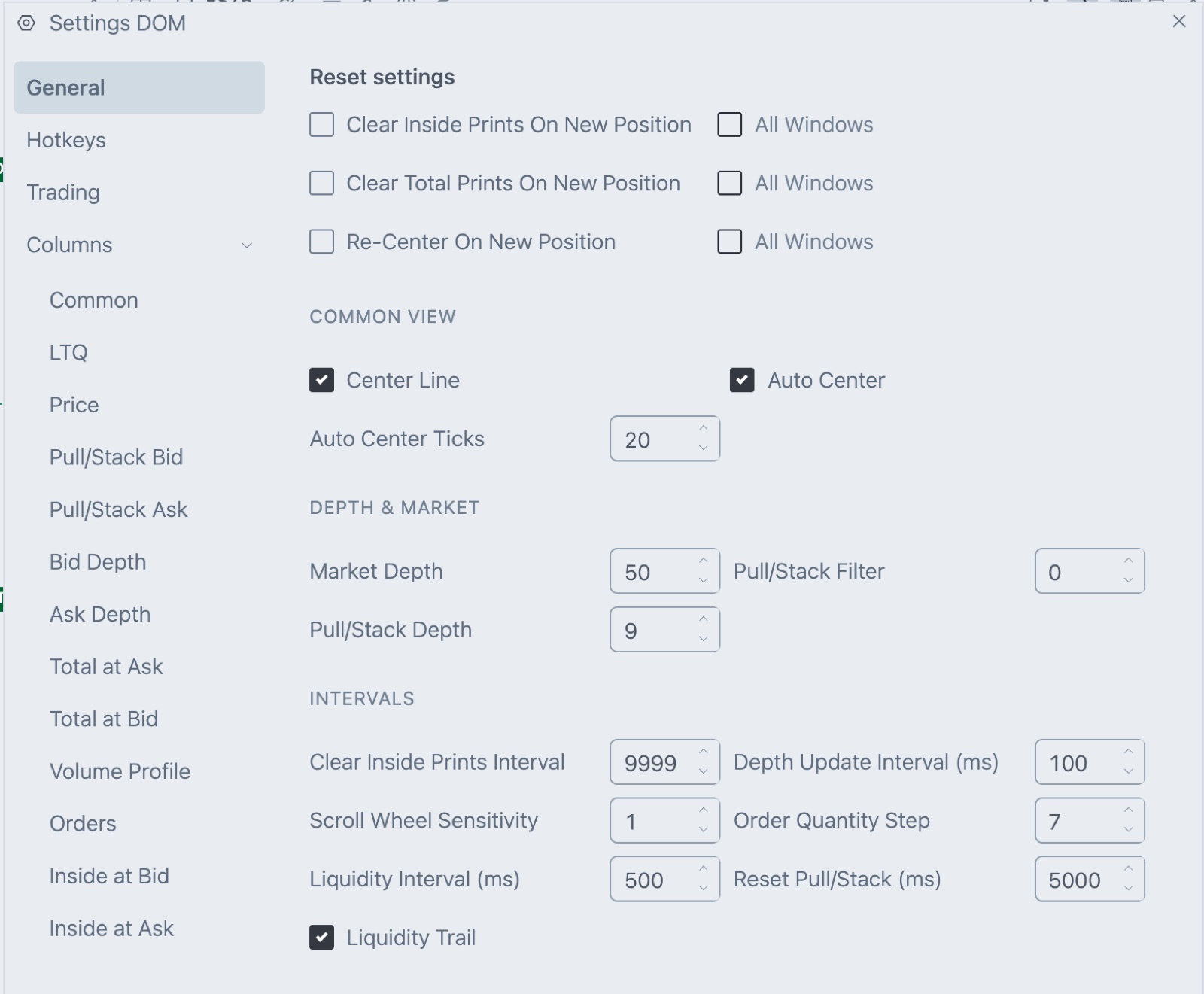
- Click Settings in the DOM header and open Hotkeys.
- Click the field next to an action. It shows Press keys….
- Press the key or combination you want.
- Press Enter to save, Esc to cancel or Backspace to clear the field.
Enter and Esc can't be assigned, since they confirm and cancel. Clear All above the list empties every DOM hotkey. A field showing Not set has no key.
Turn hotkeys on and off
The keyboard button in the DOM header reads Disable Hotkeys while hotkeys are on and Enable Hotkeys while they're off. They start on, and the button only affects that DOM. A hotkey runs only in the active DOM window, so click the DOM first.
Careful. Hotkeys that send orders use the trade panel as it is right now: account, quantity, order type, time in force, SL and TP. If the panel has a problem, the hotkey sends nothing and shows an error. See Order types and time in force.
Order and trade panel actions
| Hotkey | What it does |
|---|---|
| Buy Market | Same as BUY MKT. |
| Sell Market | Same as SELL MKT. |
| Hit Bid | Sells at the best bid price. |
| Join Bid | Buys at the best bid price. |
| Lift Offer | Buys at the best ask price. |
| Join Ask | Sells at the best ask price. |
| Add TP/SL to Pos | Starts Add TP/SL to Pos, which asks you to confirm a take profit and stop loss on your open position. See Strategy, brackets, SL and TP. |
| Toggle Brackets | Turns SL and TP on or off together. |
| Liquidate | Same as LIQUIDATE. See Cancel and Liquidate. |
| Cancel All Orders | Same as CXL ALL. |
Hit Bid, Join Bid, Lift Offer and Join Ask send the order type from the trade panel at the best bid or best ask price.
Quantity
| Hotkey | What it does |
|---|---|
| Quantity 1 Preset to Quantity 4 Preset | Pick the first to fourth preset button. The defaults are 1, 3, 5 and 10. |
| Quantity 5 Preset | Picks the fifth saved preset. The default is 25, and the trade panel has no button for it. |
| Quantity to Position Size | Puts your open position size in the quantity box. It does nothing when you're flat. |
Move working orders to the cursor
These two use the row under your mouse pointer.
| Hotkey | What it does |
|---|---|
| Set All Stops to Price | Moves all your STP MKT orders to that row's price. |
| Set All Limits to Price | Moves all your limit orders on the same side as that row to its price. A row on the bid side moves your buy limits. A row on the ask side moves your sell limits. |
Ladder view
| Hotkey | What it does |
|---|---|
| Center DOM | Same as Center. Jumps to the last traded price. |
| Center All DOMs | Centers every open DOM. |
| Clear Price Markers | Removes every price marker in this DOM. |
Clear commands
These match the Clear menu. The All Windows versions hit every DOM. Up is the rows above the center line. Down is the center row and the rows below it.
| Hotkey | What it clears |
|---|---|
| Clear All Totals | The T.BID and T.ASK totals. |
| Clear Inside Prints All Windows | The I.BID and I.ASK columns, in every DOM. |
| Clear Inside Prints Up, Clear Inside Prints Down | Inside prints above or below the center line. Each has an All Windows version. |
| Clear Total Prints Up, Clear Total Prints Down | Totals above or below the center line. Each has an All Windows version. |
| Clear Volume Profile | The VOLUME column. |
The stop order shortcut
Toggle Order Type to Stop sits at the top of the same page. You don't press a key for it. It lets Shift + Left Click or Right Click on BID or ASK send a STP MKT order.
Related articles
Was this article helpful?