DOM window overview
The DOM (depth of market) is the order book as a price ladder. You see where buyers and sellers are sitting at every price. You place, move and cancel orders with the mouse.
Open a DOM
- In the top bar, click + and hover DOM. Choose Basic DOM or Advanced DOM. See Basic DOM and Advanced DOM.
- Click the instrument name in the DOM header and search for a symbol, for example
ES. - Pick an account in the trade panel. On Market Replay the account is Replay 01.
Tip. On a docked DOM you can turn on Follow active chart. The DOM then switches to whatever chart you click. See Follow active chart.
Window layout
The header has the instrument and the window controls. The ladder is in the middle. The trade panel sits next to it, or above or below it.
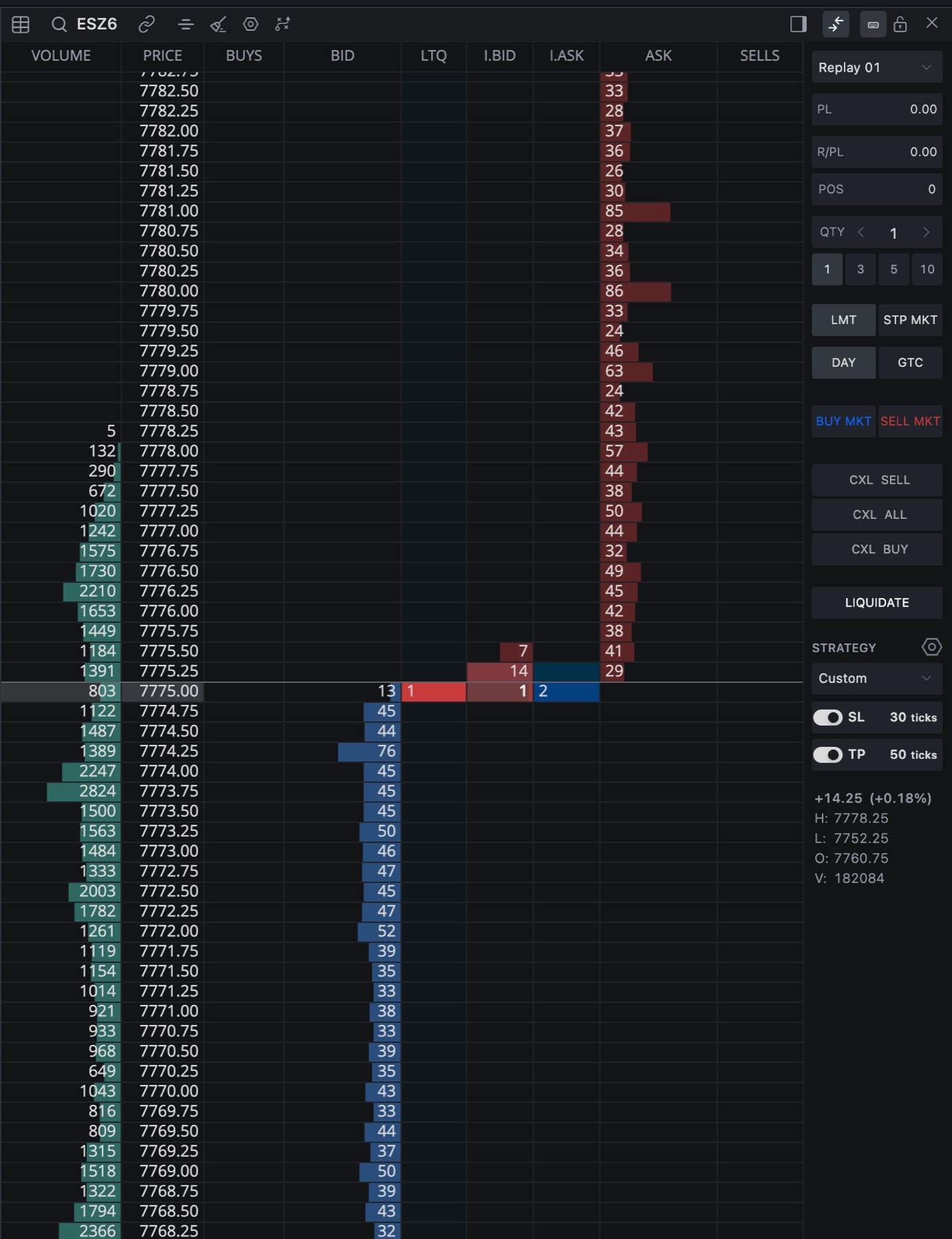
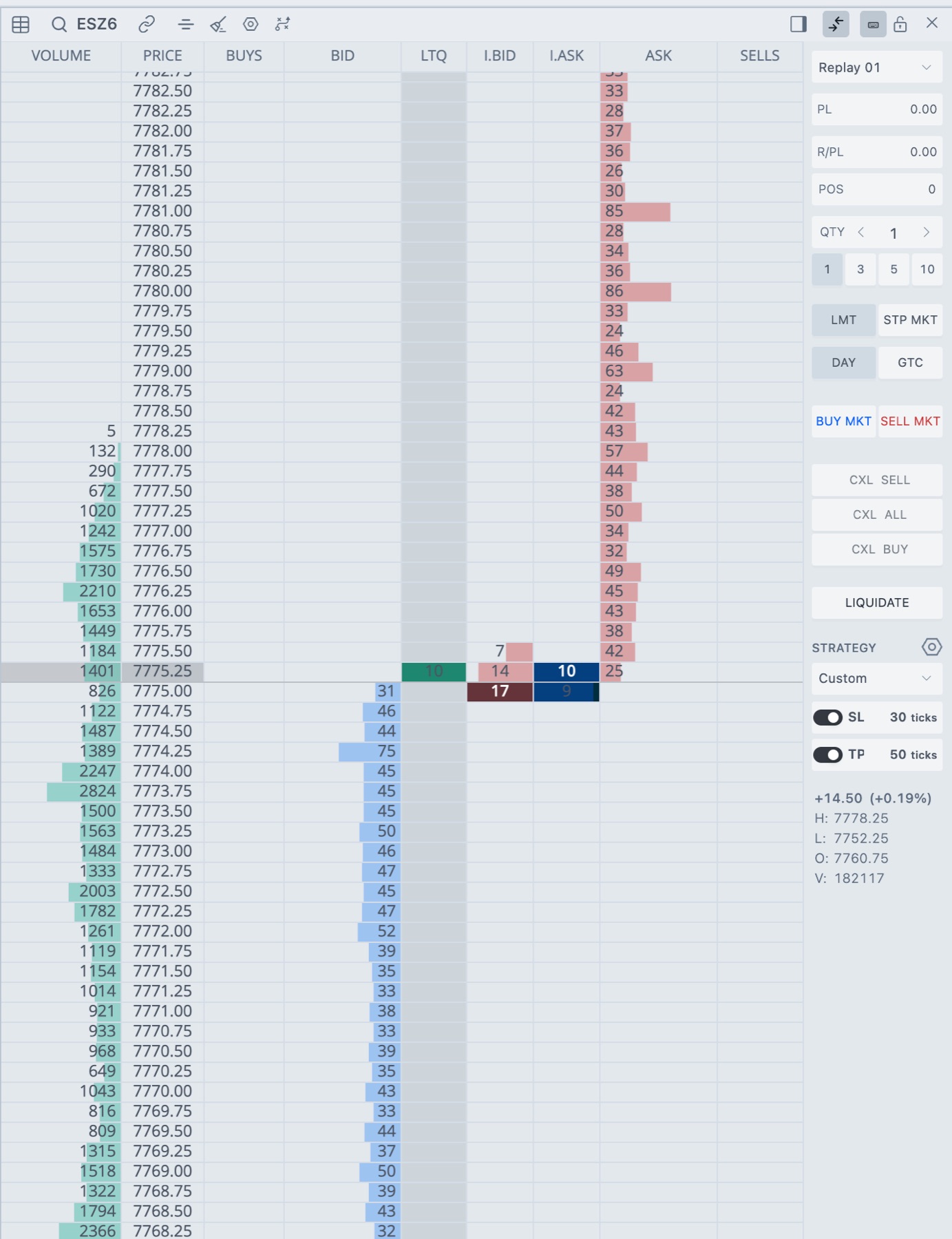
- Header
- 1Instrument
Click the symbol to search for another instrument. - 2Follow active chart
Shown on a docked DOM. Turn it on and the DOM follows the chart you click. - 3Center
Jumps back to the last traded price. - 4Clear
Resets totals, inside prints and price markers. - 5Settings
Opens the DOM settings. - 6Show strategy
Shows or hides the Strategy section. Hiding it also turns stop loss and take profit off. - 7Trade panel placement
Puts the trade panel on the left, right, top or bottom. - 8Show trade panel
Shows or hides the trade panel. - 9Enable Hotkeys
Turns this DOM's hotkeys on or off. - 10Lock this DOM
Switches trading off or on in this DOM only. - Ladder
- 11Column header row
One kind of data per column. See DOM columns. - Trade panel
- 12Account
The account your orders go to. - 13PL, R/PL, POS
Open P/L, realized P/L and position size. Click POS to put your position size in the quantity box. - 14QTY
Type a size, use the arrows or click a preset. - 15Order type and time in force
LMT or STP MKT, and DAY or GTC. See Order types and time in force. - 16BUY MKT / SELL MKT
Send a market order. With Confirm order placement on, a confirmation window opens first. - 17CXL SELL, CXL ALL, CXL BUY
Cancel working orders. See Cancel and Liquidate. - 18LIQUIDATE
Cancels this instrument's working orders, then closes its position. - 19Strategy
Pick a strategy and set SL and TP in ticks. See Strategy, brackets, SL and TP. - 20Change, H, L, O, V
Session change, high, low, open and volume. You can switch these on or off in the DOM settings.
Place, move and cancel orders
You don't type a price. You click the ladder, and the row you click is the price. Everything else comes from the trade panel: account, quantity, order type, time in force, stop loss and take profit.
| To do this | Do this |
|---|---|
| Place a buy order | Left-click in the BID column at the price you want. |
| Place a sell order | Left-click in the ASK column at the price you want. |
| Place one stop market order | In Settings → Hotkeys, set Toggle Order Type to Stop to Shift + Left Click or Right Click. That click on BID or ASK sends a STP MKT order, whatever the panel says. The panel goes back to its own type after. |
| Move an order | Press the left mouse button on your order, drag it to another row and let go. Press Esc to cancel the drag. |
| Cancel an order | Right-click your order. |
| Mark a price | Hold Alt and click in the PRICE column. Do it again on the same price to remove the marker. |
| Center the ladder | Double-click in the PRICE column, or click Center. |
Your orders show up in the order columns, BUYS and SELLS or a single ORDERS column. With Overlay orders on the Pull/Stack Column on, they're drawn over the pull/stack columns too. Moving and cancelling work on any of those cells.
Hover over BID or ASK and you get a preview of the order in that row, as long as trading is on for this DOM. If stop loss and take profit are on, their rows get labels like TP 1 LMT and SL 1 STP.
Careful. Out of the box, a confirmation window opens before an order goes out or gets cancelled from the ladder. Tick Don't ask again and it stays off, and then one click sends the order. You can turn the confirmations back on with Confirm order placement and Confirm order cancellation in the main Settings → Trading.
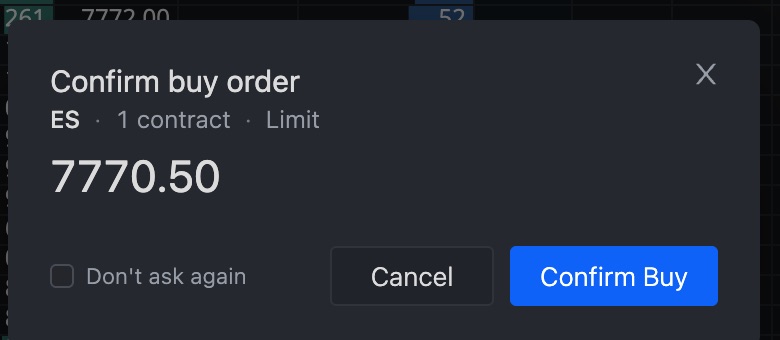
The ladder uses the trade panel as it is right now
The ladder and the chart read the trade panel the moment you click. You don't need to press Enter or click somewhere else first. If your cursor is still in the QTY box, or in a stop loss or take profit field, the order uses what the panel shows at that moment.
- Change the quantity, the SL and TP ticks or the account, then click the ladder straight away. The preview and the order use the new values.
- If the panel can't give a valid order, nothing is sent and you get an error. An empty quantity or one below 1 gives
Order not sent: enter a quantity of at least 1.A stop loss or take profit that's on without a valid distance givesOrder not sent: enter a stop loss distance of at least 1 tick, or turn stop loss off.(or the take profit version). If the quantity on screen differs from the one the order would use, the message starts withOrder not sent: the ticket shows QTYand tells you to check the quantity. - If trading is locked in this DOM, a window titled Unlock this DOM? opens and no order goes out.
Basic DOM and Advanced DOM
A Basic DOM shows your orders, bid, price and ask. An Advanced DOM adds the volume profile, pull/stack and inside prints. Go basic in a small window. Go advanced when you want to watch the book near the inside market. Details are in Basic DOM and Advanced DOM.
Columns
You turn columns on and off in Settings → Columns → Common. An Advanced DOM has these:
| Column | What it shows |
|---|---|
| VOLUME | Volume traded at each price in the session, drawn as a horizontal profile. |
| BUYS and SELLS | Your own working buy and sell orders at each price. |
| P/S.BID and P/S.ASK | Pull/stack, the change in resting contracts at each price. Positive means contracts were added. Negative means contracts were pulled. |
| BID and ASK | Resting limit orders waiting to buy (bid) or sell (ask) at each price. |
| I.BID and I.ASK | Inside prints, the contracts that traded at the bid or at the ask. |
| PRICE | The ladder itself. The last traded price is highlighted. An open position colors its entry price. |
You can also add LTQ, T.BID, T.ASK and P/S. They're all covered in DOM columns.
Reset counters with Clear
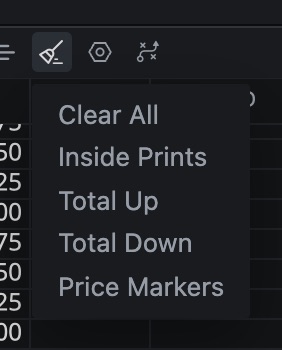
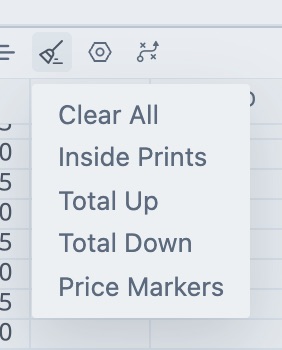
Totals and inside prints keep their numbers until you clear them. Click Clear in the header (the broom icon) and pick what to reset.
| Menu item | Resets |
|---|---|
| Clear All | All totals (T.BID, T.ASK) and all inside prints. |
| Inside Prints | The I.BID and I.ASK columns only. |
| Total Up | Totals and inside prints on the rows above the center line. |
| Total Down | Totals and inside prints on the center row and the rows below it. |
| Price Markers | Every price marker you placed. |
Trade panel
The trade panel holds everything you set before you click the ladder. Use Show trade panel to hide it and Trade panel placement to move it. In Settings → Trading you choose which rows and buttons it shows and how wide it is.
Careful. LIQUIDATE cancels this instrument's working orders on the selected account, then closes the position. One click and you're flat on that instrument. See Cancel and Liquidate.
Good to know
- A REPLAY badge in the header means the DOM is on Market Replay data.
- A DATA ONLY badge means a US stock or crypto instrument. You get best bid and ask, trades and session volume, but no orders, and the trade panel is hidden.
- Hotkeys only run in the active DOM window, and only while Enable Hotkeys is on. See DOM hotkeys.
Related articles
Was this article helpful?