The DOM settings cover how the ladder behaves, which buttons the trade panel shows, your DOM hotkeys and how every column looks. Each DOM has its own settings.
Applies to Web and DesktopUpdated 2 Nov 2026Read time 3 min
Open the settings
Click Settings in the DOM header.
Choose a page on the left: General, Hotkeys, Trading or Columns.
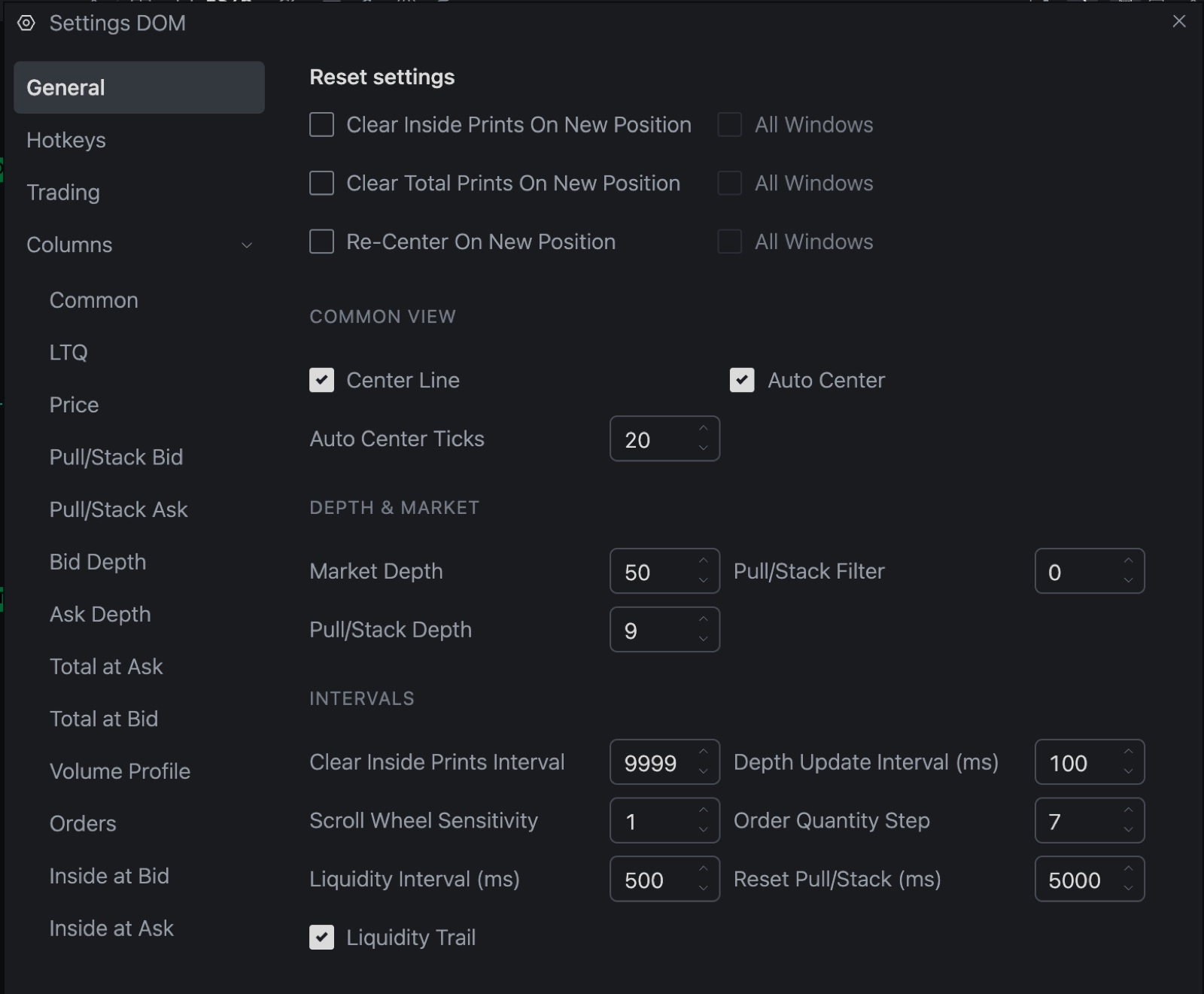
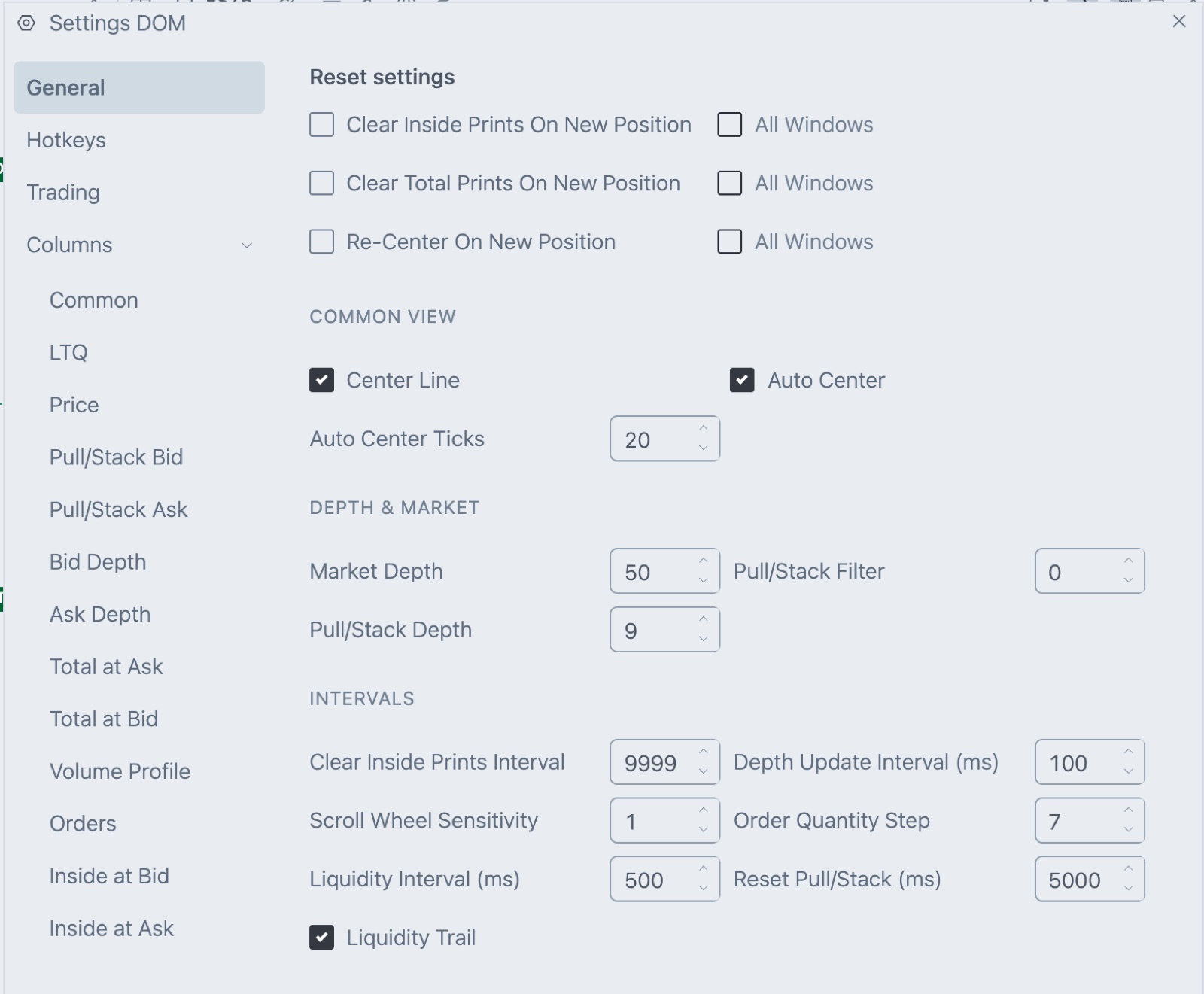
The DOM settings window on the General page. The list on the left has General, Hotkeys, Trading and the Columns group with its pages.
Changes apply as you make them. The defaults below are what a new DOM starts with. A starter workspace may set different values.
General
Reset settings
Setting
What it does
Default
Clear Inside Prints On New Position
Clears the inside print columns when you open a new position.
Off
Clear Total Prints On New Position
Clears the total columns when you open a new position.
Off
Re-Center On New Position
Centers the ladder when you open a new position.
On
All Windows
Sits next to each setting above. Applies the setting to all your DOMs. It only works while the setting beside it is on.
Off
Common View
Setting
What it does
Default
Center Line
Draws a line on the center row of the ladder.
On
Auto Center
Re-centers the ladder when price moves away from the center.
On
Auto Center Ticks
How many rows price can move from the center before the ladder re-centers.
20
Depth & Market
Setting
What it does
Default
Market Depth
How many price levels from the inside market show bid and ask size.
40
Pull/Stack Filter
Hides pull/stack values smaller than this number.
0
Pull/Stack Depth
How many price levels from the inside market show pull/stack.
9
Intervals
Setting
What it does
Default
Clear Inside Prints Interval
Time in milliseconds after which a new inside print starts a fresh count instead of adding to the old one.
9999
Depth Update Interval (ms)
How often the ladder redraws.
100
Scroll Wheel Sensitivity
How far the mouse wheel scrolls the ladder.
1
Liquidity Interval (ms)
Length of each step of the inside print trail colors.
500
Reset Pull/Stack (ms)
How often pull/stack values reset to zero.
5000
Liquidity Trail
Shows the fading trail colors on inside prints.
On
Hotkeys
Here you assign keys to DOM actions, and set Toggle Order Type to Stop. Every hotkey is empty until you set it. Clear All above the list empties them all. DOM hotkeys covers each action and how to record a key.
Setting
What it does
Toggle Order Type to Stop
None, Shift + Left Click or Right Click. With a click option chosen, that click on BID or ASK places a STP MKT order instead of the order type in the trade panel.
Trading
Trading
Setting
What it does
Default
Show P/L Info
Shows open P/L in the trade panel.
On
Show R/PL
Shows realized P/L in the trade panel.
On
Show Instrument Change
Shows the session change in the trade panel or header.
Off
Show OHLV Info
Shows H, L, O and V.
On
Round P/L to Whole Numbers
Drops the decimals from P/L.
Off
Trade panel width
Narrow, Normal or Wide.
Narrow
Order buttons
Setting
What it does
Default
Show Liquidate Button
Shows LIQUIDATE.
On
Show Buy/Sell Market Buttons
Shows BUY MKT and SELL MKT. Turning it off also hides CXL BUY and CXL SELL.
On
Show Buy Bid / Sell Ask
Shows BUY BID and SELL ASK. Each sends a limit order at the current bid or ask.
Off
Show Buy Ask / Sell Bid
Shows BUY ASK and SELL BID. Each sends a limit order at the current ask or bid.
Off
Show Cancel All Button
Shows CXL ALL.
On
Time in force
Setting
What it does
Default
Default time in force
DAY or GTC.
DAY
Show DAY (Day Order)
Shows the DAY button.
On
Show GTC (Good-Till-Cancel)
Shows the GTC button.
On
The confirmation windows for orders and cancels aren't set here. They're in the main Settings in the top bar, under Trading, as Confirm order placement and Confirm order cancellation.
Columns
The Columns group has a page for Common, LTQ, Price, Pull/Stack Bid, Pull/Stack Ask, Bid Depth, Ask Depth, Total at Ask, Total at Bid, Volume Profile, Orders, Inside at Bid and Inside at Ask. Common turns columns on and off and sets the font, Font size (14 by default) and Row height (19 by default, from 4 to 100). The other pages set colors, alignment and column options. DOM columns has the details.