Order types and time in force
The trade panel decides what goes out when you click the ladder. It sets the size, the order type and how long the order lives. This page covers all three.
Quantity
The QTY box holds the number of contracts. It starts at 1.
- Type a whole number. The box takes digits only.
- Click the arrows on either side to go down or up by 1. With the cursor in the box, the arrow keys do the same.
- Click a preset button. The defaults are 1, 3, 5 and 10.
- Click POS to put your open position size in the box. Handy when you want to close the whole thing with one click on the ladder.
To change a preset, right-click it, type the new number and press Enter or click the check mark. The ladder uses the number the box shows when you click, even if your cursor is still in it. The hotkeys Quantity 1 Preset to Quantity 5 Preset and Quantity to Position Size do the same from the keyboard. See DOM hotkeys.
Order type
The panel has two type buttons, LMT and STP MKT. The row you click on the ladder sets the price.
| Type | What it is | From the ladder |
|---|---|---|
| LMT | Limit order. A buy fills at your price or lower. A sell fills at your price or higher. | Click BID to buy or ASK to sell at that row's price. |
| STP MKT | Stop market order. It waits until price reaches your stop price, then turns into a market order. A buy stop sits above the market, a sell stop below it. | Click BID to buy or ASK to sell. The row's price is the stop price. |
| Market | Fills right away at the best price available. | Click BUY MKT or SELL MKT. No price is used. |
Tip. To send a single stop order without switching the panel, set Toggle Order Type to Stop in Settings → Hotkeys to Shift + Left Click or Right Click. That click goes out as STP MKT, and the panel keeps your normal type.
Quick limit buttons
You can add two pairs of buttons that send a limit order at the current bid or ask. Switch them on under Settings → Trading → Order buttons.
| Setting | Buttons | What they send |
|---|---|---|
| Show Buy Bid / Sell Ask | BUY BID, SELL ASK | A buy limit at the bid. A sell limit at the ask. |
| Show Buy Ask / Sell Bid | BUY ASK, SELL BID | A buy limit at the ask. A sell limit at the bid. |
Until we have a quote, the tooltip reads Waiting for bid quote or Waiting for ask quote and the button sends nothing.
Time in force
Time in force is how long a working order stays alive.
| Button | What it does |
|---|---|
| DAY | The order lasts for the trading day. |
| GTC | Good till cancelled. The order stays working until it fills or you cancel it. |
Those are the only two. A new DOM starts on DAY. In Settings → Trading → Time in force you set the default and can hide either button. A saved strategy sets the time in force too.
What happens when you click
- We read the panel as it is right now: account, quantity, type, time in force, SL and TP.
- We check it. If the quantity or a bracket distance is invalid, you get an error like
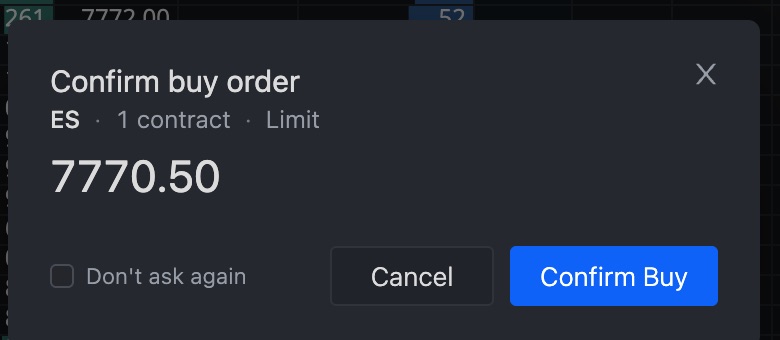
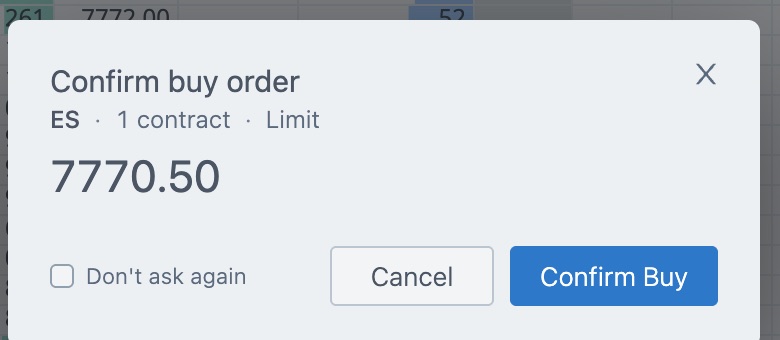
Order not sent: enter a quantity of at least 1.and nothing goes out. - If Confirm order placement is on, a window asks you to confirm. It shows the side, quantity, order type and price, and has a Don't ask again checkbox.
- The order goes out. With SL or TP on, it goes out as a bracket.
If the broker refuses the order, the message starts with Order rejected: or Failed to place order: and then gives the reason.
Careful. The same panel feeds the ladder, the chart and the market buttons. Check the account and the quantity before you click, especially after you change instrument or account.
Change the price of a working order
Press on the order in your order columns, drag it to a new row and let go. A limit order moves to that price. A stop order moves its stop price. Press Esc before you let go to cancel the move.
Related articles
Was this article helpful?