Basic and Advanced DOM
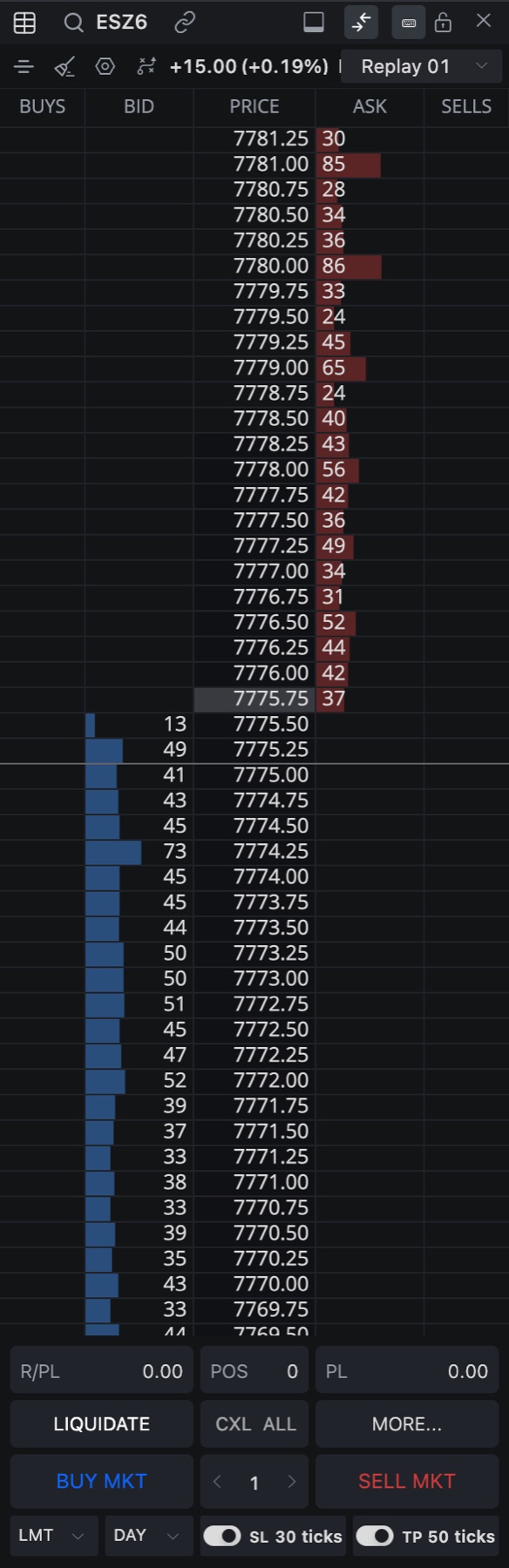
Tradrr gives you two ready-made DOMs. Basic DOM is a small ladder you click orders on. Advanced DOM is the full order flow view. The only real difference is which columns are on.
Add a DOM
- In the top bar, click +.
- Hover DOM. A list opens next to it.
- Choose Basic DOM, Advanced DOM or New DOM.
| Menu item | What it does |
|---|---|
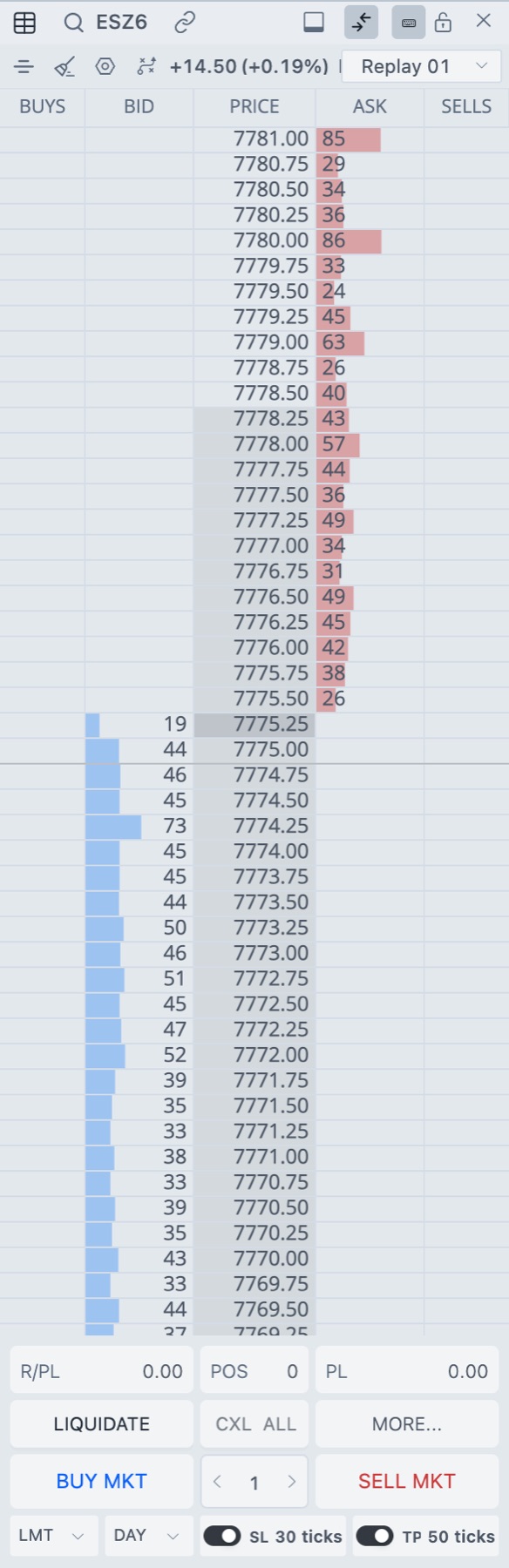
| Basic DOM | Opens a DOM with your orders, bid, price and ask. The trade panel sits at the bottom. |
| Advanced DOM | Opens a DOM with volume, pull/stack and inside prints as well. The trade panel sits on the right. |
| New DOM | Opens a DOM from your default template. If you haven't saved one, you get the standard DOM settings. |
| Reset Default Template | Deletes the default template you saved. A window titled Confirm Reset asks first, and it can't be undone. The item is greyed out until you have saved a default. |
Templates you save yourself show up in the same list, above New DOM. Hover one to edit its name or delete it.
What each DOM shows
| Column | Basic DOM | Advanced DOM |
|---|---|---|
| VOLUME | Off | On |
| BUYS and SELLS | On | On |
| P/S.BID and P/S.ASK | Off | On |
| BID and ASK | On | On |
| I.BID and I.ASK | Off | On |
| PRICE | On | On |
Use the Basic DOM when the window is small or you only click orders. The ladder is narrower. Use the Advanced DOM when you watch how the book moves near the inside market. VOLUME shows where the session traded. P/S shows contracts added and pulled. I.BID and I.ASK show what traded at the bid and the ask.
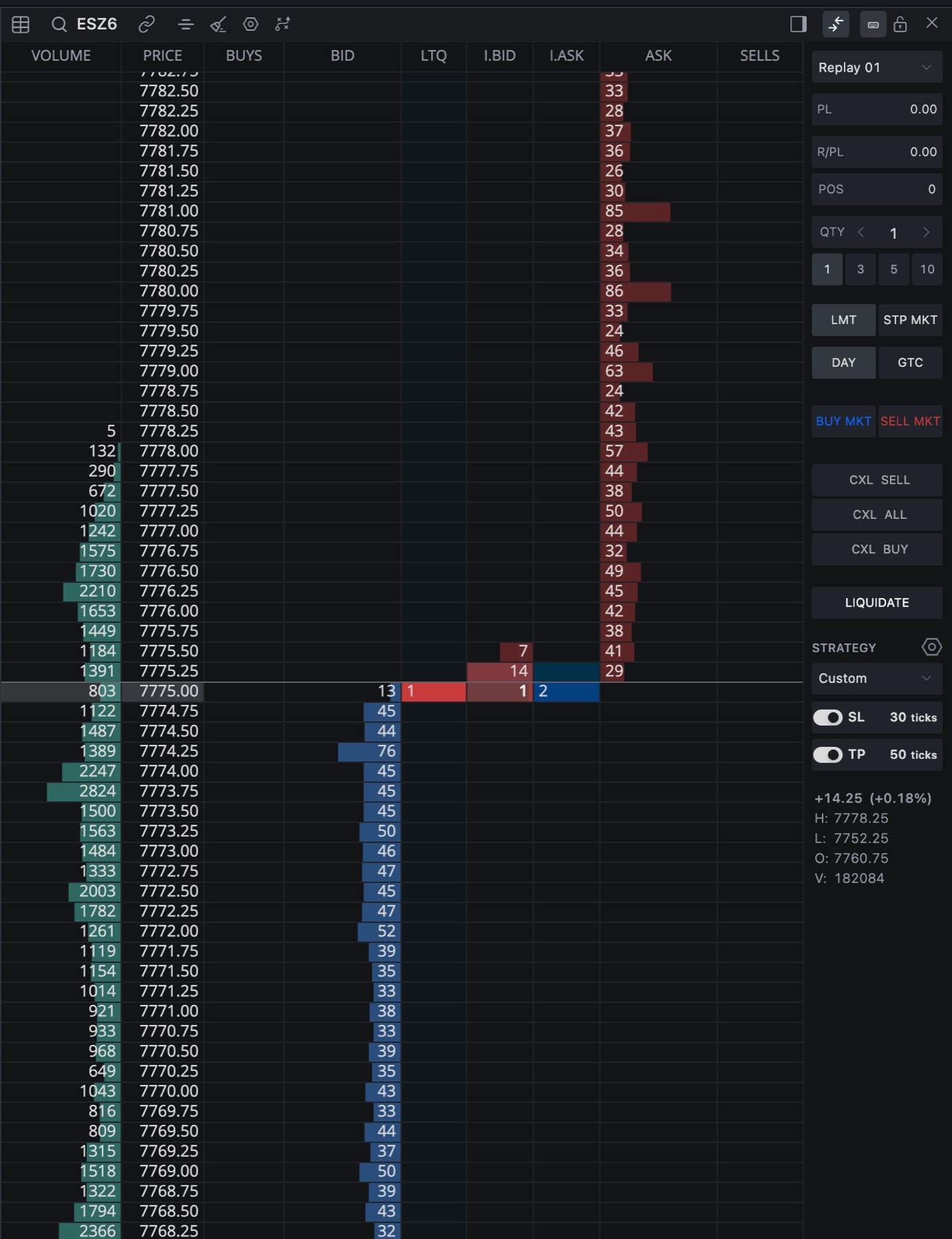
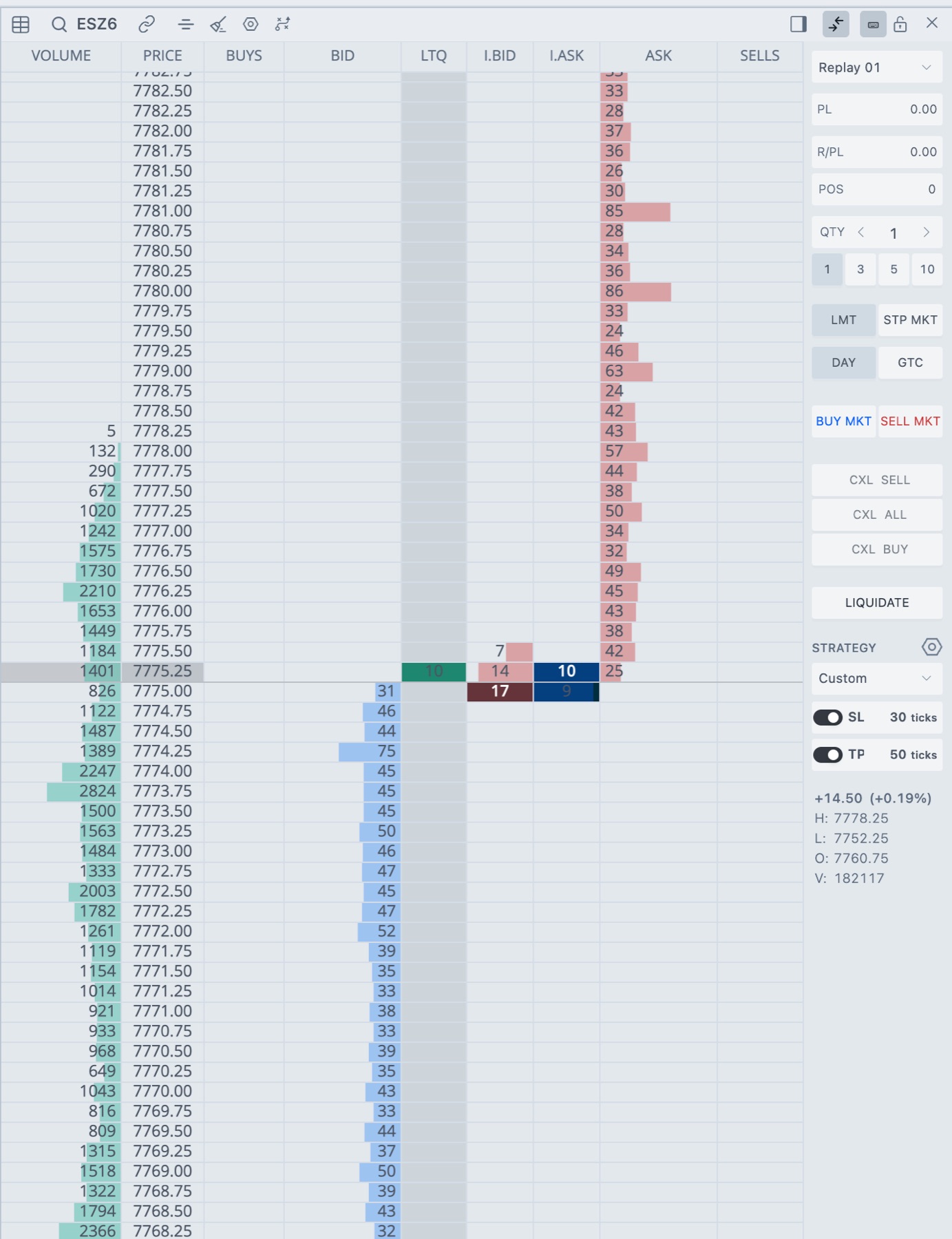
The public demo has a Simple and Advanced switch in the DOM header. Your own DOM doesn't have it.
Change the columns
Both DOMs are just column choices. You can turn any column on or off and the DOM keeps your choice with the workspace.
- Click Settings in the DOM header.
- Open Columns and choose Common.
- Under Columns View, tick the columns you want and clear the rest.
- To get BUYS and SELLS as two columns, open Columns → Orders and tick Split order column into Buy Orders and Sell Orders. Leave it off for one ORDERS column.
For a basic layout, tick Orders, Bid / Ask Depth and Price only. For an advanced one, add Volume Profile, Pull/Stack Bid / Ask and Inside at Bid / Ask. Changes apply as you tick.
Tip. Bid and ask columns come as a pair. One checkbox, like Bid / Ask Depth, switches both BID and ASK.
Save your own layout
Once the DOM looks the way you like, right-click the column header row. Save as ... keeps it as a template that appears in the DOM list in the + menu. Save as default makes it what New DOM opens.
If the Advanced DOM is too busy
- Raise Pull/Stack Filter in Settings → General. Pull/stack numbers below it are hidden.
- Lower Market Depth or Pull/Stack Depth to show fewer levels around the inside market.
- Turn off columns you don't read. DOM columns explains each one.
Related articles
Was this article helpful?