Notifications
The bell in the top bar is where Tradrr tells you things. Connection updates, errors, triggered price alerts and economic event reminders all land here. It's also where you decide how loud Tradrr gets about it.
Open the notifications panel
- In the top bar, click the bell (Notifications).
- The Alerts & Notifications panel opens over the app. To close it, click outside it, press Esc or hit the close button.
A dot on the bell means something needs a look.


- 1Notifications
Opens the Alerts and Notifications panel.
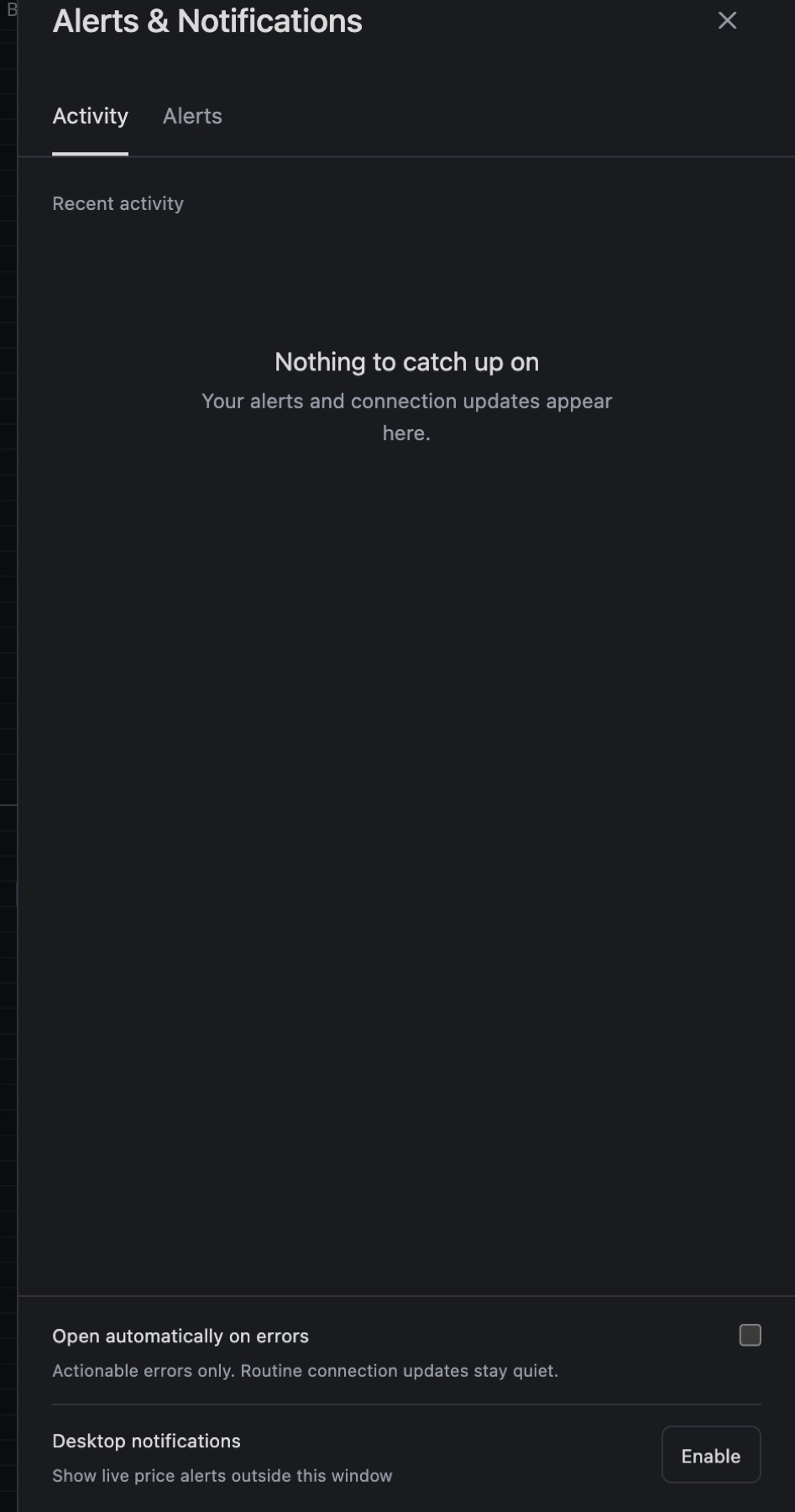
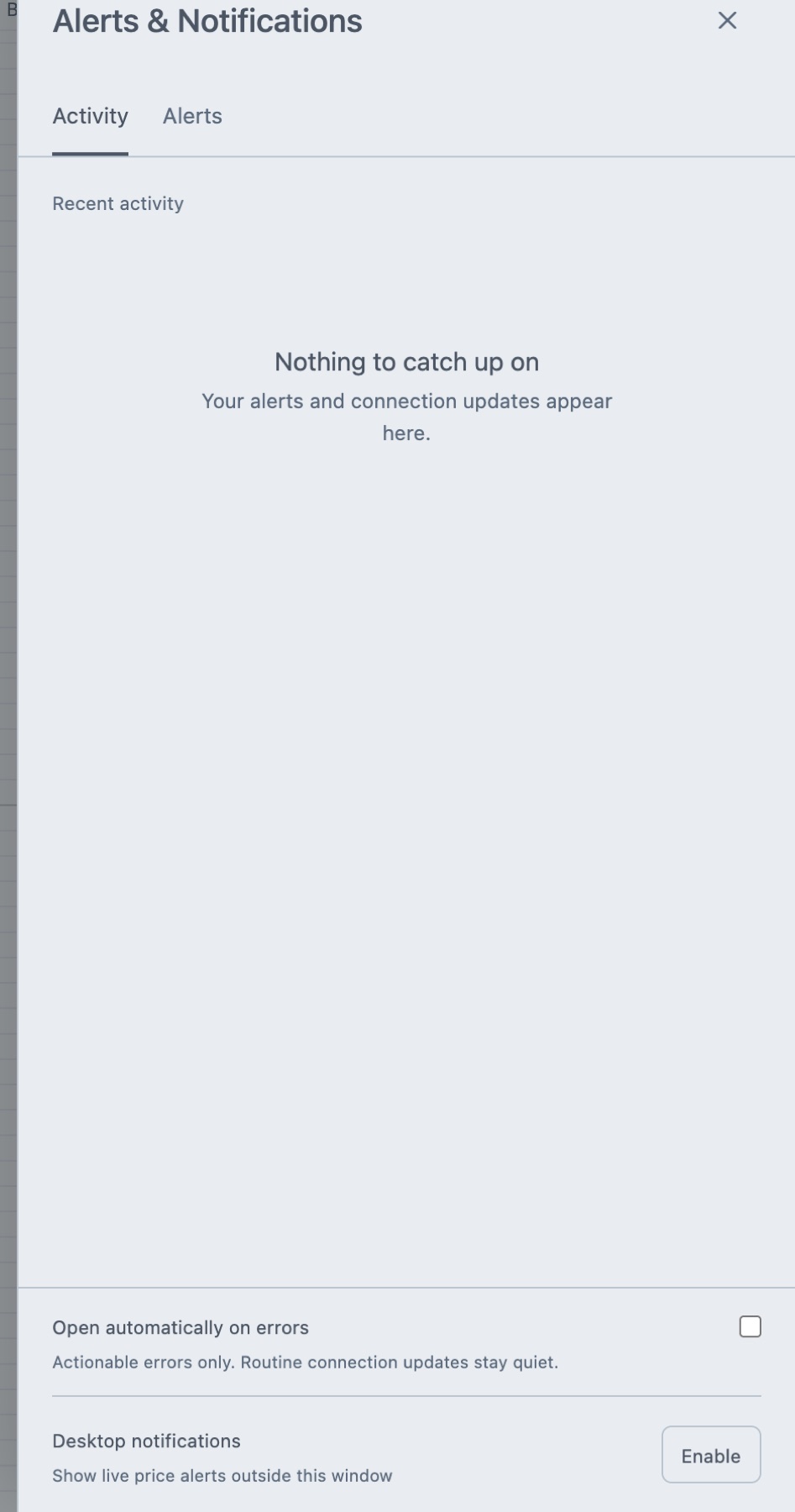
Activity tab
Activity lists recent updates. A badge like 2 new counts the ones you haven't read yet.
- Click an entry to mark it read.
- Still going on lists problems that are active right now, like a connection that's down. They stay until the problem is fixed.
- Clear removes the updates. Ongoing problems stay. Undo shows up for a moment after you clear.
- Error entries have a Report issue button. Other entries have a ⋯ menu with Send feedback.
When there's nothing to show, the panel says Nothing to catch up on.
Alerts tab
The Alerts tab holds your price alerts and your economic event reminders. The badge shows how many are active. A reminder card shows the country, Economic calendar, the event name and 5 minutes before. Click Delete on a card to remove it.
You create and manage price alerts here. See Price alerts. To add a reminder, right-click an event in the Economic Calendar.
Popups
When an alert or reminder goes off, you get a popup in the app. Click it to open the alert, or click × to dismiss it.
| Popup | When it shows up |
|---|---|
| PRICE ALERT | The last trade reached your level. The popup shows the instrument, price and your note. |
| EVENT REMINDER | An economic event you set a reminder for starts in five minutes. |
Switches in the panel footer
| Setting | What it does |
|---|---|
| Open automatically on errors | Opens the panel by itself when an error needs you. Routine connection updates don't open it. Off by default. |
| Desktop notifications | Shows alerts as system notifications outside the Tradrr window. Click Enable and allow the permission your browser or system asks for. Click Disable to turn them off. |
| In-app notifications | Replaces the desktop switch where system notifications aren't available. It covers connection updates and recent activity. |
Desktop notifications only work while Tradrr is running. If you see Notifications are blocked, allow them for Tradrr in your browser or system settings, then try again.
Sounds
Alerts can play a sound. Set the Alert sound and its volume in Sounds. General notifications use a separate sound.
Tip. If you run several connections, turn on Open automatically on errors. You'll see a dropped connection the moment it happens.
Related articles
Was this article helpful?