Sounds
Tradrr can play a short sound when an order fills, a connection drops or an alert fires. Each event has its own on/off box, sound and volume.
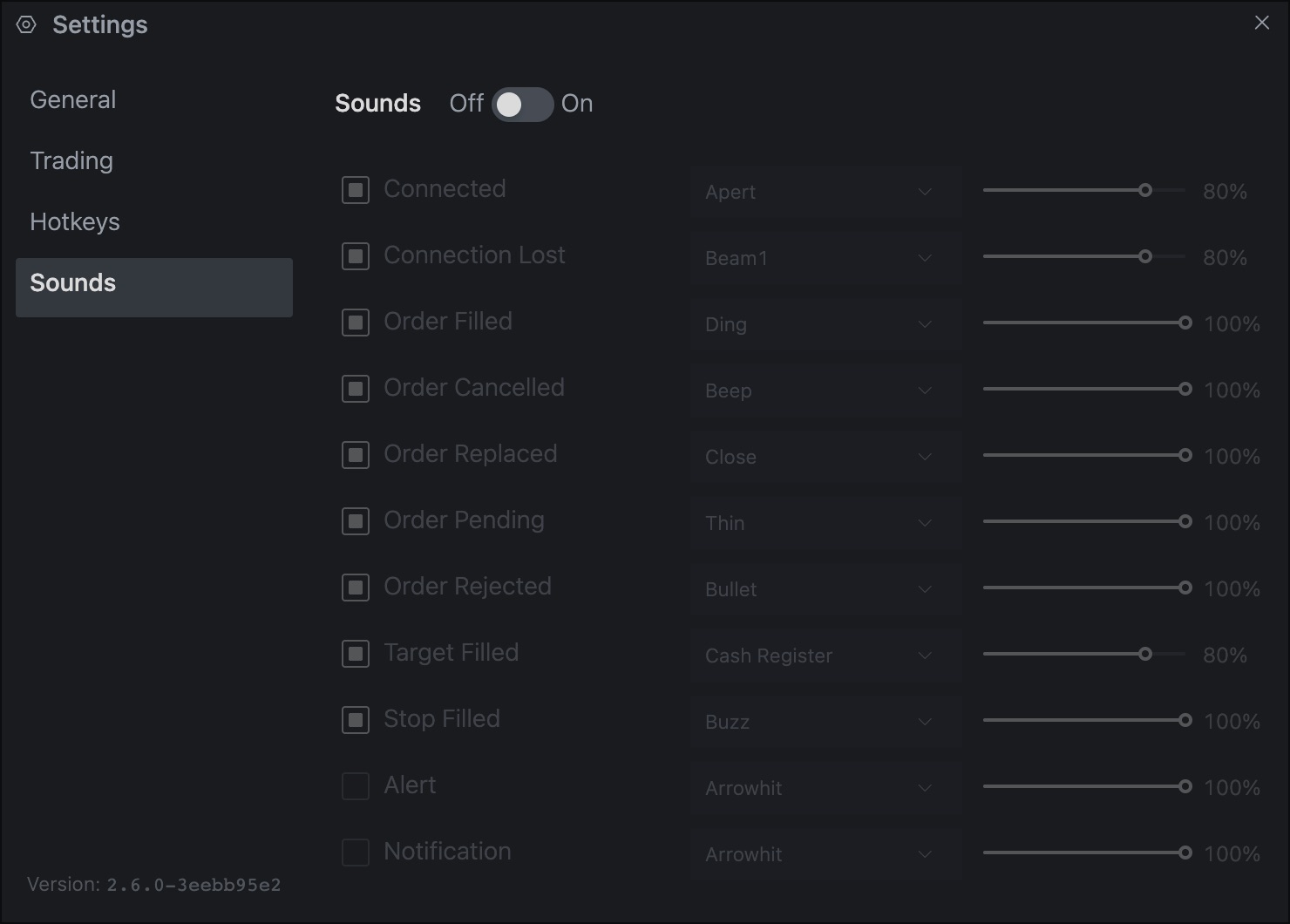
Open the Sounds tab
- In the top bar, click the gear icon (Settings).
- Click Sounds.
Turn all sounds on or off
At the top of the tab is a switch between Off and On. When it's off, no sound plays and the list below is greyed out. Your choices for each event stay saved.
Change an event
- Tick the box next to the event name to play a sound for it. Clear the box to silence just that event.
- Click the sound name to open the list. Click the speaker icon next to a sound to preview it, then click the sound to choose it.
- Drag the slider to set the volume from 0 to 100%.
- Press Enter or close the Settings window to keep the changes.
Events
Every event starts on, at 100% volume.
| Event | Plays when | Default sound |
|---|---|---|
| Connected | A connection comes up. | Connected |
| Connection Lost | A connection drops. | Connection Lost |
| Order Filled | An order is filled. | Fired |
| Order Cancelled | An order is cancelled. | Pairing |
| Order Replaced | An order is modified, like when you move it to a new price. | Replace |
| Order Pending | An order is accepted and waiting. | Pending |
| Order Rejected | An order is rejected. | Stop |
| Target Filled | Named for a filled target order. | Cash Register |
| Stop Filled | A stop order is filled. | Close |
| Alert | A price alert or an economic event alert fires. | Clear Chime |
| Notification | Another notification arrives with a sound. | Soft Bell |
There are more than 30 sounds, including Clear Chime, Soft Bell, Signal, Alarm, Hand Bell, Ding and Cash Register. Use the speaker icon to hear each one before you pick.
Tip. Give the events you care about, like Order Rejected and Connection Lost, sounds that are clearly different from fills. Then you can tell them apart without looking.
Related articles
Was this article helpful?