Positions
Positions shows what you're holding right now on every connected account, and what it's worth. Keep it open next to your chart so you always know where you stand.
Open the Positions window
- In the top bar, click + and choose Positions.
- Place a trade on any connected account. The position shows up as a new row.
The tab title counts your open positions, like Positions 2. With nothing open, the list says No open positions.
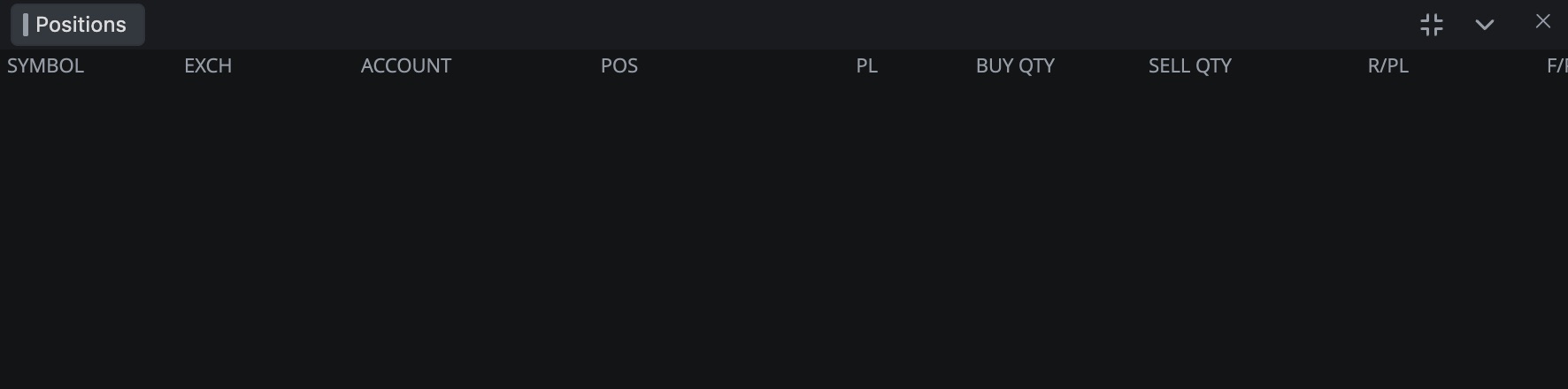
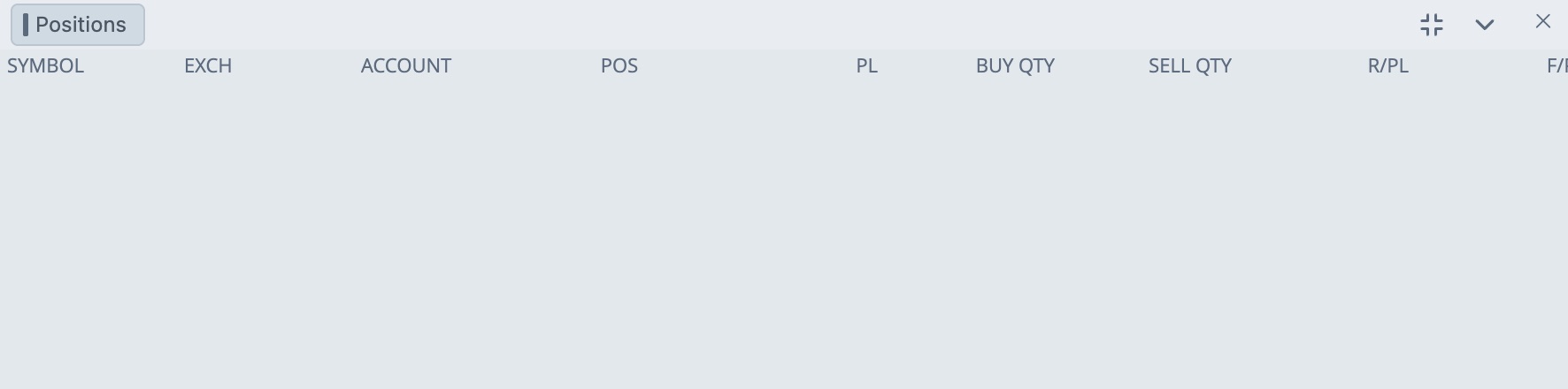
Columns
| Column | What it shows |
|---|---|
| SYMBOL, EXCH | The instrument and its exchange. |
| ACCOUNT | The account holding the position. |
| POS | Your net position, buys minus sells. Positive is long, negative is short. The cell is colored for long or short. |
| PL | Total profit and loss for the row, R/PL plus F/PL. |
| BUY QTY, SELL QTY | Contracts bought and sold. |
| R/PL | Realized profit and loss, from the part you already closed. |
| F/PL | Floating profit and loss on the open part, marked to the latest price. |
| PRICE | Your average entry price. |
R/PL only moves when you close contracts. F/PL moves with every tick.
Summary row
The summary row adds up PL, R/PL and F/PL for the whole window. Right-click the grid and choose Show Summary to turn it on or off. To move it, open Settings… and set Summary location to Top of Window or Bottom of Window.
Right-click menu
Right-click the grid or the title bar.
| Menu item | What it does |
|---|---|
| Show Summary | Shows or hides the summary row. |
| Column Headers | Shows or hides the header row. |
| Best Fit Columns | Sizes each column to its content. |
| Save, Save as ... | Saves the layout as a named preset. |
| Save as default | Makes this layout the start layout for new Positions windows. |
| Reset settings | Goes back to your saved default. |
| Table View | Check or uncheck columns to show or hide them. |
| Settings… | Opens the Positions settings. |
Settings
| Setting | What it does |
|---|---|
| Neutral Text, Positive Text, Negative Text | Colors for flat, winning and losing values. |
| Long Background, Short Background | Cell colors for long and short in POS. |
| Long Text, Short Text | Text colors for long and short. |
| Summary location | Top of Window or Bottom of Window. |
Tip. You can't close a position from this window. Use LIQUIDATE in the DOM or the chart trade panel. More in Cancel and Liquidate.
Related articles
Was this article helpful?