Orders
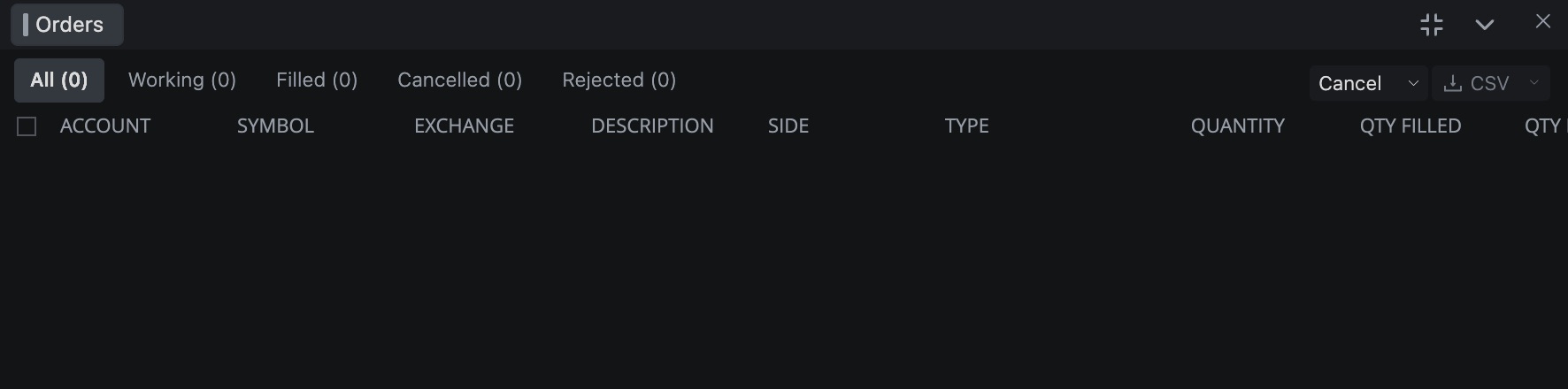
Orders lists every order on your connected accounts, split into tabs by state. Use it to check what's still working, see what got rejected, cancel in bulk or export everything to CSV.
Open the Orders window
- In the top bar, click + and choose Orders.
Tabs
Each tab title has a count, like Working (2).
| Tab | Shows |
|---|---|
| All | Every order. |
| Working | Orders that are still active. |
| Filled | Orders that filled completely. |
| Cancelled | Orders that were cancelled. |
| Rejected | Orders that were rejected. |
Columns
| Column | What it shows |
|---|---|
| Checkbox | Tick an order to select it. The header checkbox ticks every row. |
| ACCOUNT | The account the order is on. |
| SYMBOL, EXCHANGE, DESCRIPTION | The instrument. |
| SIDE, TYPE | Buy or sell, and the order type. |
| QUANTITY, QTY FILLED, QTY REMAIN | Size, what's filled, what's left. |
| PRICE, TRIG PRICE | Limit price, and the trigger price for stops. |
| TIF | Time in force, like DAY or GTC. |
| TIME | The time of the order. The list is sorted by this, newest first. |
| AVG FILL | Average fill price. |
| STATUS | Where the order stands. |
| ORDER ID | The order number. |
Right-click the grid or the title bar and use Table View to hide columns you don't need. Click a column header to sort. For order types, see Order types and time in force.
Cancel orders
The Cancel button in the header opens a menu. It works on the orders in the tab you're on, so switch to Working first if you only want to cancel live orders.
| Menu item | Cancels |
|---|---|
| All | Every order in the tab. |
| Selected | The orders you ticked. |
| Buy Orders | The buy side. |
| Sell Orders | The sell side. |
| Limits | Limit orders. |
| Stop Markets | Stop market orders. |
If the trading lock is on, you get an Unlock trading? prompt first. A Risk Manager lockout never stops a cancel.
Export to CSV
The CSV button saves the orders of the current tab to a file. Hover it to see which tab it will export.
- Open the tab you want, like Filled.
- Click CSV for today's orders.
- For another range, click the arrow next to it and pick Today, Yesterday or This Week.
Yesterday and This Week only work when every account in the window is on a Rithmic connection. The button is greyed out while orders load, or when there's nothing to export.
Settings
Right-click the grid and choose Settings….
| Setting | What it does | Default |
|---|---|---|
| Neutral Text, Buy Text, Sell Text | Text colors for the rows. | Theme colors |
| Timestamp | Shows TIME in Seconds or Milliseconds. | Milliseconds |
Beta. Order Ticket is in beta. If you have it, the header also gets a + button that opens a ticket, plus Tick up and Tick down arrows that move the selected working orders one tick. See Order Ticket.
Related articles
Was this article helpful?