Hotkeys
The Hotkeys tab lists the app-wide shortcuts. Only Save All Settings has a key by default. You set the rest yourself.
Shortcuts for a single window, like placing orders from the DOM or picking a drawing tool, are set in that window. See DOM hotkeys and Drawing shortcuts.
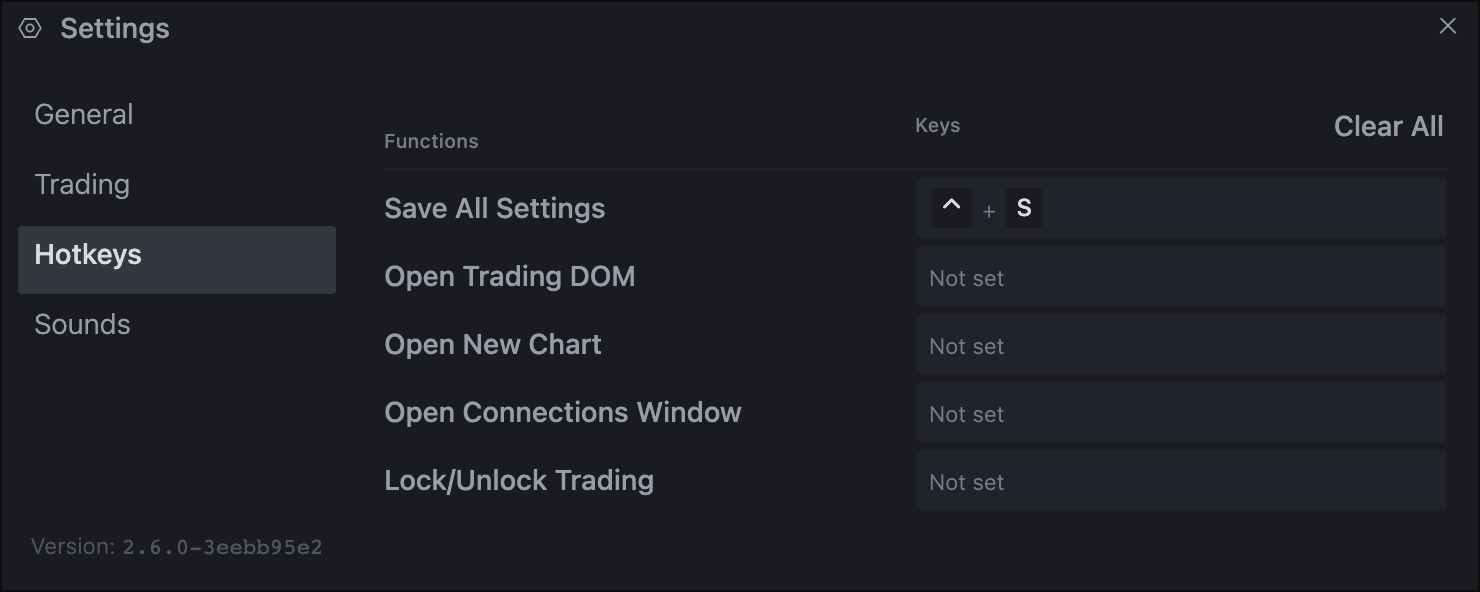
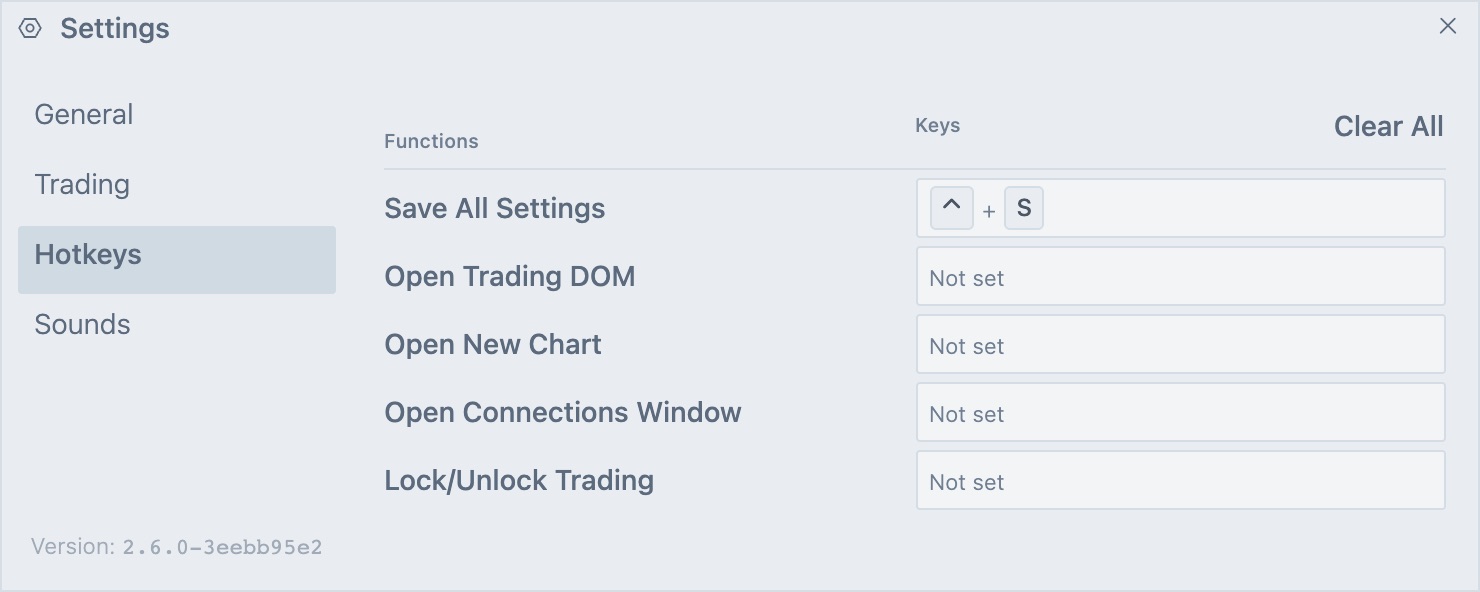
Open the Hotkeys tab
- In the top bar, click the gear icon (Settings).
- Click Hotkeys.
The hotkeys
| Function | What it does | Default |
|---|---|---|
| Save All Settings | Saves your layout and open windows now. | Ctrl+S |
| Open Trading DOM | Adds a DOM, same as choosing DOM in the + menu. | Not set |
| Open New Chart | Adds a chart, same as choosing Chart in the + menu. | Not set |
| Open Connections Window | Opens the Connections window. | Not set |
| Lock/Unlock Trading | Turns the global trading lock on or off. See Trading lock. | Not set |
| Open Order Ticket | Opens an Order Ticket. This row only shows if you have Order Ticket (beta). | Not set |
Record a hotkey
- Click the field in the Keys column. It says Press keys....
- Press the key combination you want, like Ctrl+Shift+D.
- Press Enter to keep it, or Esc to cancel.
- To clear the keys, press Backspace while recording.
You can also tab to a field and press Space to start recording. Until you set a key, the field says Not set.
Enter and Esc are reserved for confirming and cancelling, so a hotkey can't contain either one. Click Clear All in the table header to remove every key, including Ctrl+S.
Like the other settings, your changes apply when you press Enter or close the Settings window. Esc discards them.
When hotkeys work
- Hotkeys run while Tradrr is the active window.
- While your cursor is in a text box, hotkeys don't run. The exception is Ctrl+S, which still saves.
Tip. Give Lock/Unlock Trading a key you won't press by accident. It stops all order entry fast. See Trading lock.
Related articles
Was this article helpful?