Session Manager
A session is a named set of weekly trading hours in one time zone. In Session Manager you build your own, like a regular trading hours session that starts at 9:30 AM New York time.
Open Session Manager
- In the top bar, click +.
- Click Session Manager, below the line at the bottom of the menu.
A chart picks a session under Session Template in its Trading Hours settings. See Trading hours on the chart.
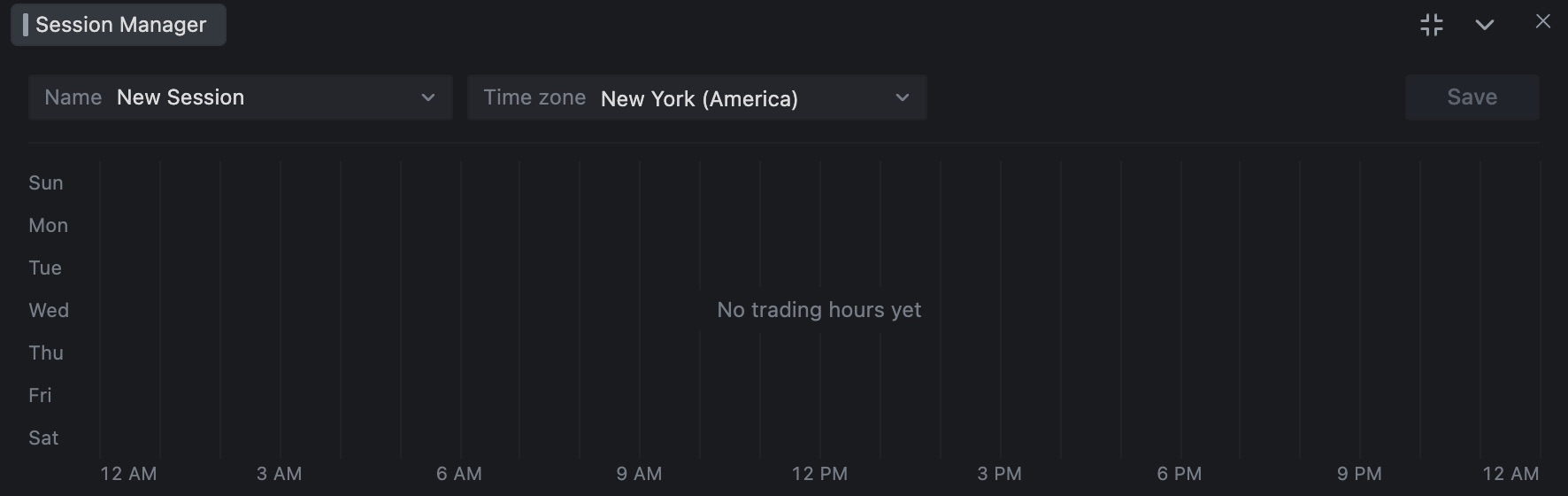
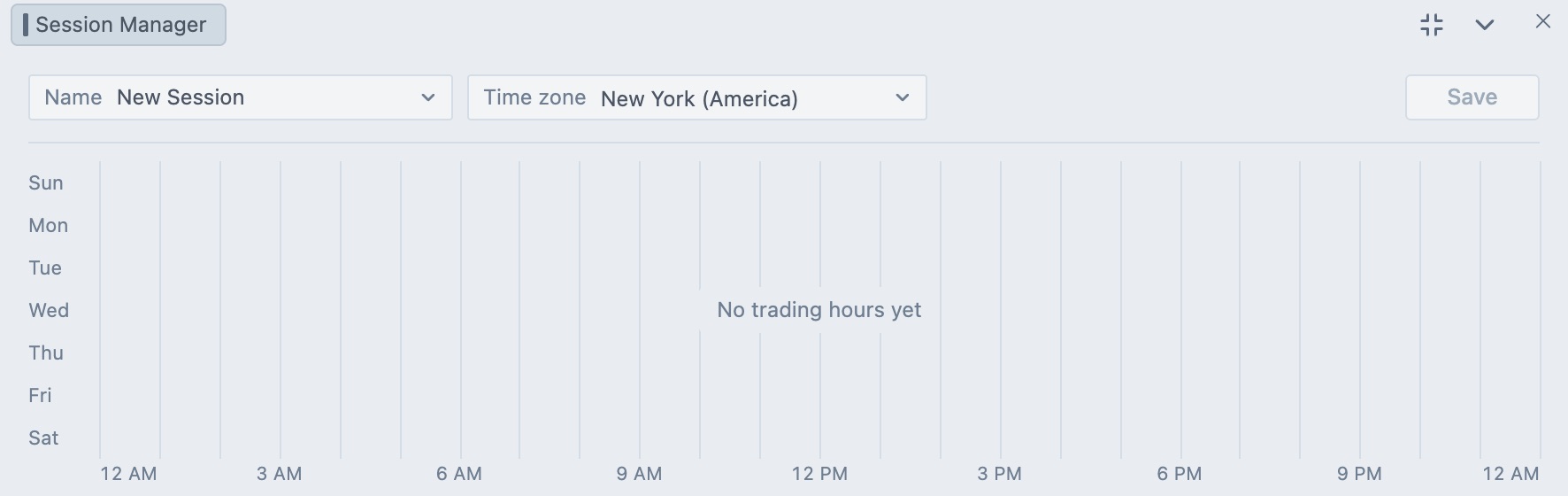
Create a session
- Click the Name button at the top left, then click Create new. A blank session named
New Sessionopens. - Open the Time zone menu and search for the zone the hours are in. A new session starts on New York (America). The list shows the current time in each zone.
- Add the hours. See below.
- Click Save, enter a name in the Session name field and confirm.
Add trading hours
Under the week map, each trading range is a row with a start day and time, an arrow, and an end day and time. The length of the range, like 6h 30m, shows at the end of the row.
- + Add trading hours adds a range. The first one is Monday, 9:30 AM to 4:00 PM. Each later one repeats the last range on the next day.
- + Fill Monday through Friday adds a range for every weekday that has none. It copies your last range, or uses 9:30 AM to 4:00 PM if you don't have one.
To edit a range, click its row or its bar in the week map. Pick the days from the lists. Type a time or use the arrows. All of these work in a time box: 6:00 PM, 6pm, 18:00, 930a and 1730. The up and down arrow keys move the time by 15 minutes. Click the X at the end of a row to remove that range.
For a session that runs overnight, use different start and end days, like Sunday 6:00 PM to Monday 5:00 PM. The week map splits that range across both days.
Edit, rename, duplicate and delete
Click the Name button to list your sessions. Click one to open it. Point at a row to see its buttons.
| Button | What it does |
|---|---|
| Rename | Changes the name. It saves at once. |
| Duplicate | Makes a copy with (copy) added to the name. Good starting point for a small variation. |
| Delete | Removes the session after you confirm with Delete. |
The menu also has Save as new session.... It saves what you see under a new name.
Save your changes
The Save button turns on when you change hours or the time zone. It shows Saved when it's done. Charts that use the session keep the old hours until you save. If you leave with unsaved changes, Tradrr asks Save changes to the session name. Choose Save, Discard or Cancel.
Careful. You can't change built-in sessions. If a save fails, Tradrr tells you and offers Save as new session.... Save your hours under a new name.
Related articles
Was this article helpful?