Appearance: dark and light
Tradrr has two appearances, Dark and Light. Dark is the default. You switch in the Account panel, not in Settings.
Switch the appearance
- In the top bar, click the account icon at the right end.
- In the Account panel, find Appearance and click Dark or Light.
- In the dialog that asks Switch to light appearance? (or dark), choose how far the change goes.
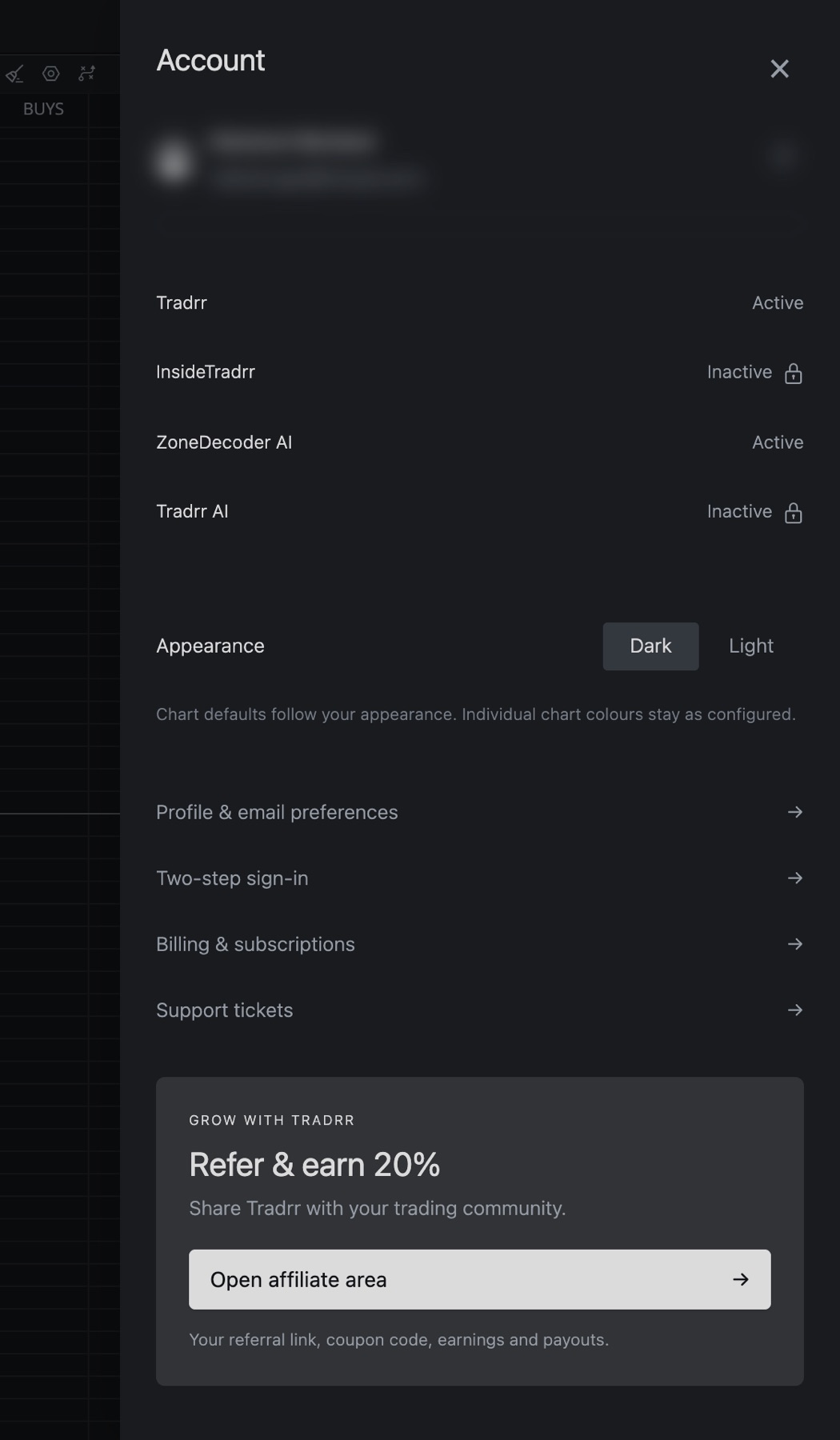
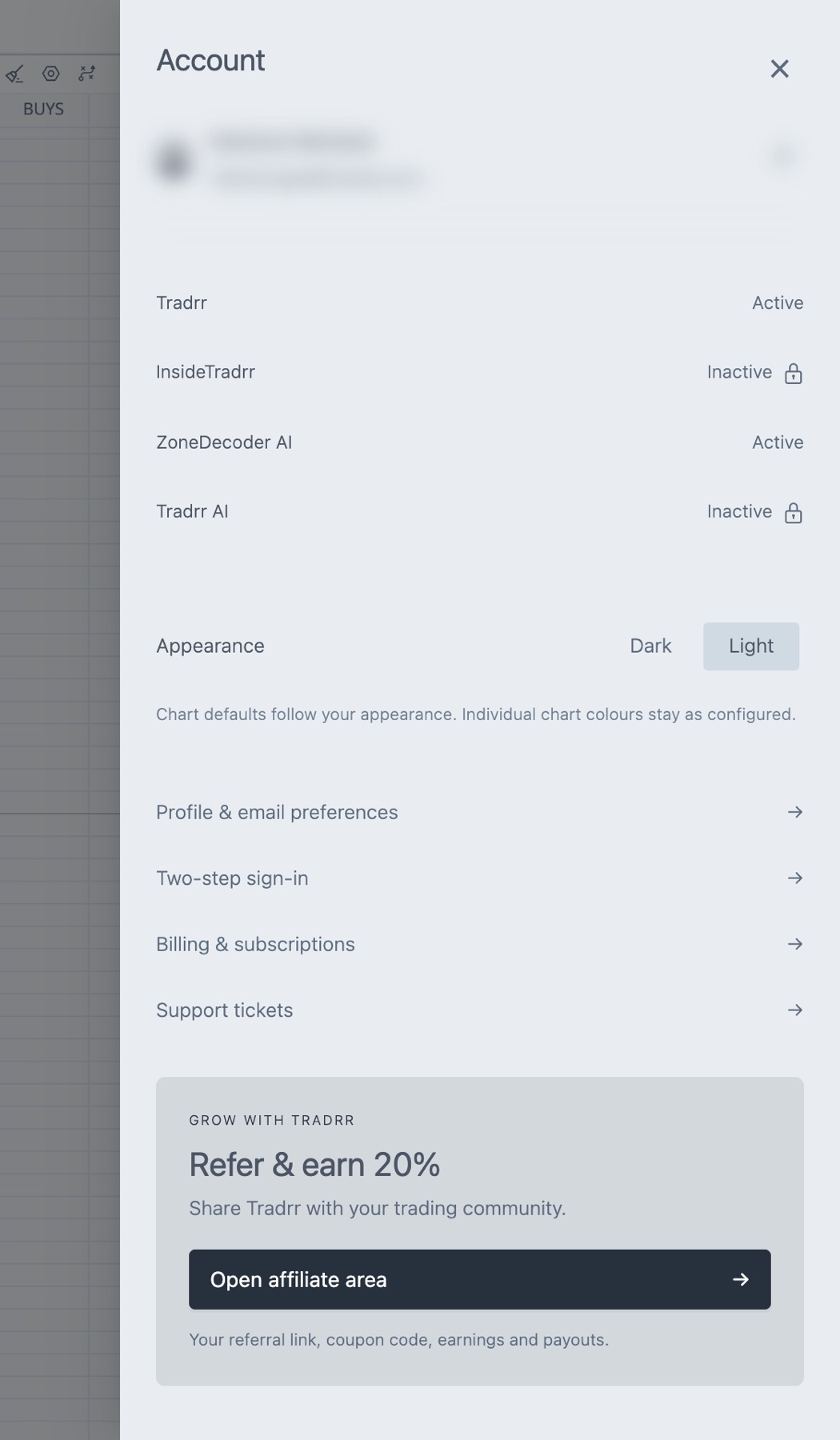
- •Appearance
Choose Dark or Light.
Choose how far the change goes
Tradrr asks you to Choose whether to also update charts still using their default palette. Custom chart colors stay the same either way.
| Button | What it does |
|---|---|
| Switch app and chart defaults | Changes the app, and moves charts that still use their default colors to the new appearance. |
| Switch app only | Changes the app. Charts keep their current default palette. |
| Cancel | Leaves everything as it is. |
After you choose, the Account panel closes. Below the buttons, the panel says chart defaults follow your appearance and individual chart colors stay as configured.
Tip. If you picked Switch app only and want the charts to match later, switch to the other appearance, then switch back and choose Switch app and chart defaults.
Also in the Account panel
- Above Appearance, a list shows which of your products are Active or Inactive. Click a product to open its page. A lock marks an inactive one.
- Profile & email preferences, Two-step sign-in, Billing & subscriptions and Support tickets. See Manage your subscription and Support tickets and live sessions.
- Refer & earn 20% has an Open affiliate area button. See Refer and earn.
- In a browser, Get desktop app lists downloads for the desktop app.
- Log out signs you out.
Related articles
Was this article helpful?