Trading settings
The Trading tab sets how orders look and how much Tradrr asks before it sends or cancels one. It applies to your DOMs, charts and LiquidityMaps.
Open the Trading tab
- In the top bar, click the gear icon (Settings).
- Click Trading.
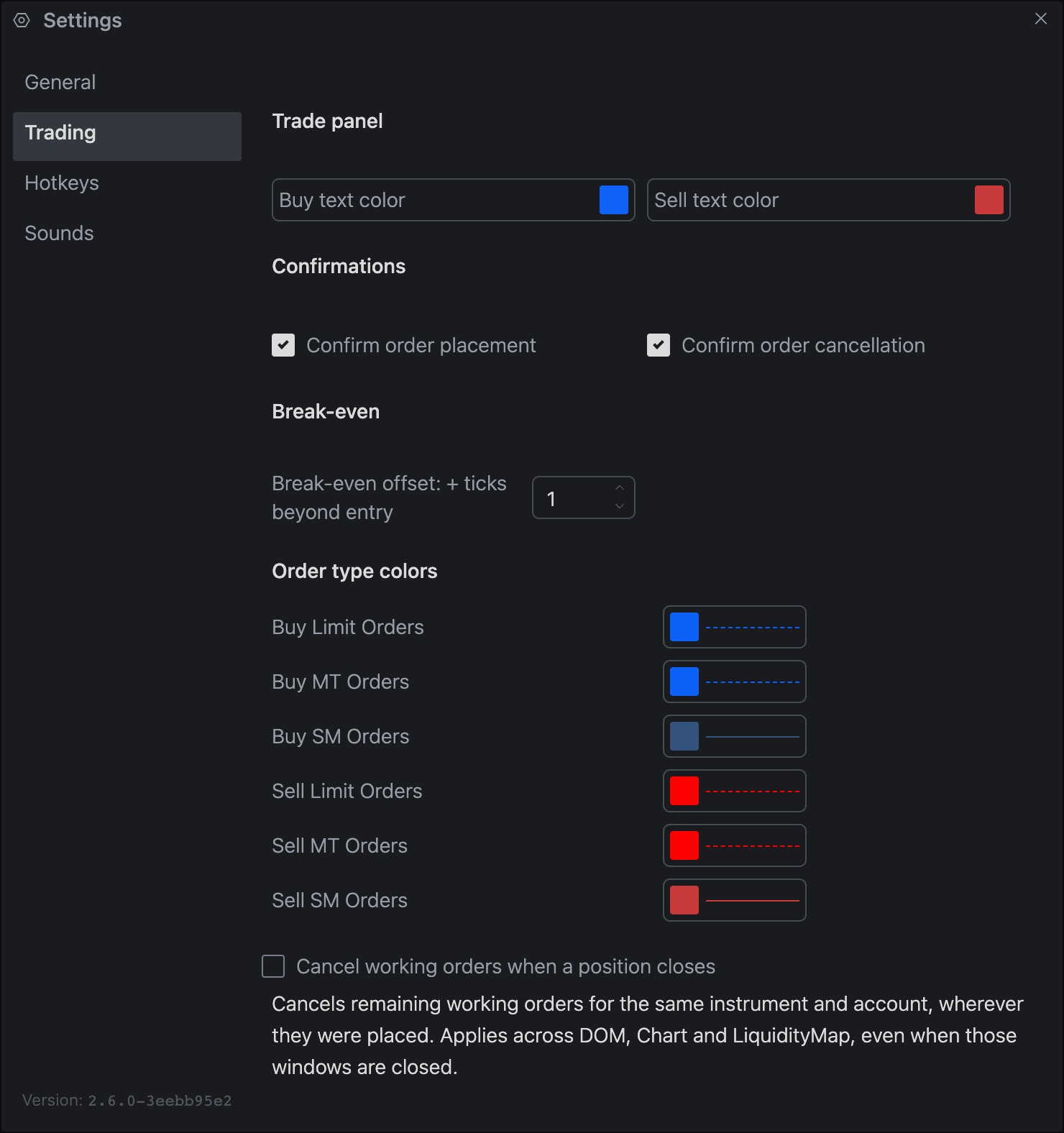
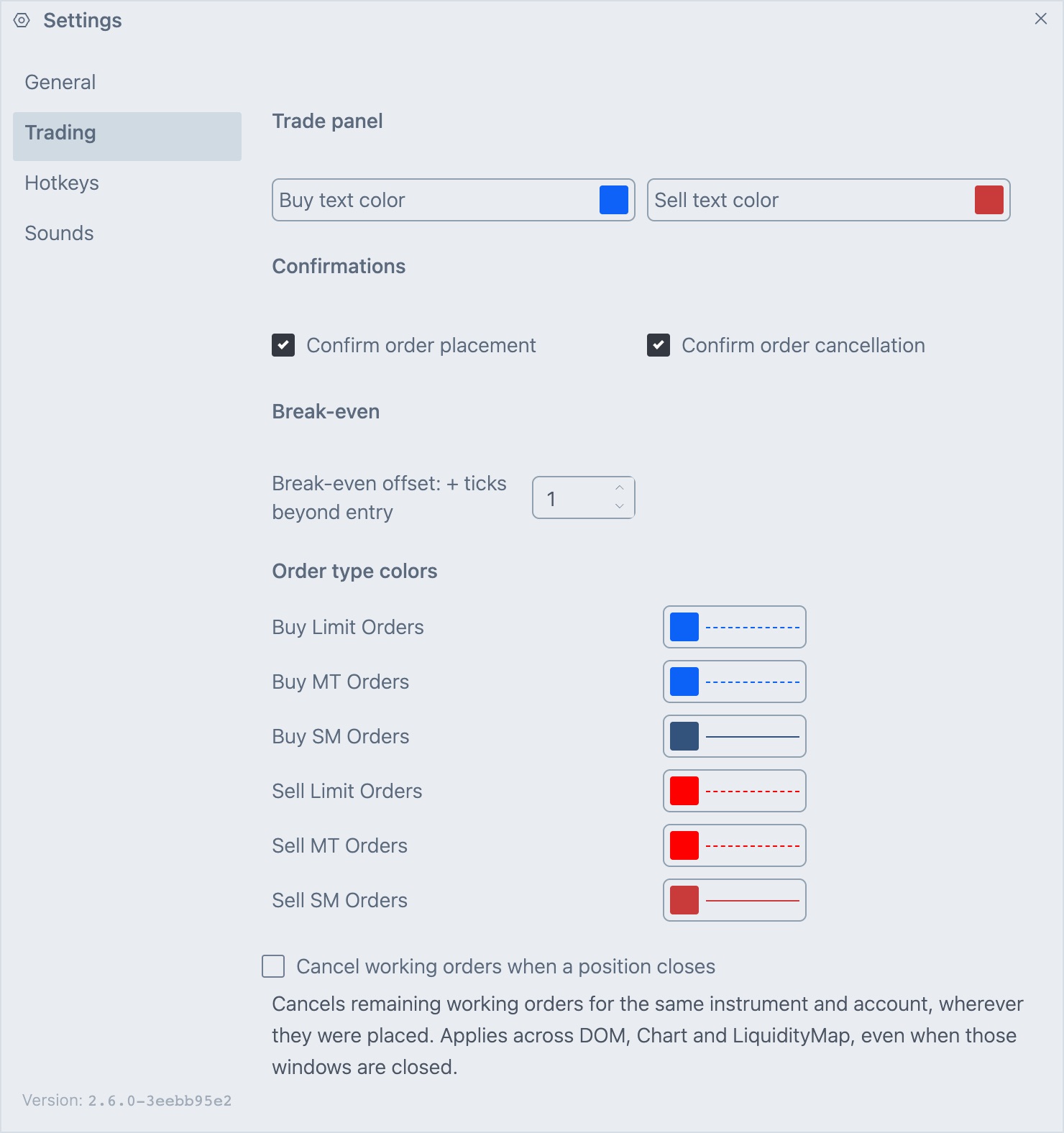
Changes apply when you press Enter or close the window. Press Esc to discard them.
Trade panel
| Setting | What it does |
|---|---|
| Buy text color | The text color for buy in the trade panel. |
| Sell text color | The text color for sell in the trade panel. |
Confirmations
| Setting | What it does | Default |
|---|---|---|
| Confirm order placement | Asks you to confirm before Tradrr sends an order from the DOM, chart or LiquidityMap. | On |
| Confirm order cancellation | Asks you to confirm before Tradrr cancels an order from those windows. | On |
Careful. With confirmations off, one click sends or cancels the order right away. Practice on a Replay or SIM account first. See Try the demo and practice account.
Break-even
| Setting | What it does | Default |
|---|---|---|
| Break-even offset: + ticks beyond entry | How many ticks beyond your entry price the break-even stop goes. Accepts 0 to 20. | 1 |
See Break-even for how the BE button uses this value.
Order type colors
This is how each type of working order is drawn. Each side and order type has its own row.
| Row | Order type |
|---|---|
| Buy Limit Orders, Sell Limit Orders | Limit orders |
| Buy MT Orders, Sell MT Orders | Market orders |
| Buy SM Orders, Sell SM Orders | Stop orders |
Each row is one control, a color swatch with a preview of the line next to it. Click it to set three things.
- The line color.
- A line style: Solid, Dashed or Dotted.
- A line thickness from 1 to 10.
By default, buy orders are blue and sell orders are red. Limit and MT lines are dashed, SM lines are solid, and all are thickness 1.
Cancel working orders when a position closes
When you turn on Cancel working orders when a position closes, Tradrr cancels the remaining working orders for the same instrument and account as soon as the position is flat. It cancels them wherever you placed them, in the DOM, a chart or LiquidityMap, even if those windows are closed. It's off by default.
Related articles
Was this article helpful?