Try the demo and practice account
The demo lets you look around Tradrr and place practice trades before you sign up. It runs a sample ES session with a practice account called Replay 01. Nothing you do in it reaches a market.
Open the demo
- Go to
app.tradrr.com/demoin your browser. - The demo opens with a chart. A quick start guide called Your first session sits on the side.
Your practice trades only last for this session.
Explore and Trade views
Two buttons in the top bar switch between two layouts of the same session. Both follow ES and share one replay. These views only exist in the demo.
| View | What it shows |
|---|---|
| Explore | The three-minute chart and LiquidityMap. Brighter bands mean more resting liquidity. Bubbles are trades. |
| Trade | The chart and an Advanced DOM, with a $50,000 practice account. |
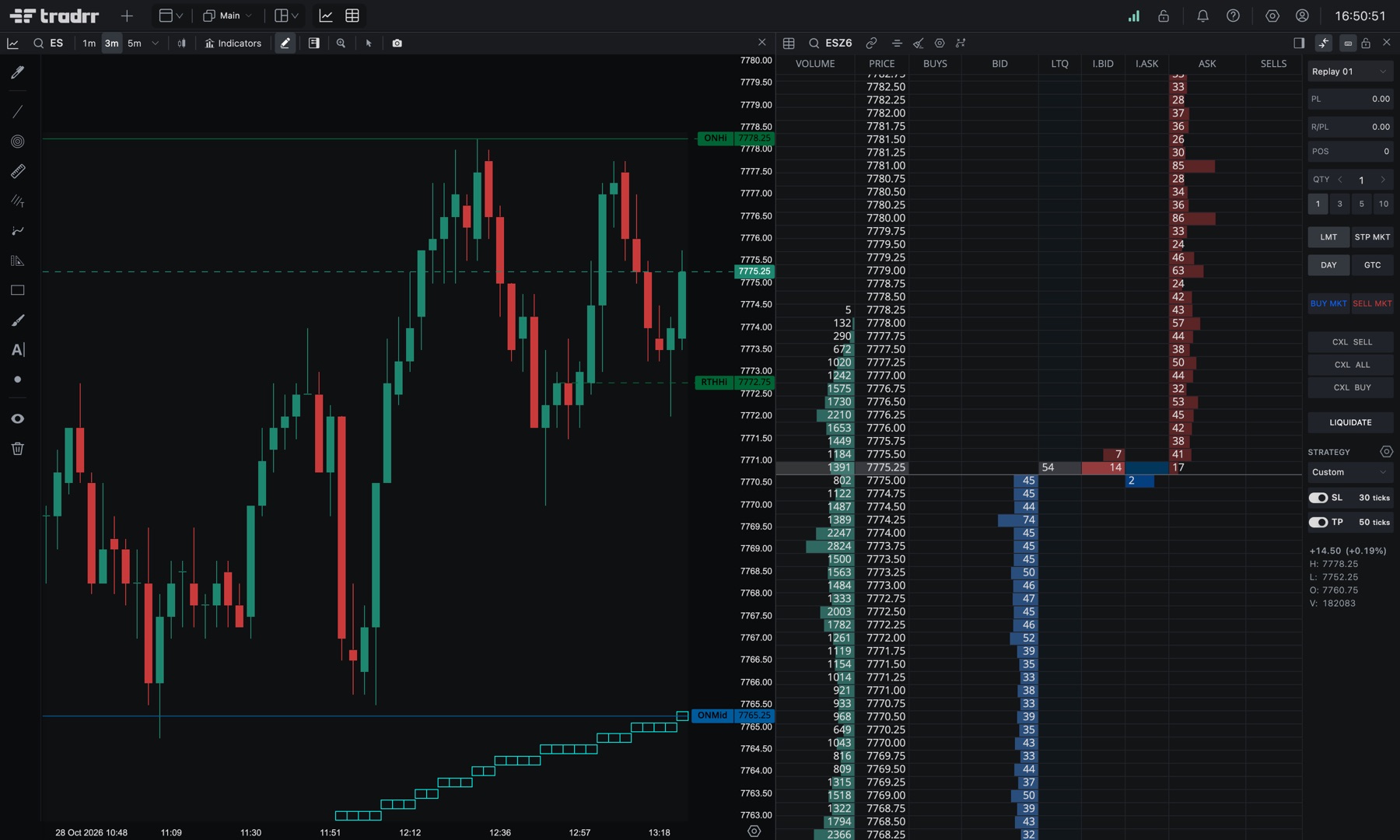
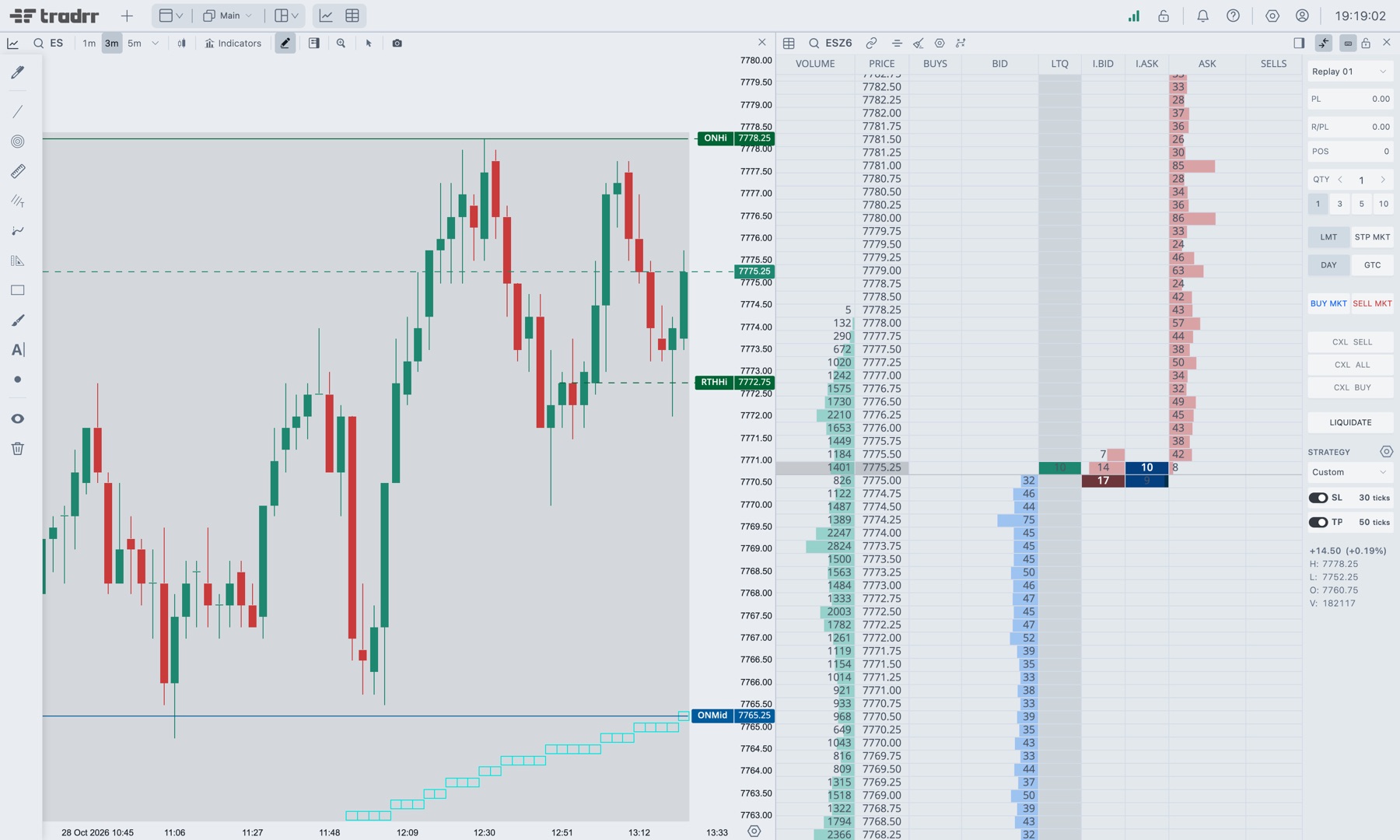
The DOM header in the demo has a Simple and an Advanced switch that changes which columns you see. The switch is demo only. See DOM window overview.
Control the replay
The pill in the top bar shows DEMO and the replay clock. Click it to open the replay controls.
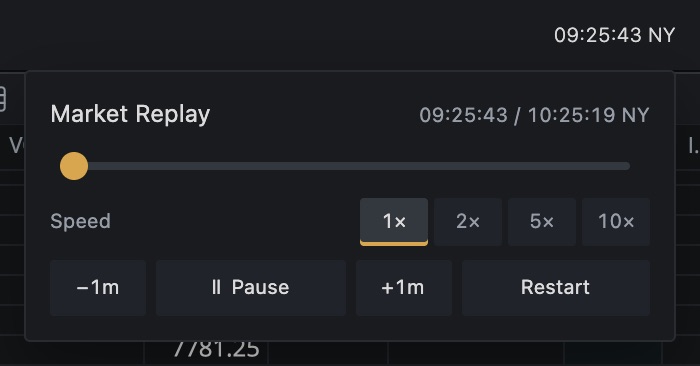
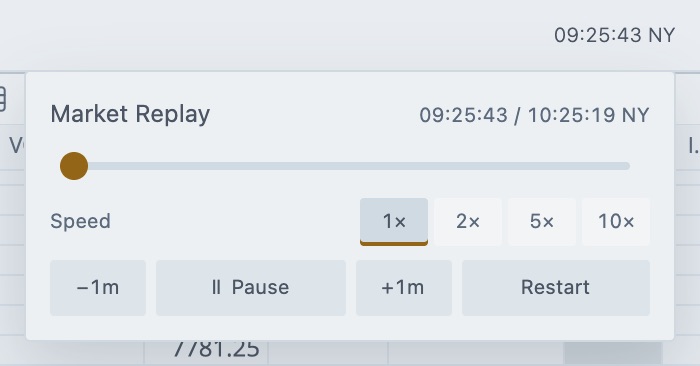
- •Timeline
Drag to move through the session. - •Speed
Run the session faster or slower. - •Restart
Start the session over.
When the replay reaches the end, a banner says You've reached the end of this replay. Click Review trades to go through your practice trades. Or click Start again, then Restart demo session, to begin from the opening bell. Restarting clears this session's practice orders, positions and results.
To try floating windows instead of the docked layout, use the Layout button in the top bar.
Place a practice trade
- Switch to the Trade view.
- Make sure the replay is running. Practice orders only fill while it runs.
- Click BUY MKT or SELL MKT in the ladder.
- Your stop and target show up next to your position.
- Click LIQUIDATE to close the position.
After your first closed trade, a card called Your first closed trade offers Review this trade. It opens Trade Review with the entry, exit and bracket orders side by side. You can also open Trade Review from the quick start guide.
Tips and the quick start guide
Click Tips in the top bar to bring the guide back. It has three steps: 01 Explore, 02 Practice and 03 Review. The footer tells you whether the data is illustrative sample data or a recorded market session, and that no live orders are placed.
What the demo leaves out
Some features open an Unlock Tradrr dialog instead of the feature. That covers connecting your broker or prop-firm account, recording your own replay sessions, creating or importing workspaces, extra windows, Accounts, and tools like Risk Manager and Trade Copier. The dialog links to the plans at tradrr.com/#pricing in a new tab, and your demo stays where it is.
The demo also has a light and dark switch in its account menu. It only applies to this demo session.
Practice after you sign up
With your own account you have two ways to practice without risk.
- Market Replay plays back recorded sessions. You pick the recording and the starting point, so you can run the same session again and check your decisions. See Market Replay overview.
- Server SIM gives you a simulated account. See Server SIM practice accounts.
Related articles
Was this article helpful?