Pick a starter workspace
A starter workspace is a ready-made layout of windows. The first time you open Tradrr, it asks how you like to trade and builds the matching layout for the markets you pick.
The first-run picker
A new account gets a picker called How do you like to trade? It reads Pick a starting layout. You can change it anytime.
- Click the layout you want. Chart + DOM is selected by default. Double-click to pick it and move on.
- Click Continue.
- On Which markets do you trade?, click one or two markets. ES is selected by default.
- Click Open workspace.
Click Skip for now on the first screen to close the picker without opening a starter. Click Back on the market screen to change the layout.
The four layouts
| Layout | Level tag | What you get |
|---|---|---|
| Start simple | Beginner | One chart with a trade panel to learn the basics. Positions and Orders sit below the chart. You pick one market. |
| Chart + DOM | Intermediate | Two charts and a price ladder for click trading. The DOM is the basic ladder. |
| Prop firm | Evaluation | The Chart + DOM layout with your Risk Manager limits in view in the bottom area. See Risk Manager overview. |
| Order flow | Advanced | Footprint, heatmap, profiles and DOM for reading order flow. It scales to your screen size. |
Start simple, Chart + DOM and Prop firm are docked, so the windows fit together with no gaps. See Docked and floating layouts.
Choose your markets
| Chip | Market |
|---|---|
ES | S&P 500 |
NQ | Nasdaq-100 |
CL | Crude oil |
GC | Gold |
| Other | Opens the symbol search, so you can pick any other instrument. |
- With Start simple you pick one market for the chart.
- With the other layouts you pick up to two. Your first pick opens on the DOM and the main chart. The second opens on the companion chart.
- The number on a selected chip is the order you picked it in.
- If the layout is full, a new pick replaces the last one. Click a selected chip to remove it. At least one market always stays selected.
What happens next
Tradrr opens the workspace. If nothing is connected yet, it also opens Connections so you can add a data connection. Then it offers the quick tour. See Take the quick tour.
Add a starter workspace later
- In the top bar, click the Workspaces button.
- Choose Start fresh workspace....
- In Add a starter workspace, pick a layout and click Continue.
- Pick your markets and click Add workspace.
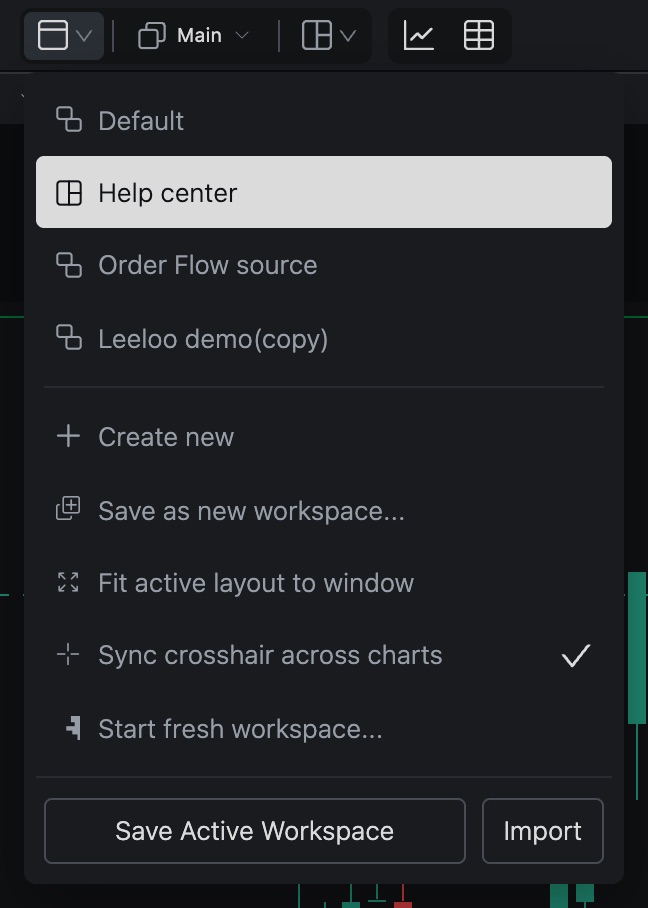
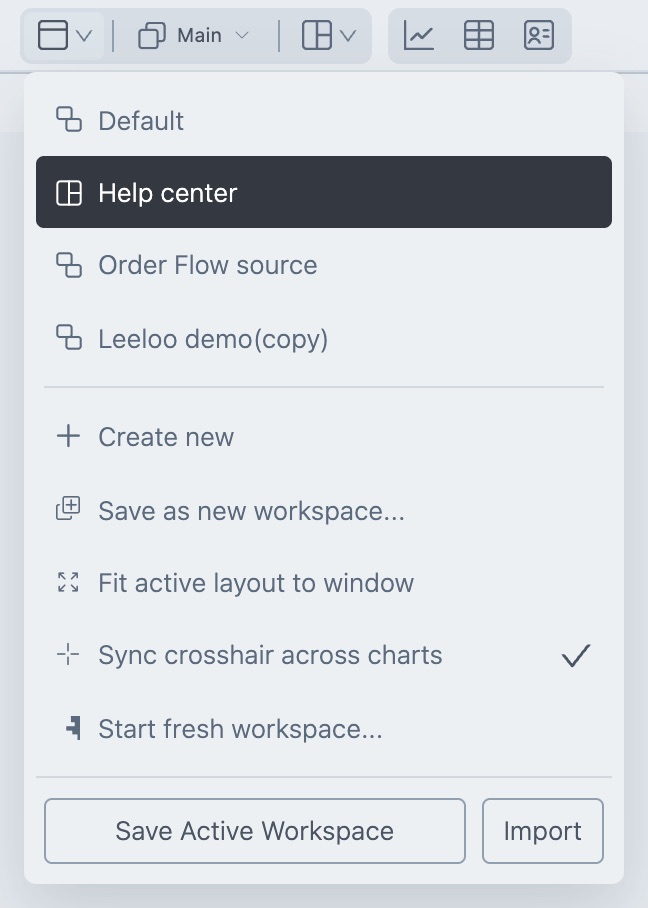
The new workspace goes into your list and a message says Starter workspace created.
Tip. Not sure which layout to pick? Go with Chart + DOM. You can add another starter any time.
Related articles
Was this article helpful?